Legal promos need more care than a fast sales clip. A vague promise can create a review problem, while a weak hook gets skipped. An AI video creator for legal service promos can help you move from a short brief to a polished vertical video, but you still need human review. Follow these five steps to plan, generate, edit, approve, and publish the clip.
We reviewed five currently ranking pages covering AI video ads for law firms. Each page was checked for four items: accessibility captions, outcome disclaimers, separation of spoken versus on-screen claims, and vertical 9:16 format guidance. None of the five pages addressed keeping spoken lines and captions at the same claim level, and none covered vertical format handling. That left the caption-versus-claim check and vertical formatting step largely uncovered elsewhere, exactly where a legal promo needs the closest scrutiny.
Step 1: Choose One Legal Service and One Clear Goal
The best AI video creator for legal service promos starts with a narrow brief. Pick one service, one audience, and one action you want the viewer to take.
Don't try to promote every practice area in one 20-second clip. A person worried about a DWI charge needs a different message from someone handling a divorce or a business contract. The scene, voice, pace, and call to action should all point to the same concern.
Pick the service first
Write the service in plain words. Good examples include “criminal defense consultation,” “DWI defense,” or “help with a workplace injury claim.” Keep the service specific enough that a viewer knows what the firm handles.
Next, name the audience. You might target people who are searching after an arrest, local business owners who need counsel, or parents dealing with a custody dispute. Avoid broad phrases such as “legal help for everyone.” They give the video no clear point.
A criminal defense practice such as a legal service provider can use this method when planning a promo for its criminal defense and DWI defense services. The example works because the service line gives the script a clear center.
Now choose one goal. The goal could be a consultation request, a visit to a practice-area page, or a saved video. Pick the action before you write the script. Otherwise, the ending often turns into a list of competing instructions. For a step-by-step process for planning and publishing a video ad, see how to create video ads.
Match the goal to the viewer's next step
- Consultation request: Explain the first step and direct viewers to the firm's approved contact path.
- Practice-area visit: Name the issue and point people to a page with more detail.
- Local awareness: State the service area without implying that every case has the same result.
- Retargeting: Answer one common question for people who already know the firm.
Keep the claim modest. Say that the firm handles a type of matter or can discuss a person's situation. Don't promise an outcome. Don't suggest that a result is typical unless the firm has approved support for that claim.
Advertising claims should be truthful and not misleading. That rule is a useful baseline, but it doesn't replace local bar rules or review by counsel.
Before opening Seedance Studio, fill in this short brief:
- Service: [DWI defense]
- Audience: [people seeking an initial consultation]
- Location: [approved service area]
- Main concern: [what happens after an arrest]
- Proof: [only approved facts]
- Action: [visit the consultation page]
By now, you should have a single sentence that explains the video. For example: “A short vertical promo explains that the firm handles DWI defense and invites viewers to learn about an initial consultation.” If the sentence contains three services, cut it down before moving on.
Step 2: Write a Short, Compliant Script and Visual Plan
An AI video creator for legal service promos needs a script that is short, clear, and easy to check. Write the words first, then tell the generator what should appear on screen.
For a 15-second clip, aim for a few short spoken lines. The exact word count depends on the voice speed, but crowded speech is hard to follow. Leave space for captions and the final action.
Use a four-part script
- Hook: Name the viewer's problem in the first line.
- Service: State what the firm handles.
- Careful value statement: Explain what a consultation can cover.
- Action: Tell the viewer where to learn more.
Here is a safe starting pattern:
“Facing a DWI charge? Our firm handles DWI defense. Learn what an initial consultation may cover. Visit our site to get started.”
The firm must approve every word. Replace the placeholders only with facts that the firm can support. If the jurisdiction requires a disclaimer, reserve enough screen time for it.
Separate spoken claims from visual claims
Legal video scripts often fail in the visual layer. A spoken line may sound careful, while a large caption says “Win your case” or “Charges dropped.” Review the voiceover, captions, title card, and final frame as one ad.
Use visuals that explain the service without pretending to show a client's case. A desk with case notes can suggest preparation. A person reviewing a document can suggest a consultation. Avoid fake courtroom scenes that imply a real outcome.
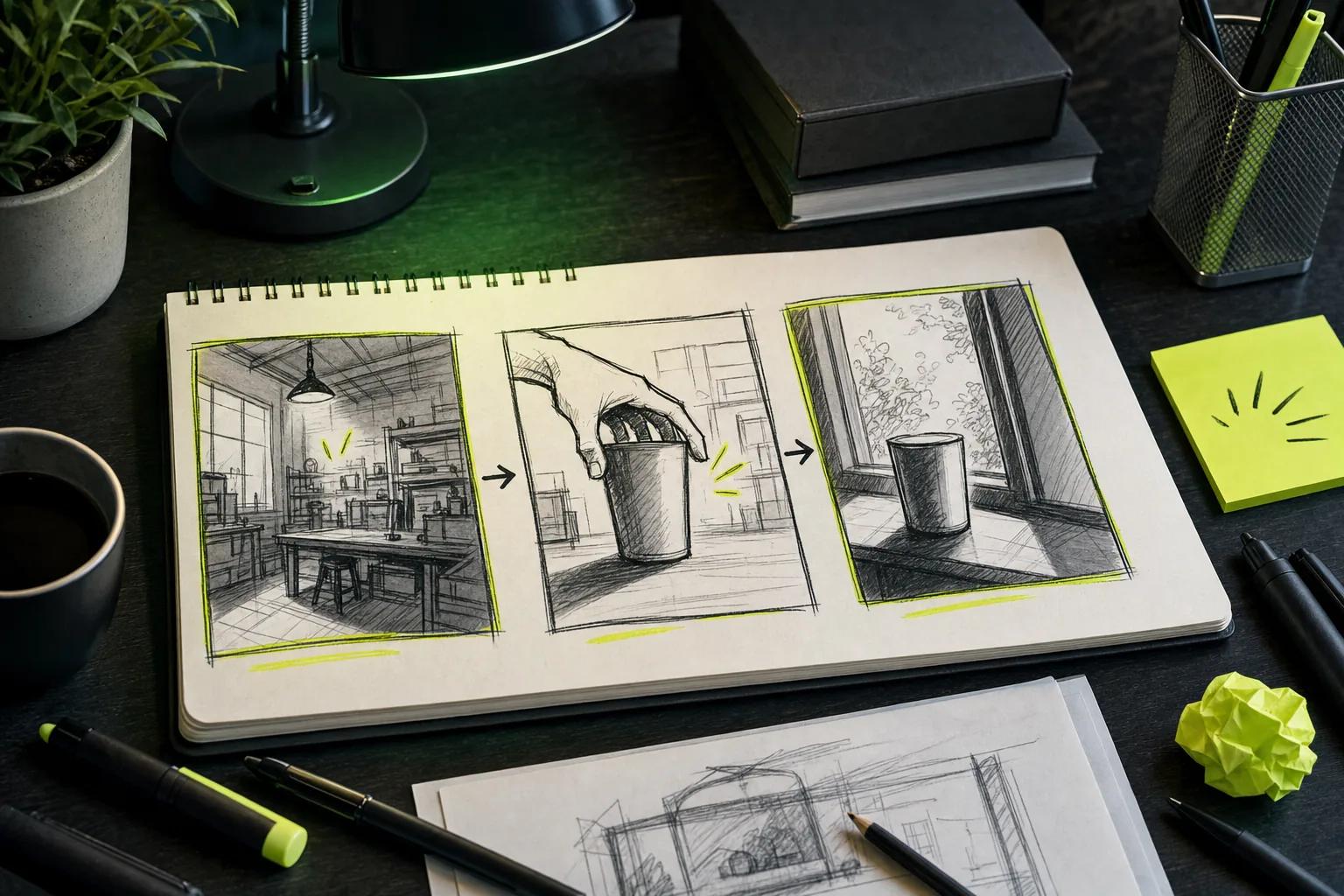
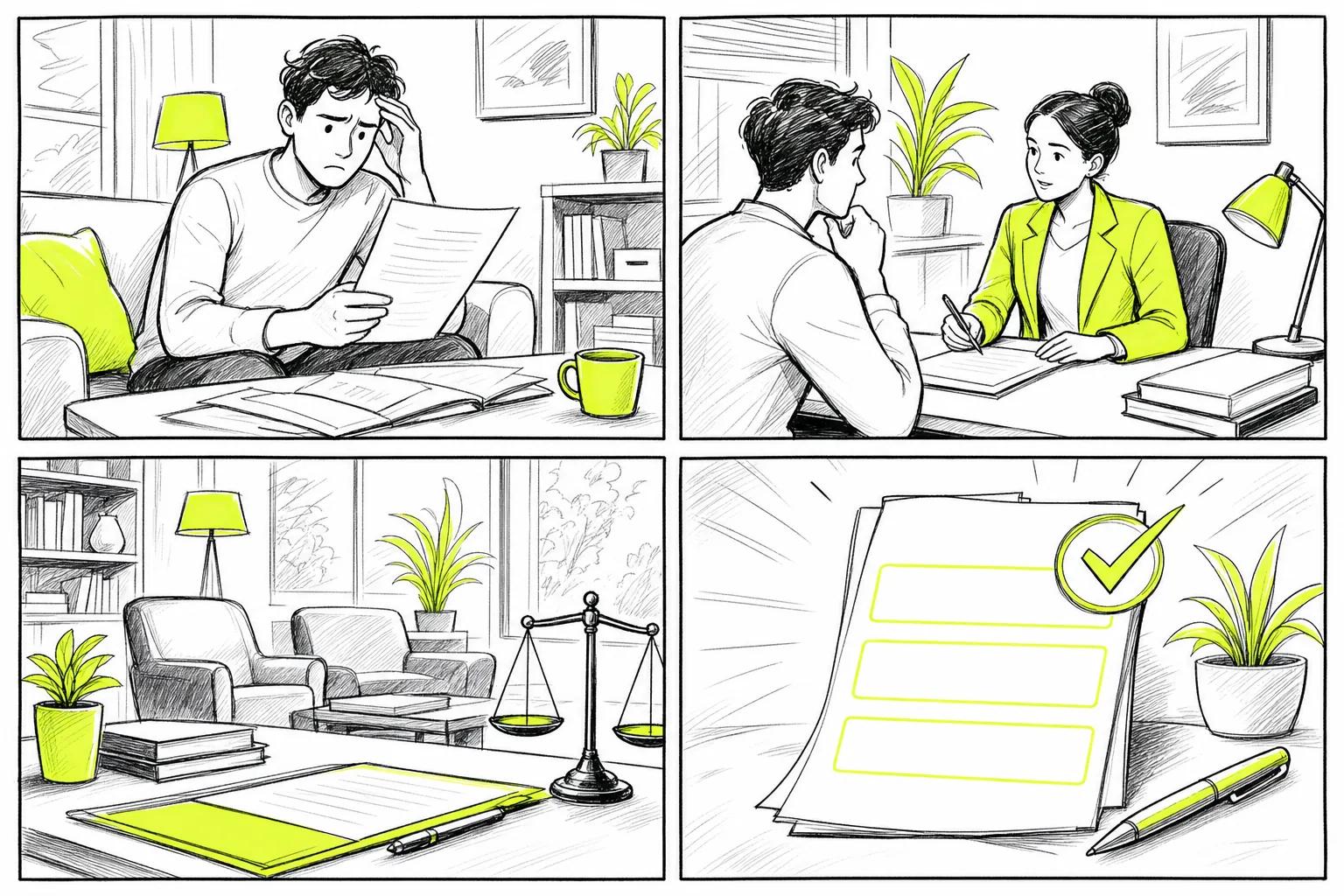
Write a shot plan beside the script:
- Shot 1: close view of a person reading an arrest notice, with no personal data visible.
- Shot 2: attorney and client speak in a private office, with no claim of a specific result.
- Shot 3: calm exterior view of a law office or neutral city street.
- Final frame: approved firm name, service area, disclaimer, and action text.
Use reference images only when the firm has permission to use them. A stock-style fictional person is safer than an unapproved client photo. If you upload a document for visual reference, remove names, addresses, case numbers, and other private data first.
Seedance Studio lets you type a prompt or add reference images, video clips, and audio. Its model can guide the camera, keep a character consistent, and add native sound. For a prompt-writing example, the How to Make an AI Movie Using Seedance Studio resource shows why a clear scene brief works better than a vague request.
Keep the prompt simple. Put the subject first. Then state the action, setting, camera move, mood, format, and spoken line. For example:
“Vertical 9:16 video. Adult viewer sits at a kitchen table and reads a blank legal notice. Slow push-in. Calm, serious tone. A narrator says, ‘Facing a DWI charge? Learn what an initial consultation may cover.’ Add clean captions. Do not show case details or promise an outcome.”
By the end of this step, you should have an approved draft script, a shot list, and a visual prompt. Keep them in one file so the reviewer can compare the generated result with the original plan.
Step 3: Generate the First Draft in Seedance Studio
Seedance Studio gives you a browser-based way to test an AI video generator for ads for legal service promos without a download or waitlist. Start with one shot or one short sequence, then judge the result before you add more detail.
Create an account and open the studio. The free tier lets you test the workflow, while paid plans start at $14 per month. For a wider look at AI promo video maker tools, check the current plan terms before publication, especially if the firm needs a clean export or commercial-use rights.
Set the format before you generate
Choose 9:16 when the promo is meant for TikTok, another short-video platform, or YouTube Shorts. The vertical frame fills a phone screen and leaves room for a face, caption, and short call to action.
Choose the duration based on the script. A short clip is easier to review. It also gives the viewer less time to lose the thread. Start with a single scene if the message is simple. Add a second scene only when it helps the viewer understand the service.
Then add references. You can upload a permitted image of an attorney, a neutral office image, a clip with a preferred movement, or an audio track. Tag each reference in the prompt so the model knows its role. For example, write “[Image1] is the attorney” or “[Image2] sets the office style.”
Reference consistency means the same person or visual detail stays closer across shots. It helps when a firm wants one attorney to appear in several clips. It doesn't mean the output is a perfect likeness, so inspect faces, hands, text, and clothing before anyone approves the video.
Use this simple starting point for the first pass instead of trying to solve every production choice at once.
Prompt for one clear motion
AI video models often struggle when one shot asks for too much. Tell the subject to perform one main action. “The attorney turns a file toward the client” is easier to control than “the attorney walks, opens a file, explains the case, points to a chart, and leaves the room.”
Camera direction can make a plain scene feel more polished. Try “slow push-in,” “locked-off medium shot,” or “gentle side pan.” Keep the move mild when the video carries serious legal information. A wild camera move can make the message feel like entertainment.
For dialogue, put the line in quotation marks and identify the speaker. Keep the line short. If the model produces unclear lip movement or a strange voice, remove dialogue from the first visual draft and add approved voiceover during editing.
Generate a preview. Look for four things:
- Does the opening image match the hook?
- Does the person stay consistent?
- Does any on-screen text contain errors?
- Does the sound fit the tone of the message?
Regenerate one variable at a time. Change the camera move before changing the whole prompt. If the face is wrong, adjust the reference description. If the claim feels too strong, fix the script rather than hoping an edit will hide it.
At this milestone, you should have one usable rough cut and a short list of changes. Don't publish this first render. Treat it as a visual draft that still needs legal, brand, and accessibility checks.
Step 4: Edit the Promo for Vertical Platforms and Accessibility
Editing turns a generated clip into a usable AI video creator for legal service promos. It also gives you a final chance to remove claims, visual errors, and hard-to-read text.
Start with the first three seconds. The viewer should understand the problem or service quickly. Put the hook near the start, but don't cover the person's face with huge text.
Use a clean vertical layout
Keep key text inside the safe center area. App controls may cover the top or bottom edge on some platforms. Place the firm's approved action in the final frame, where the viewer has time to read it.
Use one short caption at a time. Long paragraphs turn a video into a small, hard-to-read page. Break a sentence into two caption screens if the meaning stays clear.
| Review area | Pass condition | Fix when it fails |
|---|---|---|
| Opening hook | The viewer can name the issue quickly. | Cut the warm-up and lead with the approved concern. |
| Legal claim | Every promise has firm approval and support. | Change outcome language to a service or process statement. |
| Captions | Text matches the voiceover and stays easy to read. | Shorten lines, raise contrast, and correct each word by hand. |
| Visuals | No private data, false documents, or misleading scenes appear. | Replace the shot or crop out the problem. |
| Sound | Speech is clear over music and effects. | Lower music and remove effects that mask key words. |
| Final frame | The firm name, service area, disclaimer, and action are approved. | Use the firm's exact copy and leave it on screen longer. |
| Format | The export matches the target vertical feed. | Return to the project settings and render again. |
Build for people watching without sound
Captions should carry the main meaning, not act as decoration. Check spelling for the practice area, location, attorney name, and any legal term. AI text can look right for a moment and still contain a serious error.
Use strong contrast between text and its background. Don't rely on color alone to show a warning or a change. Add a visible label when a scene needs context.
Captions and alternatives for time-based media help make web content accessible. A social video may have its own platform rules, but the same habit helps: make the message available when sound is off.
Watch the clip on a phone at normal speed. A desktop preview can hide small text and make the pacing feel slower than it is. Ask someone who wasn't part of the edit to explain the service after one viewing. If they remember the music but not the legal issue, revise the opening.
Seedance Studio can produce native sound with the generated scene, which can reduce the number of handoffs in the first draft. Still, a generated voice isn't automatically the firm's approved voice. Use a licensed voice or a firm-approved recording when the final ad needs a specific speaker.
By now, you should have a vertical edit with readable captions, controlled sound, and no unapproved visual claim. Save the script beside the export so the approver can check both files together.
Step 5: Review, Approve, and Publish the Legal Promo
A legal promo is ready only after a human checks it. An AI video creator for legal service promos can make the first cut fast, but it can't decide if a claim fits a bar rule or a firm's ad policy.
Set up a short approval chain. The person who wrote the brief checks the message. A lawyer or assigned compliance reviewer checks the legal claims. A brand owner checks the firm's name, tone, colors, and final action.
Run a frame-by-frame review
Pause the video at every cut. Read each caption slowly. Inspect hands, faces, signs, papers, and screens. Generated text may be distorted, and a fictional document can still look like a real case file.
Check the audio with headphones and phone speakers. Listen for a wrong word in the practice area. Make sure music doesn't cover the one sentence the viewer needs to hear.
- Confirm the service is the one in the brief.
- Confirm the service area is accurate and approved.
- Remove guarantees, predictions, and claims about typical results.
- Check that testimonials are real, authorized, and properly presented.
- Confirm any disclaimer is readable for long enough.
- Check that images, voices, music, and footage have the needed rights.
- Make sure the final action points to the correct page.
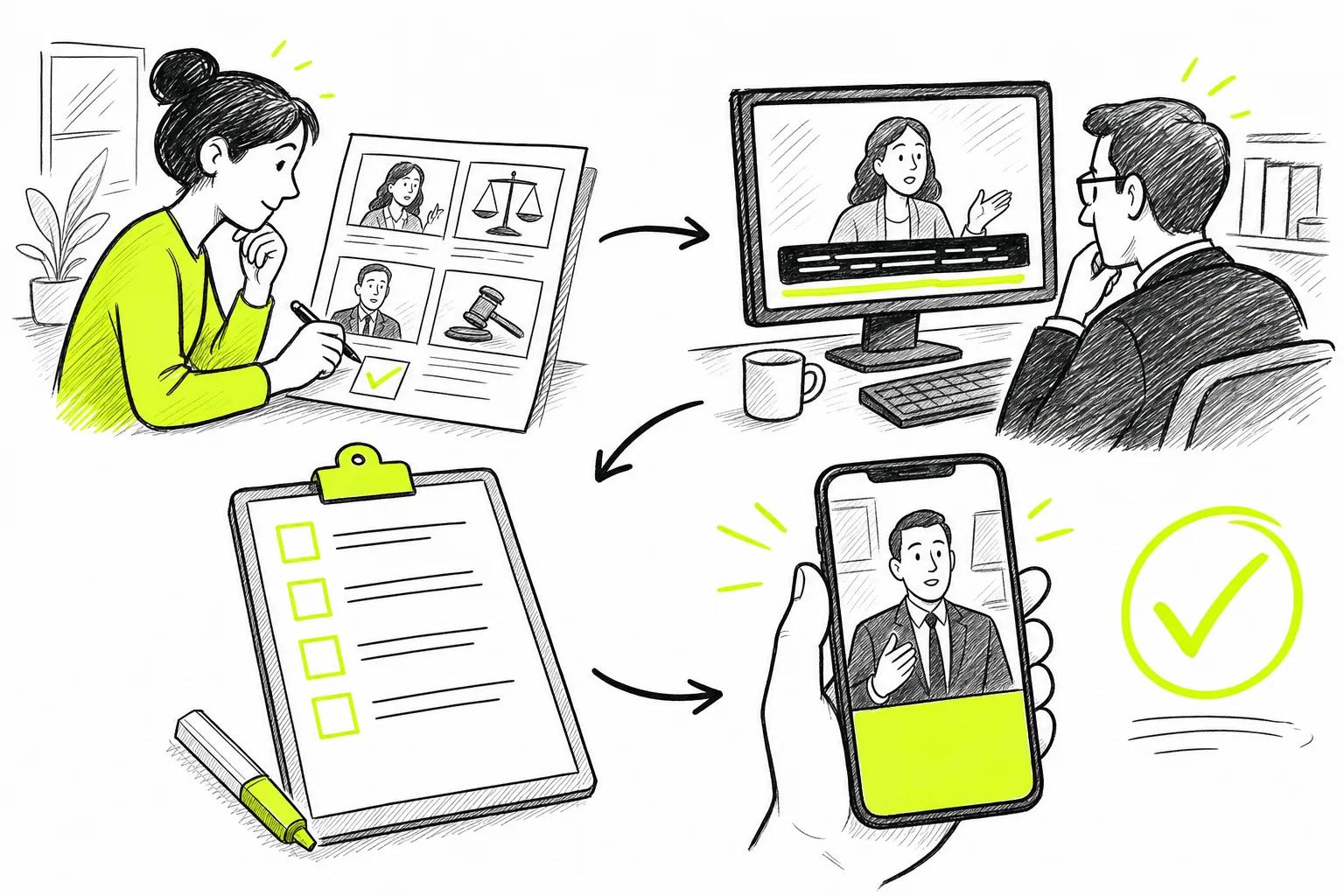
Keep a record of the approved version. Save the final script, prompt, source files, export, reviewer names, and approval date in the firm's normal system. This record helps when someone asks why a line appeared in the ad or when the team makes a later version.
Don't overwrite the approved file with a quick edit. Duplicate it, make the change, and send the new version through review. That small habit prevents an unapproved caption from slipping into a scheduled post.
Publish one controlled test
Upload the final MP4 to the chosen platform and check the preview before posting. Look at the crop, captions, sound, and final frame inside the platform. A file can look fine in an editor and shift when the feed processes it.
Use a trackable page or approved campaign label if the firm has a reporting system. Measure the action tied to the goal. A view count alone won't tell you if the promo brought useful visits or consultation requests.
Test one change at a time. You might compare two hooks while keeping the service statement and final frame the same. Or you might compare a quiet office scene with a simple document scene. Keep the winning version only after the same approval standard is met.
Don't make a legal claim stronger because an early post gets low reach. Change the opening image, pacing, or clarity first. The safest promo is also easier to improve because its promise is clear.
For more short-form planning ideas, explore more planning ideas. Apply the firm's own legal review rules before publishing.
Seedance Studio is a sensible starting point when you want one browser-based workflow for prompts, references, camera direction, consistent characters, and native sound. This workflow helps, but the firm's reviewer still owns the final decision.
At this milestone, you should have a published or scheduled clip, an approved source record, and one clear result to watch. Create a free account when you have the brief ready, then keep the first test small enough to review well.
FAQ
What is an AI video creator for legal service promos?
An AI video generator for ads turns a written prompt or reference files into a short promotional video. It may generate scenes, camera movement, captions, and sound. You still need a person to check legal claims, rights, privacy, accuracy, and local advertising rules before the video goes live.
Can law firms use AI-generated videos in ads?
Law firms can use AI-generated videos when the content follows their advertising rules and uses approved claims. Treat the video like any other ad. Check the script, captions, voice, images, disclaimer, and destination page. Don't imply a guaranteed result or use a client's likeness without permission.
Is Seedance Studio good for legal promo videos?
Seedance Studio is a useful option when you want a browser-based workflow that starts with text or reference files. It can generate video with camera direction, consistent characters, and native sound. Its stated suitability for legal service promos makes it worth testing, but a law firm's human review remains required.
What format should a legal promo use for Reels and Shorts?
A vertical 9:16 format is the usual starting point for Reels, TikTok, and YouTube Shorts. Keep the main subject near the center so platform controls don't cover it. Add captions and check the uploaded preview. The platform's current technical rules should guide the final export.
How long should a legal service promo be?
A legal service promo should be only as long as needed to state one issue, one service, and one next action. A short clip is often easier to watch and review. Start with one focused message, then test a second version only after the first has passed legal and brand approval.
How do I keep AI legal videos compliant?
Keep AI legal videos compliant by using supported claims and a documented approval step. Remove promises about outcomes, protect private information, check image and audio rights, and make disclaimers readable. Save the approved script beside the final export. Local bar rules can add requirements, so ask the firm's assigned reviewer.
Conclusion
Use Seedance Studio for the first draft when you want to move quickly from a legal service brief to a vertical promo with sound. Keep the message narrow, write cautious copy, and make human approval the final gate. Start with one service and one 9:16 clip, then create a free account and test the draft before you plan a larger campaign.