Want to make a Reel, TikTok, or Short without spending half a day editing? The right short video maker for social reels depends on whether you're starting with a prompt, footage, or a long recording. Here are seven options, including Seedance Studio, with a clear fit for each workflow.
We analyzed 53 comments and questions from Reddit, YouTube and Quora about short video makers for social reels and found that 28% mentioned batch editing workflows.
1. Seedance Studio
Seedance Studio is a browser-based AI video and image maker built on Seedance 2.5. Type a prompt or add reference images, clips, or audio, then generate a video with camera direction, consistent characters, and native sound. We built it for creators, marketers, and social teams who want to move from an idea to a short video without a download or waitlist.
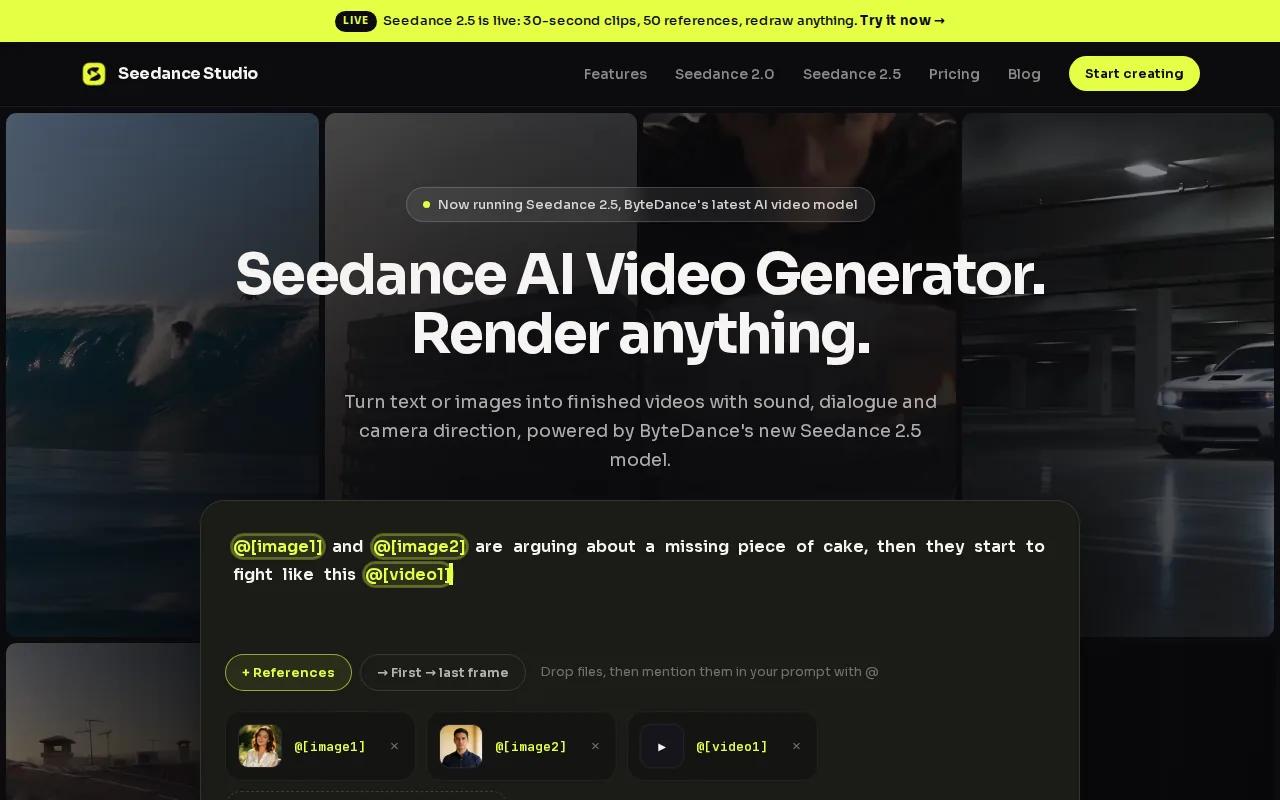
It’s a strong fit when you need more than a moving image from a prompt. A product team could describe a quick launch scene, then add a product image as a reference. A creator could guide the camera movement in plain language. When a character needs to look the same across shots, Seedance Studio can plan the scene to keep that character consistent.
That makes Seedance Studio especially useful for original visuals, fast concepts, or content made before a trend moves on. It can take a text prompt or reference media as its starting point, rather than relying only on footage you’ve already filmed. The free plan includes a couple of videos a month, with a watermark and no card required. Paid plans start at $14 a month and include a commercial licence.
Start with a plain-language description of the subject, action, and camera movement. If a visual needs to match a reference, upload it and say what should stay consistent. For a closer look at the prompt-to-post process, see our walkthrough for making Reels with AI.
Seedance Studio is our recommendation when you want AI to shape the scene itself, not only help polish existing footage.
2. CapCut: A flexible pick for hands-on social video creation
CapCut is a flexible editor for creators who want to shape a video themselves and use AI support along the way. It suits beginners who want to make short-form video, as well as experienced creators who already know what they want the final cut to feel like. We’d pick it when footage is ready and the main job is to edit, add visual touches, and export.
A timeline gives you room to trim clips and decide how each beat lands. For instance, you might start with a close-up, cut to a wider view, then place a short caption beside the subject. Digital zooms can add motion to a static shot. Set keyframes for scale and position, then adjust the timing so the zoom feels tied to the action rather than random.
Motion tracking can help text stay attached to a moving object. Place a label near a product, track the product’s path, then check that the words remain easy to read. The first five seconds deserve special care: open on the most useful or surprising image, then make the first line of on-screen text say what the viewer will get. A strong start won’t rescue a confusing video, but a slow start can lose a viewer before the idea appears.
Creators who film in portrait mode can keep the main subject inside a vertical 9:16 frame. If you’re turning horizontal footage into a Reel, check the crop shot by shot. The subject may move toward an edge, or an important detail may fall outside the frame. Build in a final review for captions, pacing, and audio before you export.
CapCut also fits teams that hand one video to several people for review. A creative studio making social video and podcasts may value a clear edit that can be adjusted for different channels. Keep a clean version of the cut before adding platform-specific text or music. That gives you a useful base if the same idea needs more than one edit.
Choose CapCut when you want close control over the cut and are happy to make the final creative calls yourself. Its range of editing choices makes it a useful fit for short-form creators, but each extra effect still needs a reason to be there.
3. Canva: Prompt-made clips for branded social posts
Canva is a good fit for people who already use it to make social content and want short video in the same design workflow. Social media managers can use it for quick visual posts. Teams can also work from a shared design style instead of rebuilding every post from scratch.
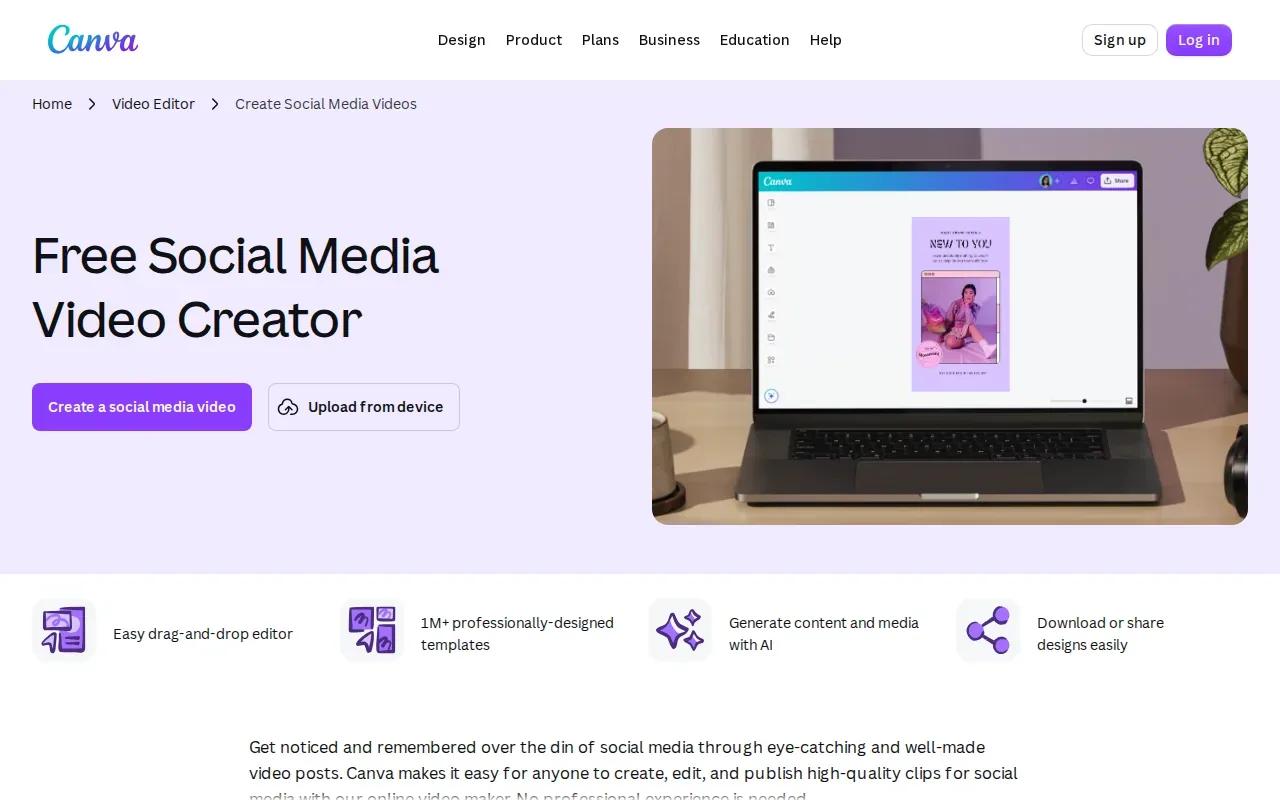
Canva’s Create a Video Clip feature uses Google Veo 3 to generate an eight-second clip with synchronized audio from a text prompt. That makes it suited to a short visual moment: an opening image, a scene-setting shot, or a quick cutaway that supports a larger post. It doesn’t replace every part of a finished Reel, so plan how the generated clip will fit with your other content.
For example, a social manager could ask for a short scene that matches a campaign’s theme, then place it in a branded layout with the right copy. Keep the prompt focused on what the viewer should see. If the scene needs a particular action, say what moves and what stays still. Then review the result before using it in a post.
Think about the full edit, not only the generated clip. A strong eight-second moment can work as one piece of a longer Reel, but it may need a hook before it and a clear next beat after it. Add subtitles when people need to follow spoken words without sound. Keep on-screen text short enough to read on a phone.
Canva is the natural pick if you value design and video in one place. It can support quick visual content for a social calendar, while Seedance Studio is a better match when you want to direct a scene with reference media, camera movement, or consistent characters. For ideas on using AI video in a social workflow, see our guide to making AI videos for Instagram.
Use Canva when a prompt-made clip needs to sit inside a broader branded post. Keep its short clip length in mind as you map the finished video.
4. VEED.io: Browser-based editing with AI finishing tools
VEED.io is a browser-based video editor with a growing set of AI tools. It’s a fit for creators who already have footage and want AI help during the finishing stage, without shifting to a new kind of video workflow.
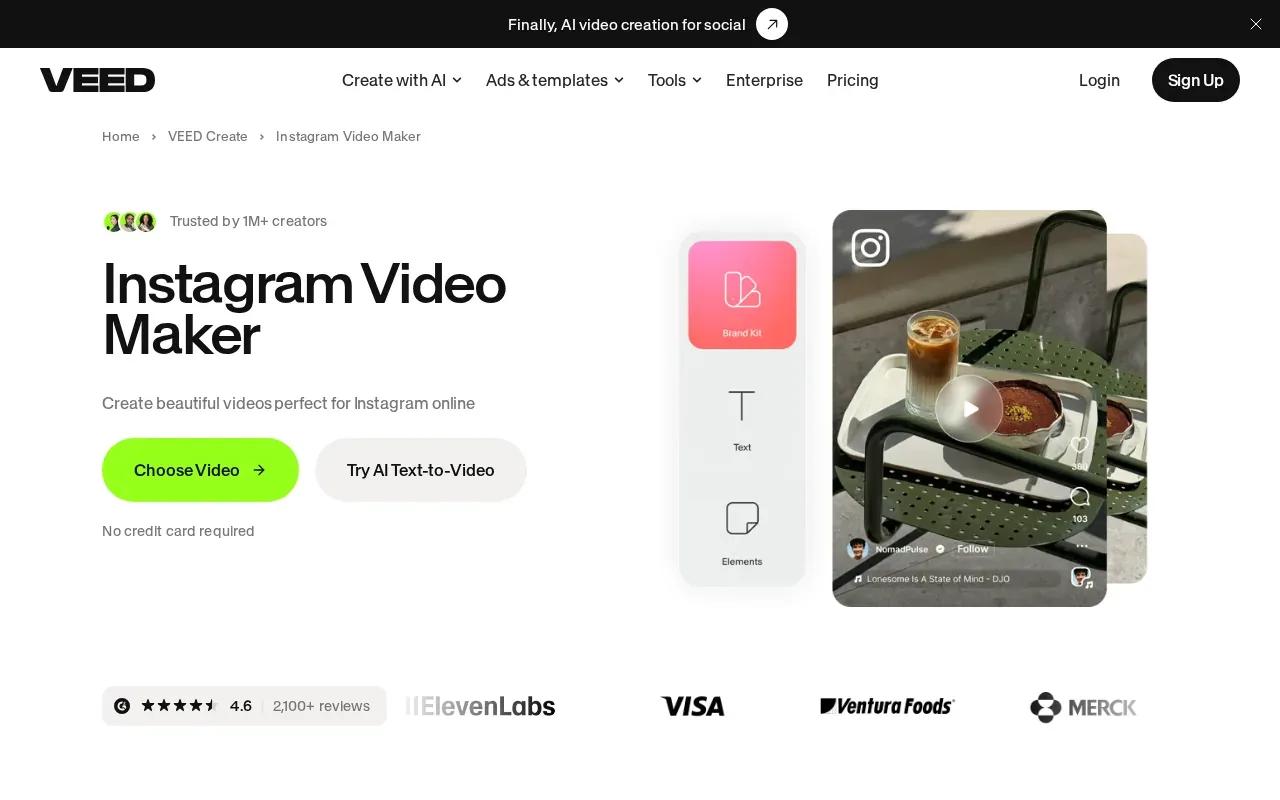
Its tools include auto-captions, background removal, and AI clip generation. Those tasks solve different editing problems. Captions can make spoken content easier to follow with the sound off. Background removal can help separate a speaker from a busy setting. Clip generation can help shape short-form pieces from existing material.
Imagine you’ve filmed a quick product explanation in a crowded room. You can focus first on choosing the best take, then use finishing tools to work on the captions or background. Always read the captions through. Names, specialist words, and short phrases can be misheard, and a small text error can distract from an otherwise clear clip.
The browser-based workflow can suit someone moving between edits on a laptop without installing a desktop program. Still, AI assistance doesn’t replace a final human check. Look at the first frame, the text placement, and the ending. Make sure captions don’t cover the face or the key action, and check that the clip ends on a complete thought.
For short clips cut from a longer recording, select moments that make sense on their own. A useful excerpt needs enough setup for a new viewer to follow the point. If the clip starts halfway through a sentence, trim less aggressively or add a short lead-in.
VEED.io makes the most sense when your own footage is the main ingredient and editing help is the missing piece. Consider it for post-production tasks rather than a workflow built around directing a whole scene from a prompt.
5. InVideo AI: Turns prompts into complete short videos
InVideo AI turns a prompt into a complete short video by generating scenes, visuals, voiceovers, and captions. It suits creators who want to make a video quickly without filming. Start with an idea in plain English, then describe the audience, platform, and appearance you have in mind.
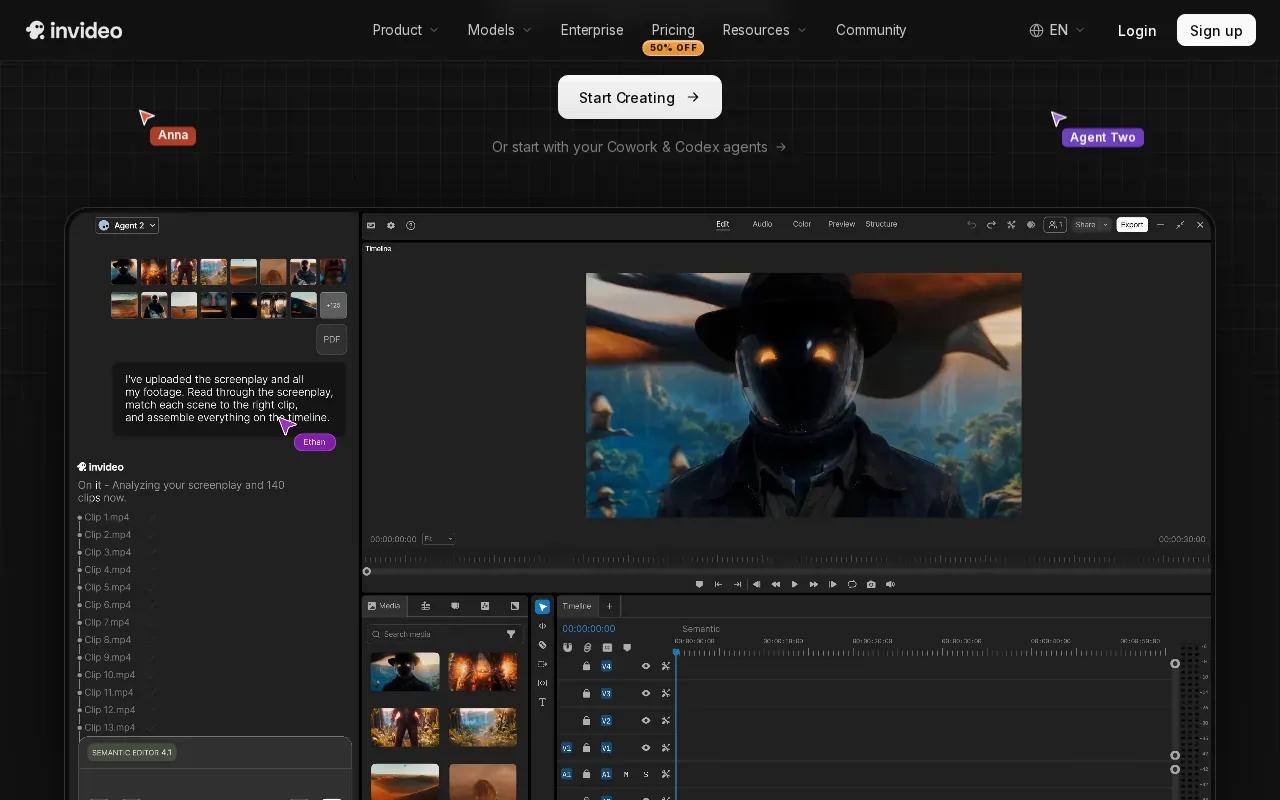
The tool’s clip workflow moves from a prompt to generation, editing, and export. After the first version appears, you can use text commands to ask for changes, such as shortening the video, changing the voiceover, or removing scenes. That can save time when you have a clear direction but don’t want to build each part by hand.
Here’s one way to use it: give it a focused topic for a short explainer, then check whether the scenes support the message. Listen to the voiceover while reading the captions. If the visuals don’t match a spoken line, revise that scene instead of settling for a polished-looking mismatch. The tool can generate a starting point, but your review decides whether it fits the post.
Text editing can help when a brief changes late. You can request a different accent or ask for a scene to go, then inspect the new version. That’s a useful approach for several versions of one idea. For a quick campaign test, keep the core message steady while changing one creative choice at a time.
InVideo AI is a strong choice when you don’t have usable footage and want to move from idea to a first cut. You can revise the draft before export, which matters when brand wording or timing needs a careful pass.
For a more detailed prompt-and-edit routine, our free AI short-video guide covers how to shape an idea into a usable clip. InVideo AI is best when speed matters, but read every caption and check each scene before publishing.
6. Pictory: Repurposes longer videos into short clips
Pictory is built for turning existing content into shorter videos. It fits educators, marketers, and teams with recorded talks, webinars, presentations, or other longer material. Instead of starting with an empty timeline, you can give it a video or a link and use its clip tools to find short moments.
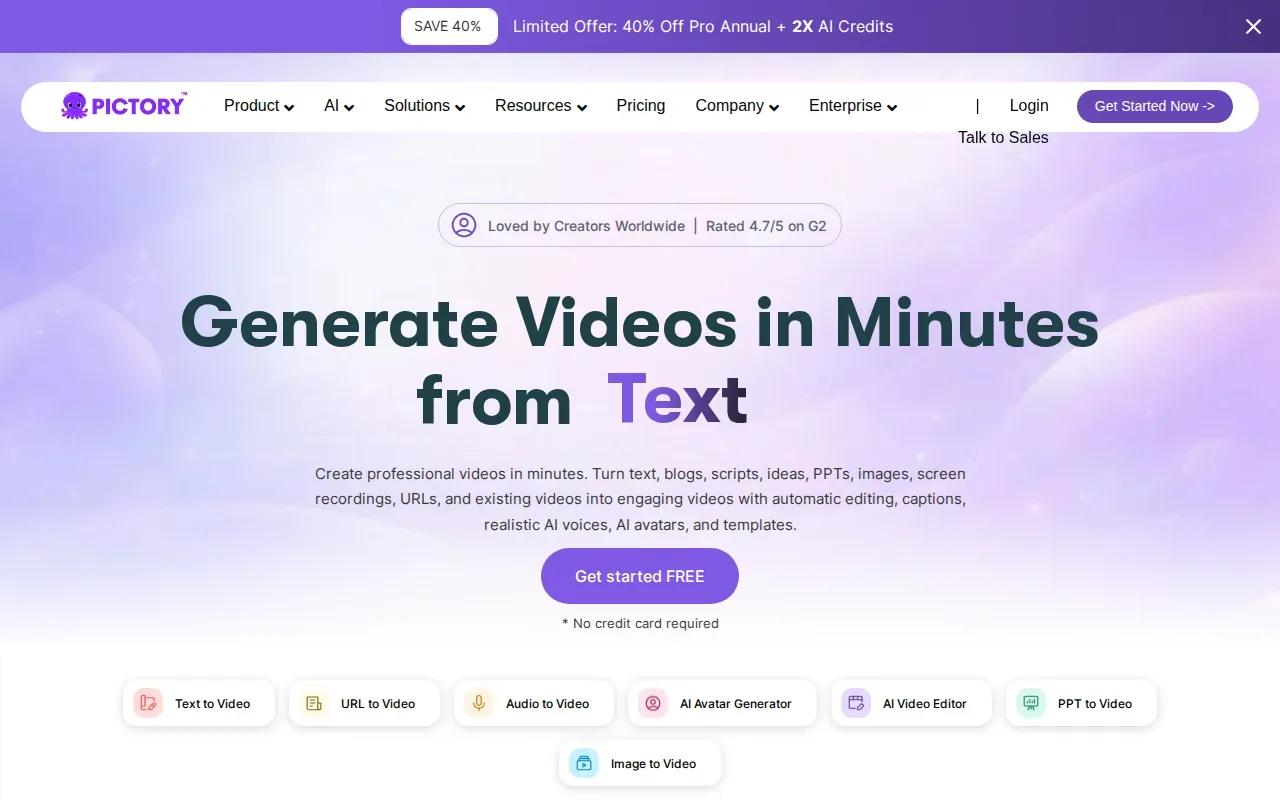
For long recordings, Pictory can identify highlights and make branded clips with captions, music, and stock visuals. You can then adjust the captions, swap visuals, add a logo, or change the aspect ratio. That review step matters. The most engaging moment by itself may need a line of context before it makes sense to someone who missed the original session.
A simple example: a team has a recorded training session with one clear answer to a common question. They can find that moment, set a suitable clip length, then check whether the cut includes the full answer. If a presenter refers to an earlier slide or says “as we just saw,” add context or choose a different section.
Pictory can also turn text, web pages, presentations, and audio into video. For clips from long content, you can choose the duration and output format, then customize the result. Its focus on repurposing makes it useful when you already have valuable material but need shorter pieces for social feeds.
Captions should get a close read before you publish. If the clip is a spoken tip, subtitles can help viewers follow it with their sound off. Our advice on adding captions to short videos explains what to check for timing and legibility. Keep subtitles clear and avoid covering the visual detail that makes the clip worth watching.
Choose Pictory when the source is a long recording or written content you want to adapt. It’s less about filming a new moment and more about finding useful short pieces inside material you already have.
7. Fliki: Script-to-video creation with natural-sounding voiceovers
Fliki turns scripts, articles, and raw ideas into video, with a strong focus on natural-sounding AI voiceovers. It’s aimed at solo creators and educators who want narration to carry the story and need a direct script-to-video workflow.
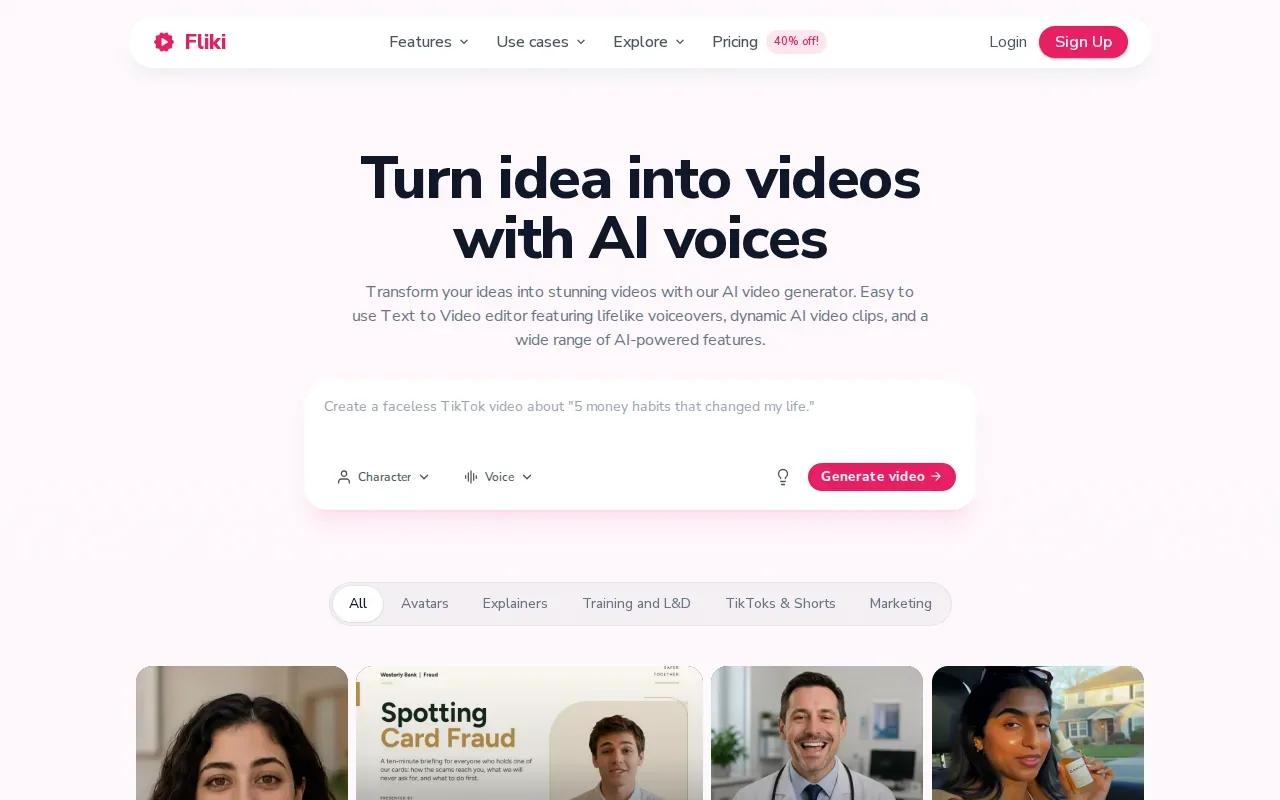
That makes it a fit for a short explainer, a lesson recap, or a voice-led social post. Start with a tight script. Read it aloud before generating the video, because spoken lines often need shorter phrasing than text written for a screen. A sentence that looks clear in a draft may feel crowded once a voice reads it over a short clip.
Plan the visuals around the spoken point. If a line introduces a new idea, let the image support that idea instead of switching scenes just to add movement. Then listen to the full voiceover and check the captions against it. A natural voice can make the video easier to watch, but the script still needs a clean rhythm and a strong opening.
For an educational Reel, you might begin with the question people want answered. Give one short explanation, then end on the key takeaway. If the script is based on a longer article, choose one point for the clip instead of trying to cover the whole page. That gives the viewer a complete thought rather than a rushed summary.
Fliki is a good match when narration is central and you want the first draft to come from words. If your idea depends on a specific person or product moving through a scene, a prompt-and-reference workflow may be a better starting point.
Keep the voiceover in charge of the edit. When every sentence has a visual purpose, captions and scene changes feel less like decoration and more like part of the story.
Quick comparison: Which short video maker fits your Reels workflow?
The best tool depends on what you already have and what you want the software to do. Use this table to match the starting point to the workflow. Then check the finished video yourself, especially the opening, captions, crop, and audio.
| Tool | Best starting point | Where it fits | What to review |
|---|---|---|---|
| Seedance Studio | Prompt or reference media | Generating directed scenes with native sound | Whether the scene and camera movement match the brief |
| CapCut | Footage you want to edit | Hands-on short-form editing | Timing, tracking, text placement, and export frame |
| Canva | Text prompt or branded design | Short generated clips within social design work | How the eight-second clip fits the complete post |
| VEED.io | Existing video | Browser editing with AI finishing tools | Caption accuracy and the final cut |
| InVideo AI | Plain-language prompt | Generating a complete first video draft | Scene fit, voiceover, and caption wording |
| Pictory | Long video, text, or URL | Finding and shaping short clips from existing material | Context, clip length, and visual relevance |
| Fliki | Script, article, or idea | Narrated script-to-video posts | Voice pacing and visual support for each line |
For a fresh AI-generated scene, start with Seedance Studio or InVideo AI. For a clip built around footage you already have, try CapCut or VEED.io. If your source is a webinar or written piece, Pictory has a clearer repurposing fit. Fliki suits a voice-led script, while Canva makes sense when the clip needs to sit within a branded design workflow.
Keep the destination in mind. Reels, TikTok, and Shorts often use a vertical frame, but the best crop depends on where the action sits. Use one clean master edit when you can, then make platform-specific changes to text or music. Our advice on making short videos for Reels, TikTok, and Shorts covers format choices and the broader editing flow.
FAQ
What is the easiest way to make a short Reel?
The easiest way is to start with a tool that matches what you already have. Use a prompt-based maker when you need new scenes, or an editor when you have footage ready. Keep the video focused on one idea, put the clearest hook at the start, and review the captions and vertical crop before you post.
How long should a social Reel be?
Make a Reel only as long as it needs to deliver one clear idea. A short art process clip might use quick cuts, while a spoken tip may need more time for its full explanation. Trim pauses, keep the ending useful, and watch the finished video to see whether any moment feels slow.
Should I add captions to short videos?
Captions help viewers follow spoken content when they aren’t listening to audio. Use clear text with readable timing, then check every word by hand. Keep captions away from faces and key actions. If music or sound effects matter to the story, make sure the spoken words still come through.
What export settings should I use for Reels, TikTok, or Shorts?
Use a vertical 9:16 frame when the video is designed for a phone-first social feed, and check the export settings offered by your chosen tool. Match the frame rate to the footage when possible. Review the final file on a phone, since a crop that looks fine on a laptop may cut off an important subject.
Can AI make a complete short video from a prompt?
Yes. InVideo AI can turn a prompt into a video with generated scenes, visuals, voiceovers, and captions. Seedance Studio can also generate videos from prompts or reference media, with camera direction, consistent characters, and native sound. In either case, check the first draft before publishing so the visuals and words match your intent.
Conclusion
Choose Seedance Studio when you want to direct a fresh short video from a prompt or reference media, and use an editor when existing footage is the heart of the post.