
Free AI video tools can save you a subscription, but a watermark or a small credit cap can stop a clip from being ready to post. If you’re looking for the best free AI video generator, start with the job you need done: make a clip, test a model, or edit footage for a campaign.
We analyzed 45 reviews and comments from the App Store and YouTube about AI Video generators and found that 16% mentioned poor output quality.
Here are six options, with the details that matter when you’re choosing a free workflow.
1. Seedance Studio
Seedance Studio is a browser-based AI video and image generator. It’s a good first pick if you want to test a prompt, animate a reference image, or keep a character consistent across shots without installing software.
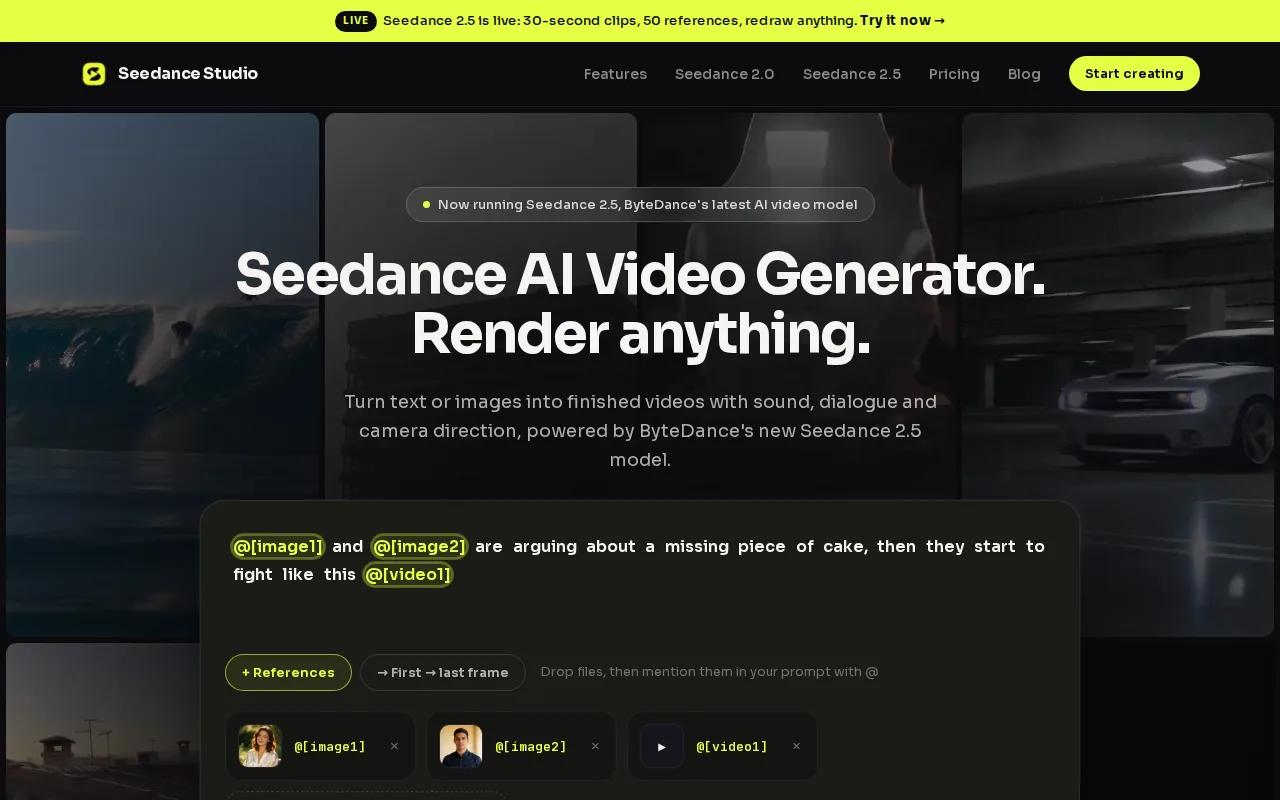
Type a scene prompt or upload a reference image. Seedance 2.5 is the default model on every plan, and it plans scene cuts and camera movement while helping characters stay consistent across shots. You can also make still images in the same account.
The free plan gives you a couple of videos each month. There’s no card required, so it’s useful for checking whether the model fits your idea before you pay. Free videos include a watermark, so treat the tier as a testing space rather than a source of clean campaign exports.
Paid plans start at $14 per month. Every plan includes AI video and image tools and a media gallery, and paid plans include a commercial licence. If you’re weighing output volume against cost, our AI video generator pricing options break down the plan choices.
For a useful test, keep the prompt simple: describe the person or product, the action, and the camera move. Then compare the result with the clip you actually need to publish. If you’re testing animation from a still, this free image-to-video workflow can help you plan the reference image and motion prompt.
Seedance Studio makes the most sense when you want one clear route from an idea or image to a short video. Keep the free tier for tests, and check the plan terms before using generated work in a paid campaign.
2. Google Flow: Daily credits for testing Veo clips
Google Flow is a video workspace with daily credits for making short Veo clips. It suits you if you want to try text-to-video prompts regularly.
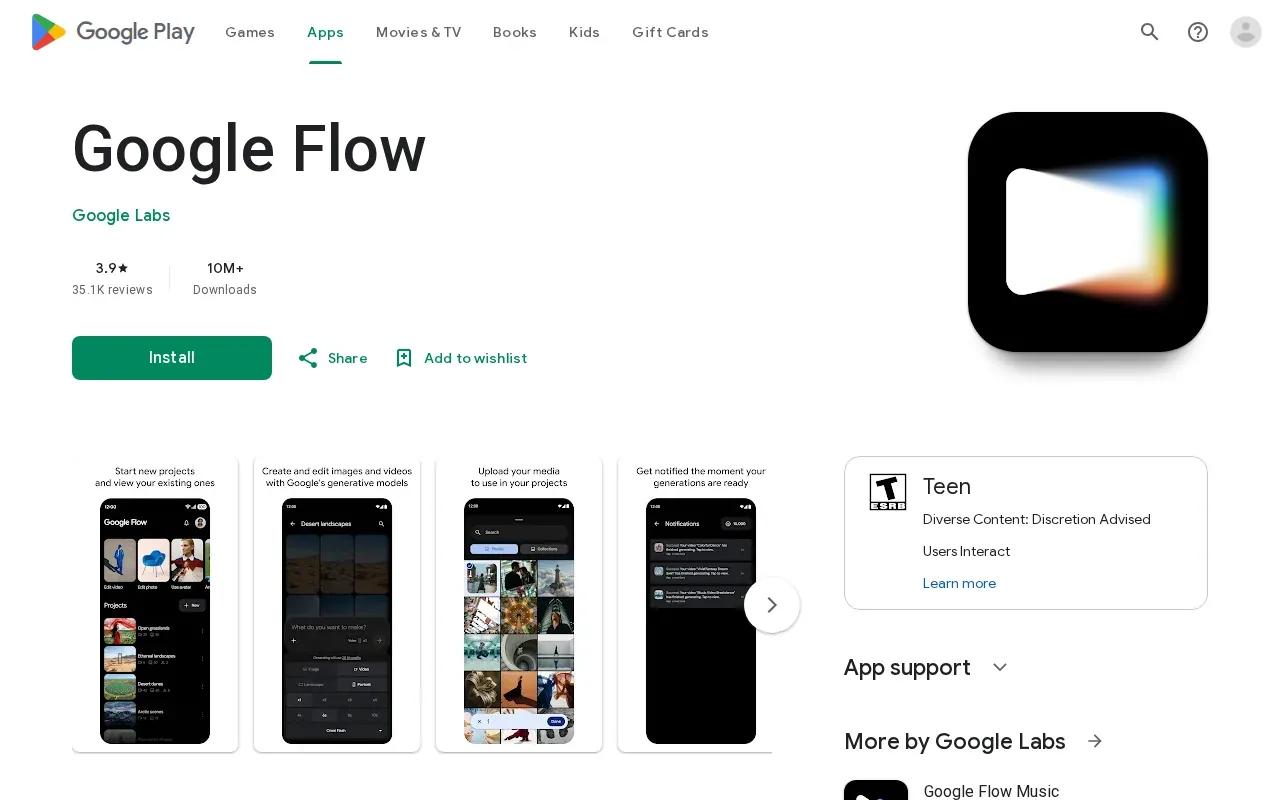
The free tier gives everyone 50 credits a day. That’s about five clips, each eight seconds long, using Veo 3.1 Lite. Daily credits give you a repeatable way to test prompts. You can try one version, change the camera direction, then spend the next generation on the revised idea.
Free clips have no visible watermark. That’s a useful distinction if you’re sharing a test with a client or posting a draft for feedback. Still, check the output itself before you use it in a campaign. A clean export doesn’t settle questions about rights, brand accuracy, or whether the scene says what you intended.
Short clips work best when you give each one a single job. For a product teaser, test a close-up first. For a social hook, test the first few seconds as its own scene. A daily allowance can support prompt iteration, but it doesn’t remove the need to review each render.
Flow is the strongest fit here when a no-watermark sample matters more than a longer single clip. Our roundup of AI video generators without watermarks is useful if that export detail is your main filter.
One limit to plan around: the free allowance is measured in credits, not a promise of unlimited finished videos. Keep track of which prompt version produced the result you like, so you don’t spend the day’s credits repeating the same test.
3. Vidu: A focused tool for repeat testing
Vidu is a focused generation interface with text-to-video and image-to-video workflows. It can suit creators who want to keep testing a visual idea rather than move straight into a full editing suite.

Vidu has free access, and recurring free-access offers can make it approachable for repeated tests. The available offer may shape how much you can generate, so check what’s shown in your account before building a schedule around it.
Image-to-video is handy when you already have a key frame, such as a character sketch, a product shot, or a planned opening frame. Use the image as the visual anchor, then describe the movement you want. Text-to-video is a better starting point when you’re still exploring the scene itself.
For a social post, you might test the same core idea in two forms: a text prompt that describes the whole scene, then an image prompt that fixes the subject’s look. Compare the face, clothing, and motion in the outputs. That tells you whether the tool is following your reference or inventing details you’ll need to correct.
Vidu’s interface is centered on generation, so it’s a sensible place to spend time comparing concepts before you polish a final edit elsewhere. Don’t assume a free offer will cover a fixed number of clips each day or month. Check the current terms, then run a small test before planning a larger batch.
Choose Vidu when you want a straightforward loop: prompt, review, adjust, and try again. It’s especially useful while the concept is still changing.
4. Runway: A production-oriented video workspace
Runway is a production-oriented video workspace with a free tier and text-to-video generation. It’s worth a look if your work may grow beyond a single generated clip and into a more involved editing process.
The free tier lets a team try text-to-video generation inside a workspace that also handles editing, so you can see whether it suits a longer production process before you pay.
If your immediate goal is only to make quick social drafts, a simpler generator may take less setup.
5. VEED: AI generation alongside browser editing
VEED combines text-to-video generation with a browser-based editor. It’s a strong fit if you want to generate a clip, add captions, and trim footage without moving to desktop software.
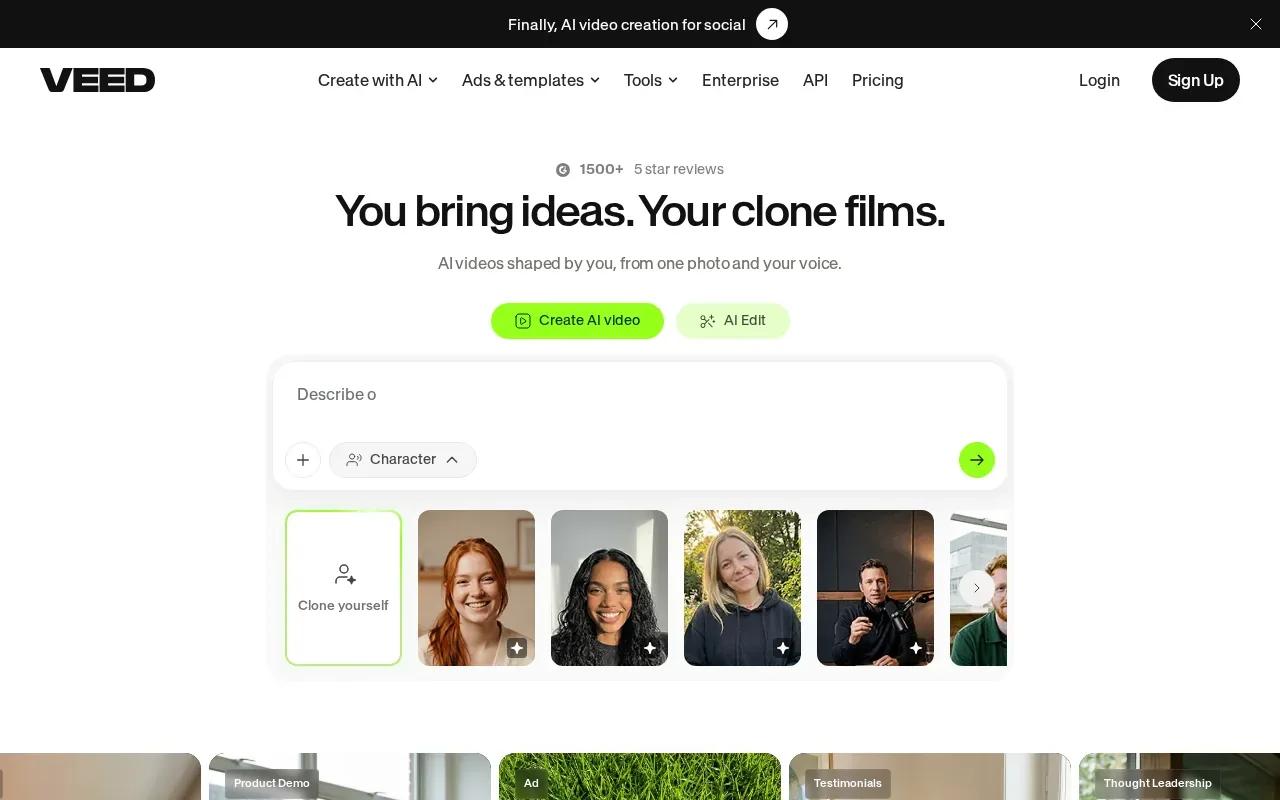
The free plan includes basic editing tools such as trim, crop, resize, text, and music. VEED also supports text-to-video generation. Its editor can work from a transcript, so you can remove words from the text and have the video cut along with them.
That can help when you’re turning a longer recording into a short social clip. First, upload the footage. Then trim the section you want and add captions or text. The browser workflow keeps those edits beside the generation tools, which can save a handoff when one person is making and polishing a draft.
Free exports are limited to 720p and include a watermark. That makes VEED useful for rough cuts and review drafts, but you’ll need to consider the export terms before using a free file as finished branded content.
For a campaign, you could use VEED to shape existing footage or prepare a draft for team feedback. If you’re comparing costs across tools, this AI video generator price comparison can help put free access and paid plans in context.
Pick VEED when editing is part of the task, not an afterthought. The watermark and resolution limits are the key checks before you plan to publish a free export.
6. Seedance TV: Free access to multiple video models
Seedance TV is a way to try several video models through one service. Free access includes Seedance 2.5 and 2.0, Veo 3.1, and Kling 3.0. It may suit you when you want to compare model styles before settling on a workflow.
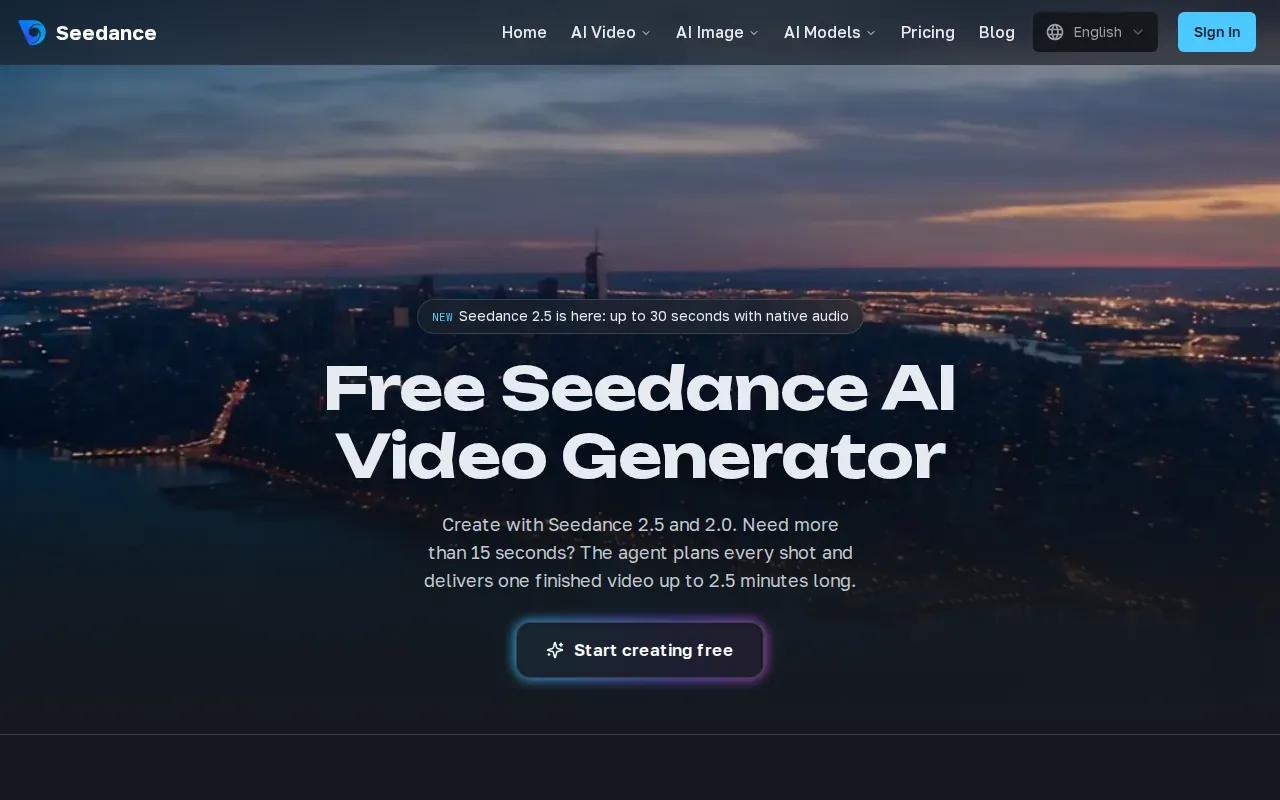
Seedance TV also has an agent that plans individual shots into one video of up to two and a half minutes. That’s a different job from generating one short clip: a longer piece needs a sequence of scenes that can carry an idea forward.
For example, a training draft could need an opening, a demonstration, and a closing prompt. A shot-planning workflow may help map those parts into one longer piece. Still, review each shot for continuity and meaning. A long output can save manual stitching, but it doesn’t replace an edit pass.
Treat free access as a place to test access and compare outputs, not as a guaranteed production quota. Check the generator’s current settings before you commit to a deadline or a batch of social posts.
Seedance TV fits creators who want to try multiple models or sketch a longer sequence. For a single short post, a focused text-to-video tool may be easier. For a story with distinct scenes, shot planning can be the more useful feature.
Free AI Video Generators Compared
The right option depends on what you need to finish. A clean export matters for a post-ready clip; a browser editor matters when your source footage needs captions or trims. The table compares the clearest fit for each workflow, not a single overall score.
| Tool | Best use | Free-tier detail | Check before publishing |
|---|---|---|---|
| Seedance Studio | Prompt or image-led short videos | A couple of videos each month | Free videos have a watermark |
| Google Flow | Repeat prompt tests | 50 daily credits, about five 8-second Veo 3.1 Lite clips | Review the result and usage terms |
| Vidu | Text-to-video and image-to-video tests | Free access with recurring offers | Check the active offer in your account |
| Runway | Generation alongside video editing | Free tier available | Check the current account terms |
| VEED | Generation plus browser editing | Free editing and text-to-video access | Free exports have a watermark and 720p limit |
| Seedance TV | Trying multiple models or planning a longer sequence | Free access to several named models | Check available generation settings |
How to compare outputs fairly
Use the same prompt and scene idea across the tools you’re testing. Keep the subject, action, and camera direction the same. If you change several details at once, it’s hard to tell whether the model or the prompt caused the difference.
Then check the output in the format you plan to use. Look at subject consistency, motion, resolution, watermark, and how long the generation takes. Repeat the prompt at least once if you’re comparing model behavior, since one render may not show how well a tool handles the same scene twice.
For a short-form workflow, decide what matters most before testing: clean export, repeat generations, or editing in the same browser workspace. Our short-form video tool comparison can help if your main output is a social clip.
FAQ
Can I make AI videos for free without a watermark?
Yes, Google Flow’s free clips have no visible watermark. Other tools in this shortlist have different terms: Seedance Studio’s free videos include a watermark, and VEED’s free exports also include one. Check the export settings and plan terms for the exact tool before using a clip in public or paid work.
Which free AI video generator gives daily credits?
Google Flow gives everyone 50 credits a day, which is about five eight-second Veo 3.1 Lite clips. That makes it useful for regular prompt tests. Daily credits aren’t the same as unlimited finished videos, so plan each test around one change you want to evaluate.
Can I use free AI-generated videos for commercial work?
Check the tool’s terms and the rights for any images, audio, or likenesses you upload. Seedance Studio’s paid plans include a commercial licence, so check the free-plan terms before using a free video commercially. Don’t assume that a free export or a watermark-free file automatically grants commercial rights.
How do I compare AI video generators fairly?
Run the same scene prompt through each tool and keep the subject, action, and camera direction consistent. Then compare the outputs at the resolution and aspect ratio you plan to post. Note watermark rules and usage limits too, since a visually strong draft may still need a paid export or more generation credits.
Are free AI video tools good enough for social media?
They can be useful for testing hooks, motion, and rough concepts. Whether a free result is ready to post depends on the output quality, watermark, resolution, and rights attached to your plan. Review the clip at full size, then check the export terms before putting it into a live campaign.
Conclusion
For prompt-led clips, start with Seedance Studio’s free plan and use the monthly videos to test a specific scene before committing to paid output. If a watermark-free sample is your first concern, try Google Flow’s daily credits. Pick one prompt, make a test, and review the export before you build a workflow around it.