Turning a still image into a video is easy to test, but free plans can come with tight limits. Here are seven free image-to-video AI tools, including Seedance Studio, with the details that help you choose the right fit.
1. Seedance Studio
Seedance Studio is a browser-based video and image generator built around Seedance 2.5. Type a prompt or upload a reference image, then guide the scene with directions for the action, camera, sound, or intended format. Plain language works. You don't need to write a technical camera brief to get started.
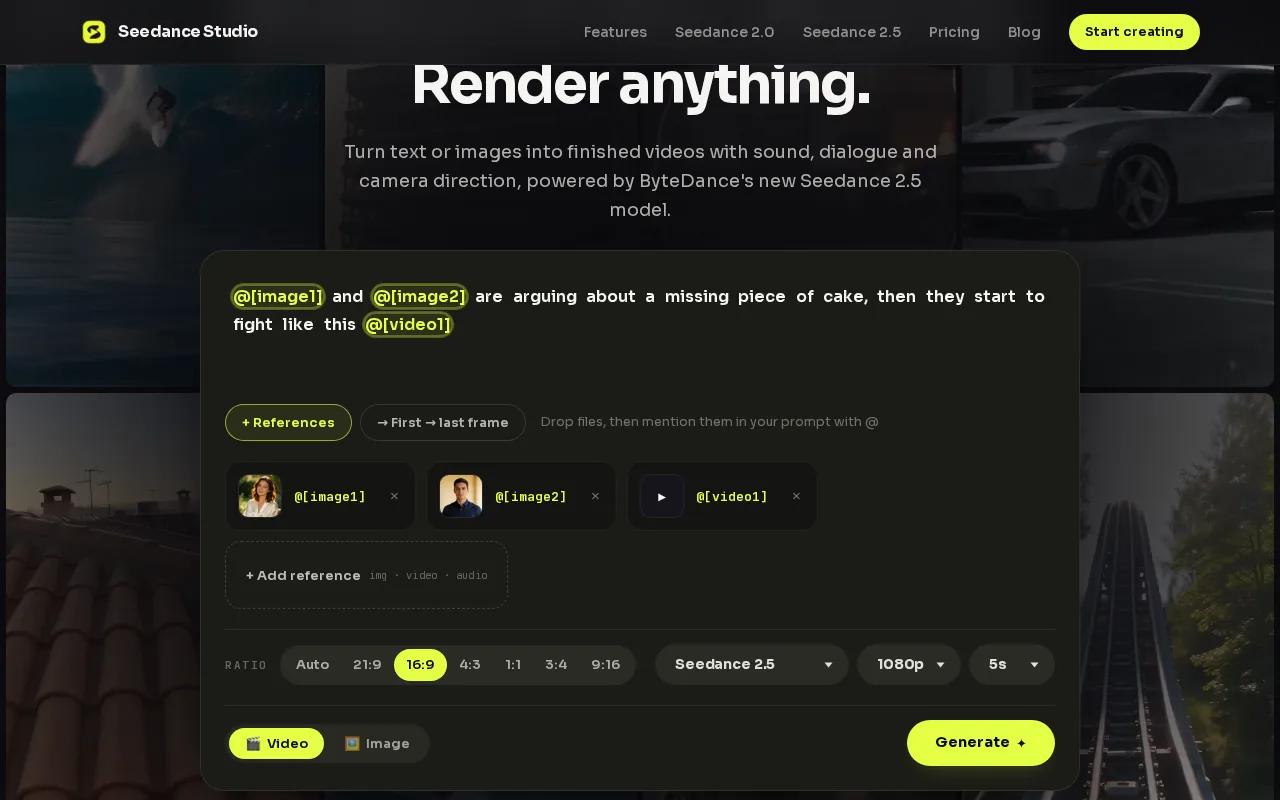
Its free plan gives you a couple of videos a month, with no card required. Free videos have a watermark. Seedance 2.5 is the default model for every account and plan, while paid plans start at $14 per month. The Seedance Studio homepage covers the available plans and core workflow.
Seedance 2.5 can generate clips up to 30 seconds and supports native sound, camera direction, and consistent subjects. You can guide a scene with reference files, then check the model, duration, resolution, and credit cost shown in the generator before you start. Available output settings depend on the selected mode, so confirm the resolution there rather than assuming every plan has the same options.
That makes it a useful starting point for a product reveal, a character scene, or a short social ad. Upload a clear product photo, describe one action, and tell the model how the camera should move. For example: “A ceramic mug turns slowly on a kitchen counter. The camera moves closer. Morning light crosses the table.” A focused first prompt is easier to judge than a list of unrelated actions.
If you're new to this workflow, start with our guide to the free image-to-video generator. For a campaign, review the finished clip for accurate product details and rights to any images, audio, or likenesses you supplied.
The free plan is for trying the model and making a small number of videos. If you need more monthly output, higher limits, or a commercial licence, compare the paid plan details on the Seedance Studio pricing page.
2. Kling AI: A generous daily free credit allowance
Kling AI is a fit for creators who want to test its high-quality image-to-video flow with a daily credit allowance. Its free tier supplies 66 credits per day, about six five-second clips.
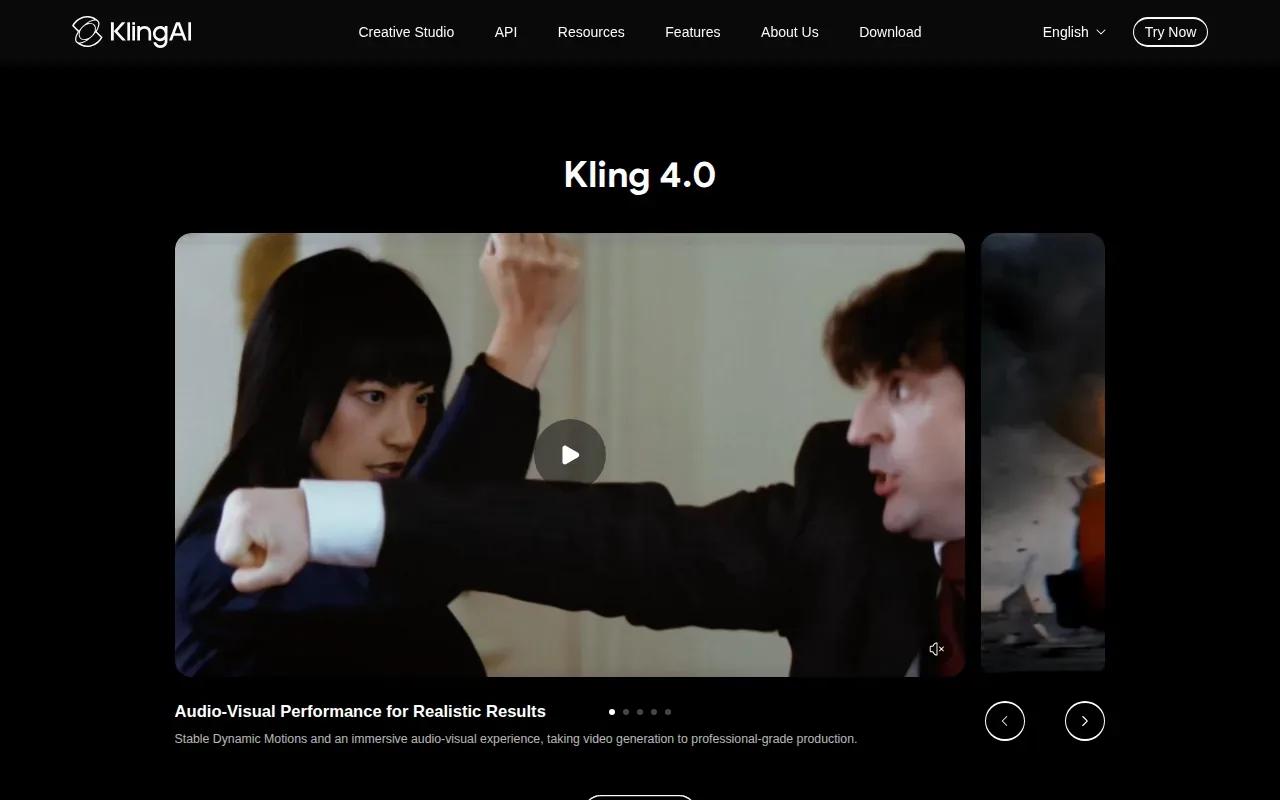
That daily refresh changes how you might plan a test. Instead of using all your credits in one session, you can return on another day and try a revised motion prompt. Keep the source image and the main action the same. Change one instruction, such as the camera move, so the next result answers a clear question.
Kling AI's free output is 720p and has a watermark. That may work for reviewing an idea on a phone or sharing an early draft with a team. Before you use a clip in a campaign, check whether the watermark and resolution fit the destination. A vertical social concept and a high-resolution product ad have different needs.
If the first result feels too busy, simplify the instruction and ask for one main movement, such as a slow push-in or a gentle turn.
For a simple test, upload a photo with one clear subject and describe the movement. Then review the result before spending more credits. Explore our photo-to-video AI tips.
Choose Kling AI when high-quality output and credits that refresh each day matter more than a watermark-free export.
3. Runway: Precise camera and motion controls
Runway pairs its Gen-4 models with fine-grained motion and camera controls for image-to-video work. It suits filmmakers, motion designers, and marketers who need to direct a pan, tilt, or zoom instead of leaving the camera movement entirely open.
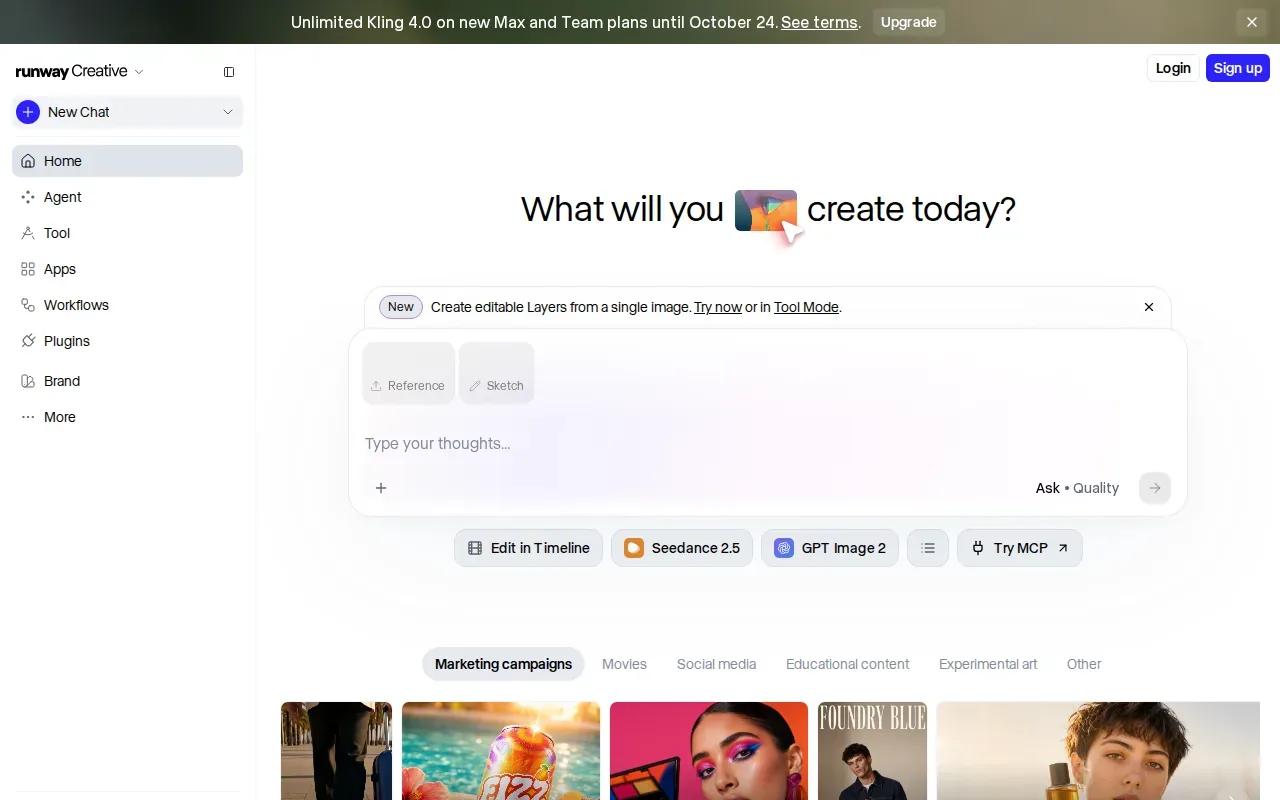
The free plan includes a one-time 125 credits. Those credits don't refresh, and exports carry a watermark. Treat that allowance as a test budget. Pick one still image and decide what you want to learn from it before you generate: does the camera move help the product stand out, or does a simpler shot work better?
For image-to-video, keep the prompt tied to what is visible in the source. Name the subject, then state the motion and camera direction. “The runner turns toward the camera as it tracks left” gives the model a clearer job than “make this exciting.” If you want to compare two camera ideas, change only that direction between generations.
Check the credit cost before starting so your first test doesn't use the full allowance unexpectedly.
If you already work with shot direction, Runway gives you specific camera controls to test. If you only need a quick concept, keep the setup simple and save the remaining credits for a second pass.
4. Pika: Playful effects for eye-catching clips
Pika is built for playful, effect-driven image-to-video clips. Its Pikaffects tools include effects such as inflate, melt, and explode, which make it a natural option for a visual gag, a fast social hook, or a stylized transition.
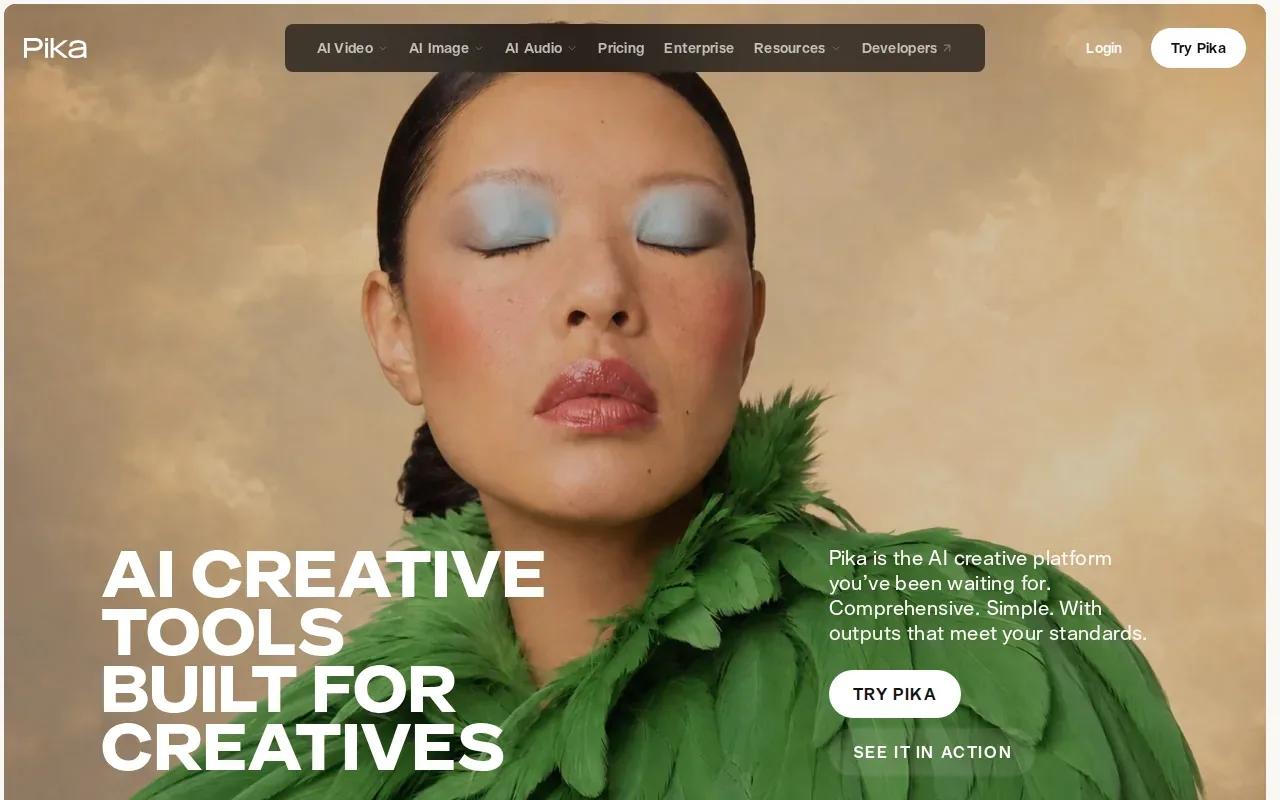
The free tier gives you 150 credits a month, with a 480p resolution cap and a watermark. That is enough to test whether an effect fits an idea, but keep the final viewing context in mind. A rough concept on a phone may be fine at 480p. A polished campaign asset may need a different output level.
Try one effect on an image with a strong outline. A close-up object against a simple background gives the action a clear focal point. If the prompt asks for several changes at once, it can be hard to tell what made the result work. Start with a single effect, review the clip, then decide whether another version is worth the credits.
Pika can also extend a clip by generating extra frames, and its generation options cover anything from a short clip to a multi-shot video up to 30 seconds. That gives you room to test a longer idea after the opening effect works. Check the selected generation and output settings before you spend credits.
For a playful product teaser, imagine a snack bag puffing up before a quick reveal. For a creator post, an illustrated portrait might melt into a new scene. These are concept directions, not guarantees: the source image and prompt shape what the model can animate.
A simple image-led scene can help you plan before you generate. Pika makes the most sense when the effect itself is the hook, rather than when you need understated motion or a realistic camera move.
5. PixVerse: Quick, stylized videos for social posts
PixVerse focuses on quick, stylized output and effects suited to social posts. It may suit a creator who needs a fast visual hook for a TikTok or Reels concept, rather than a finished scene with tightly directed performance.
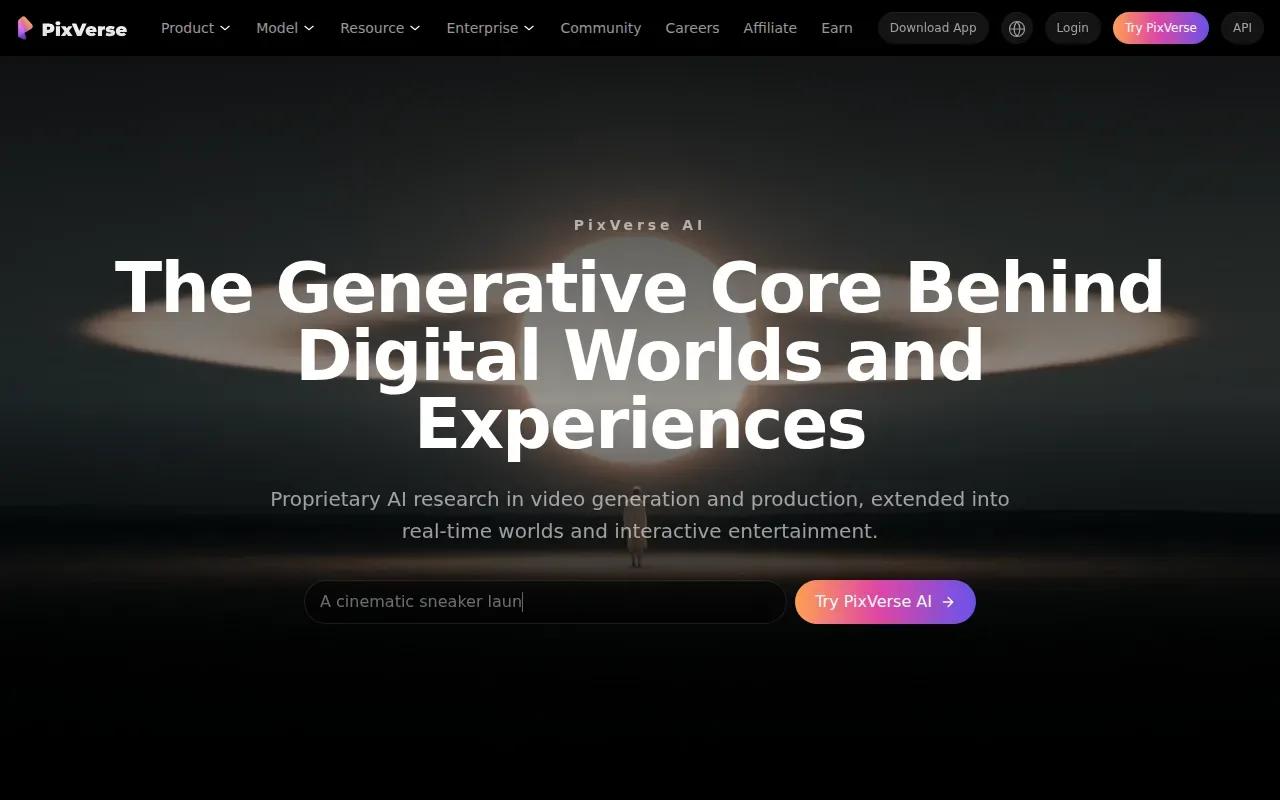
The free output is below HD and carries a watermark. Keep that in mind when you plan where a test clip will go. It can still help you judge whether a color treatment, visual mood, or opening action has enough pull to develop further.
Start with a clear source image and one main motion. A product image could become a quick reveal; a portrait could gain a subtle background movement. State the action in plain words and avoid stacking several camera instructions into the first prompt. The point is to see if the visual direction has promise.
When you create social content, decide on the format before generating. A vertical clip is easier to review as a Reels or TikTok draft; a landscape scene may suit a different placement. Keep the subject visible in the crop and leave room for any captions added later in your editing workflow.
PixVerse is a sensible choice for quick, stylized hooks. If the draft is heading into paid promotion, review the export closely and make sure the resolution and watermark suit that use.
6. Vidu Q3: Adds dialogue, voiceover, and sound in one pass
Vidu Q3 can generate dialogue or voiceover, sound effects, and music in one pass. It is aimed at dialogue-heavy scenes, short narrative ads, and stories with more than one speaker.
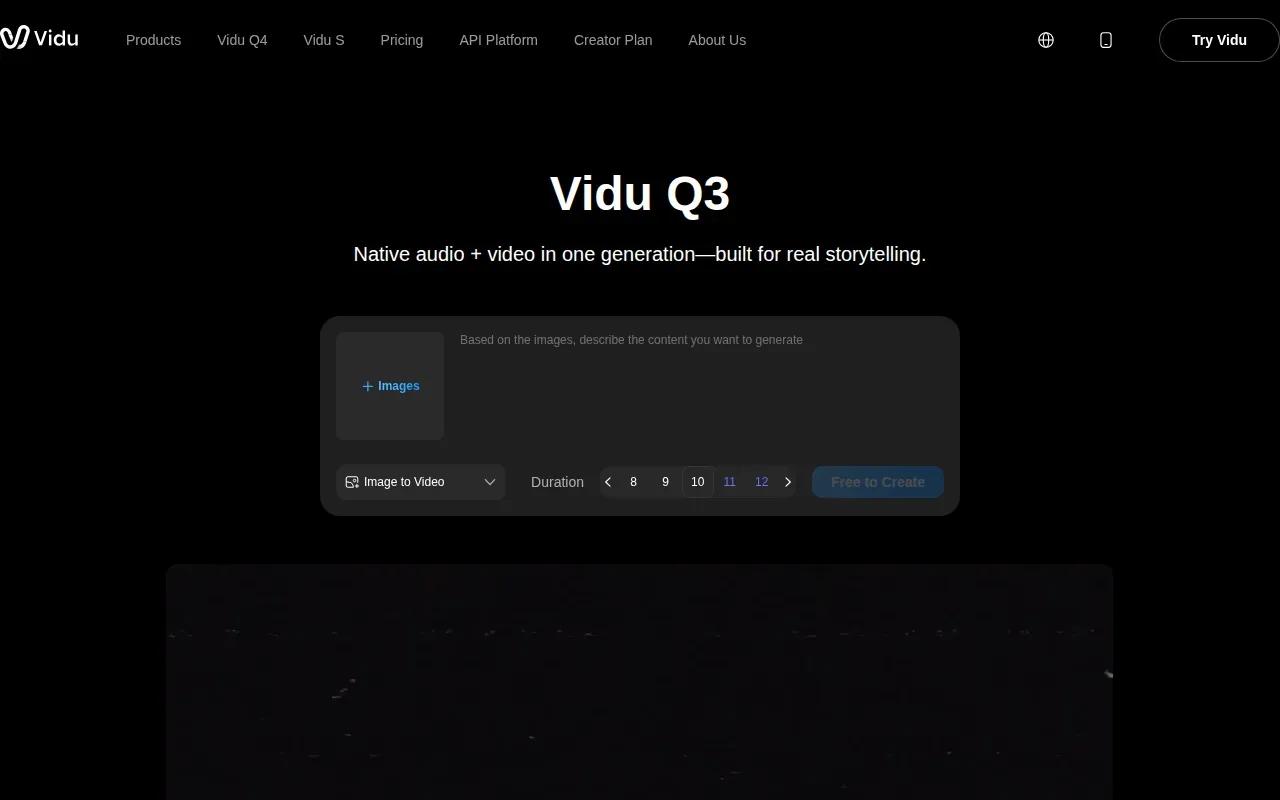
The free tier supports clips up to 16 seconds with 720p watermarked output. It also includes a signup bonus and daily-login credits. If the scene depends on sound, use your first generation to test whether the spoken line and action fit together. A short, clear line gives the scene a more focused brief.
For example, a character might pick up an object and say one line about it. Describe who speaks, what the character does, and the mood of the sound. If you need a particular sound effect, name it plainly. Then watch the full clip to check whether the speech timing and movement feel like one scene.
For a product ad, that might mean a close view first, then a reveal, followed by one spoken benefit. Keep claims accurate and review the generated speech before publishing. A model can create audio in the same generation, but your team still needs to approve the words and final edit.
Vidu Q3 is a good fit when speech and sound are central to the idea. If the clip only needs a camera move and ambient motion, those extra audio tools may not be the deciding factor.
7. Higgsfield: A single dashboard for multiple video tools
Higgsfield brings multiple video models, camera presets, lip sync, identity tools, and editing surfaces into one dashboard. It suits projects where you want to choose among models and direct the camera in one workspace.
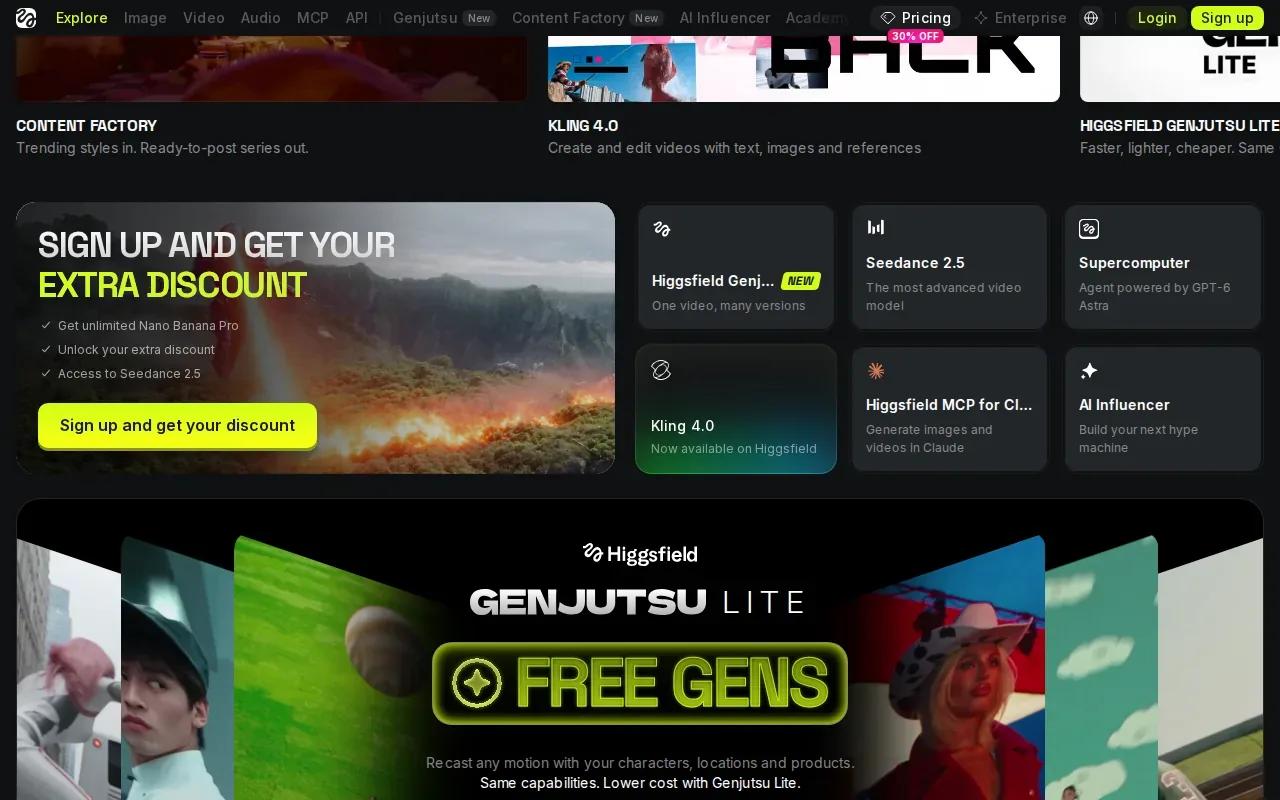
That setup can help when a team is testing different visual approaches. One person can focus on the starting image, while another considers the camera direction or identity tools. Keeping those choices in one workspace can make the handoff easier to manage, especially when a scene needs more than one pass.
Use the table as a decision aid, not a promise about free credits. Before you build a recurring content schedule around any tool, check the current account allowance and the settings for the model you plan to use.
| What you need to direct | Higgsfield capability | When it helps |
|---|---|---|
| Model choice | Multiple video models in one workspace | When your team wants to compare generation approaches without changing workspaces |
| Camera movement | Camera presets | When a shot needs a defined camera direction |
| Character delivery | Lip sync and identity tools | When a scene depends on a speaking or recognizable subject |
| Editing | Editing surfaces | When a project needs editing tools in the same workspace |
Higgsfield is worth considering when centralized model choice and camera direction matter more than a predictable free allowance. If you only need one image animated once, a simpler workflow may be quicker.
FAQ
What images work best for image-to-video AI?
Images with one clear subject and an easy-to-read composition are a good starting point. Choose a sharp photo where the subject has room to move. Then describe one main action and one camera move. If the source has several competing subjects or unclear edges, the result may be harder to direct and judge.
Can I use free AI-generated videos commercially?
It depends on the tool, plan, source materials, and intended use. Don't assume a free generation is cleared for a paid ad. Check the current plan terms, and confirm you have rights to any uploaded image, likeness, music, or brand asset. Seedance Studio's plan details describe its commercial licence terms.
Can I remove a watermark from a free AI video?
Check the tool's terms before changing or cropping a watermark. If the mark makes a clip unsuitable for your post, use an export option that allows the use you need rather than trying to hide the mark. Seedance Studio's free videos have a watermark, so review that detail before planning a public campaign around a free export.
How many free videos can I make?
It varies by tool and by how many credits each generation uses. Kling AI gives 66 credits per day, while Runway gives 125 credits once. Pika gives 150 credits per month. Vidu Q3 includes a signup bonus and daily-login credits. Check the current allowance and generation cost before you plan a batch of clips.
What is the basic image-to-video workflow?
Choose a clear image, upload it, and describe the motion you want. Set the aspect ratio and other available options for the place you plan to post. Generate a short test, review the motion and crop, then revise the prompt if needed. Download the clip only after you've checked the output and watermark.
Conclusion
For a flexible browser-based test with camera direction and native sound, start with Seedance Studio; choose a simple image and prompt before spending your monthly free generations. Create a free account, make one test clip, and check that its output fits the channel you have in mind.