Want an AI video generator you can try without signing up? Some tools let you test a short clip right away, while others make more sense when you need to build a repeatable workflow. Here are six options, with the access limits and best uses to check before you start.
We analyzed 42 YouTube comments about AI video generators without signup and found that 36% asked about tool usage instructions.
1. Seedance Studio
Seedance Studio is a browser-based video and image generator built around Seedance 2.5. It suits creators and marketing teams who want to shape a scene with a prompt or reference material, then keep working beyond a one-off guest test.
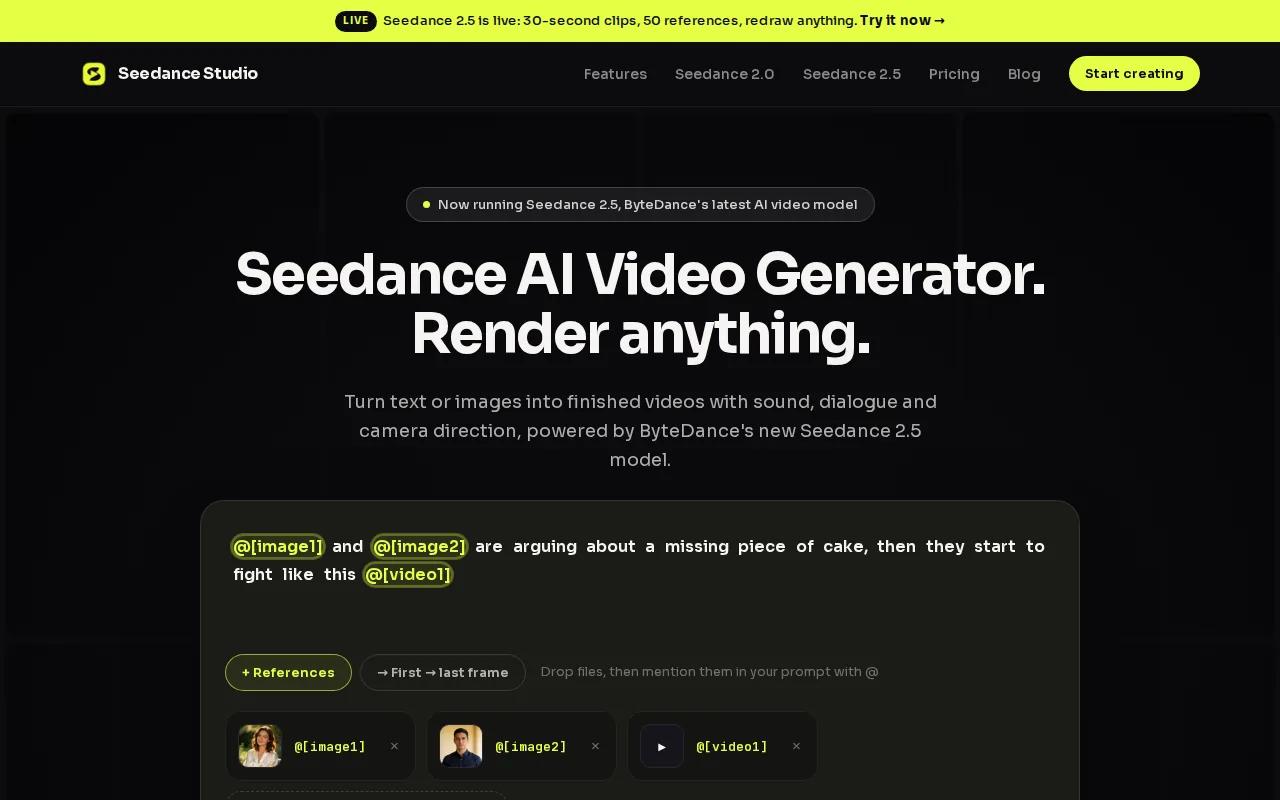
Type a prompt to describe the scene, action, and camera direction. You can also bring in reference images, video clips, or audio to guide the result. The model can generate a video with native sound, or make a still image. For a deeper look at the model and its workflow, see the Seedance 2.5 features and access details.
The free plan gives you a couple of videos each month, with no card required. Those free videos include a watermark. If you need more regular output, paid plans start at $14 per month and include a commercial licence. That makes Seedance Studio a useful step up when a quick anonymous test turns into a campaign or a steady stream of social posts.
Think of a product launch. You could describe a close-up shot, add a reference image of the item, then ask for a slow camera move. A marketer can use the result to test a visual direction before booking a shoot. Plain language works; add details about movement and mood when you need more control.
Character consistency matters when a clip has more than one shot. Seedance 2.5 is described as planning a scene so characters stay consistent from shot to shot. For short-form posts, you can also plan around the shape of the final video, rather than trying to crop a wide scene later.
2. Magic Hour: A limited daily allowance for quick tests
Magic Hour turns text prompts or images into short video clips. It fits someone who wants to test a visual idea without making an account first, especially when a three-second result is enough to judge the motion.
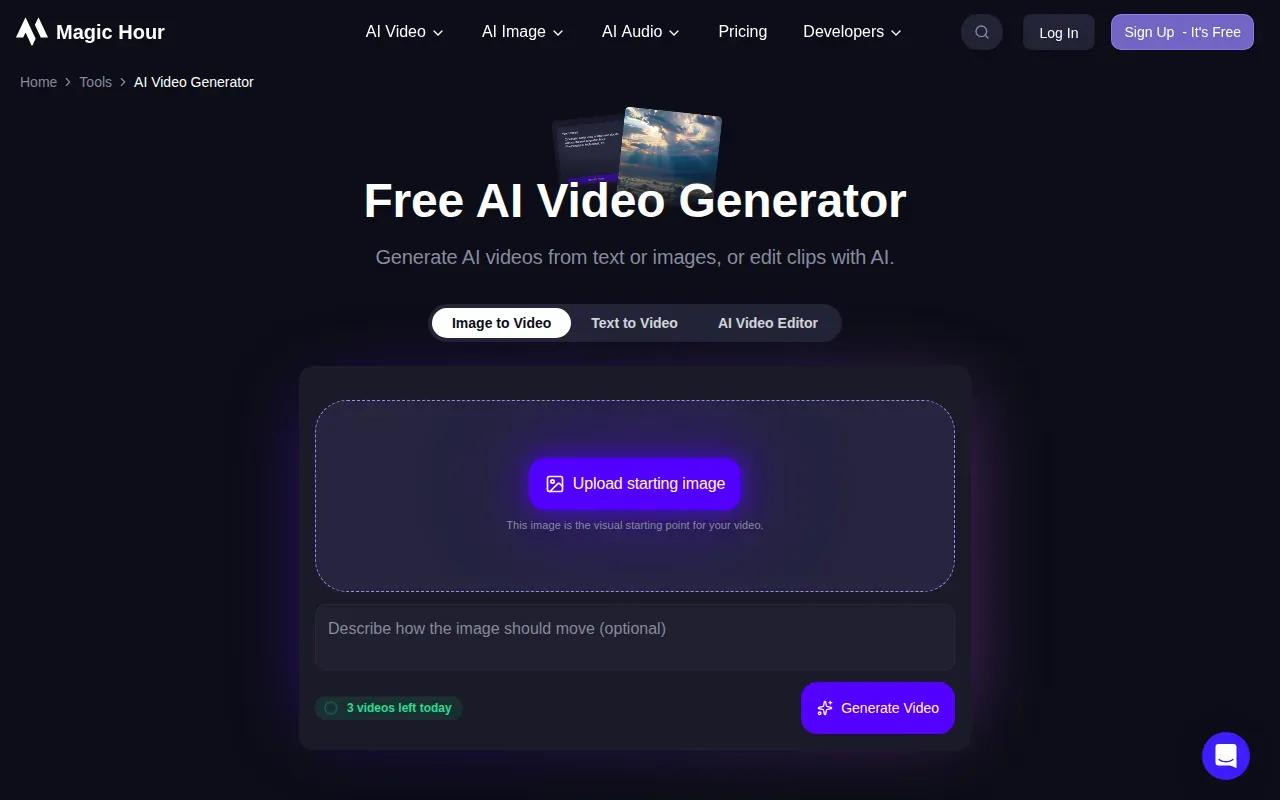
The no-signup allowance is three free generations per day, with each clip lasting three seconds. Both text-to-video and image-to-video are listed as core uses. That gives you two useful starting points: write a new scene from scratch, or bring a still image and ask for movement.
For example, a creator could try a prompt for a slow push toward a cup near a window, then use an image as the starting frame for a second test. These tiny clips work best as motion checks. They can show whether the subject moves in the right direction, but they are not a full-length ad or a finished story.
Keep the prompt focused on one action. A scene that asks the subject to walk, wave, turn, and change outfits in three seconds gives the model too much to fit into a short result. Ask for one movement first, then adjust the camera or setting in another attempt.
Before you build a project around a guest mode, test the whole path you need. Generate a clip, check whether you can save it, and see if the length works for your post. Account-free access is handy for trying a tool, but it does not tell you whether its allowance fits daily production. If avoiding a waitlist is part of your search, this guide covers that separate access question.
Magic Hour is a strong fit for a quick visual check. Its daily cap and three-second clips make it less suited to a project that needs several connected shots.
3. Raphael AI: A simple option for prompt- and image-based clips
Raphael AI lets visitors generate a short video from a prompt or an image without signing up. Its free default is a four-second clip at 480p, which makes it a straightforward place to check whether an idea has the motion you want.
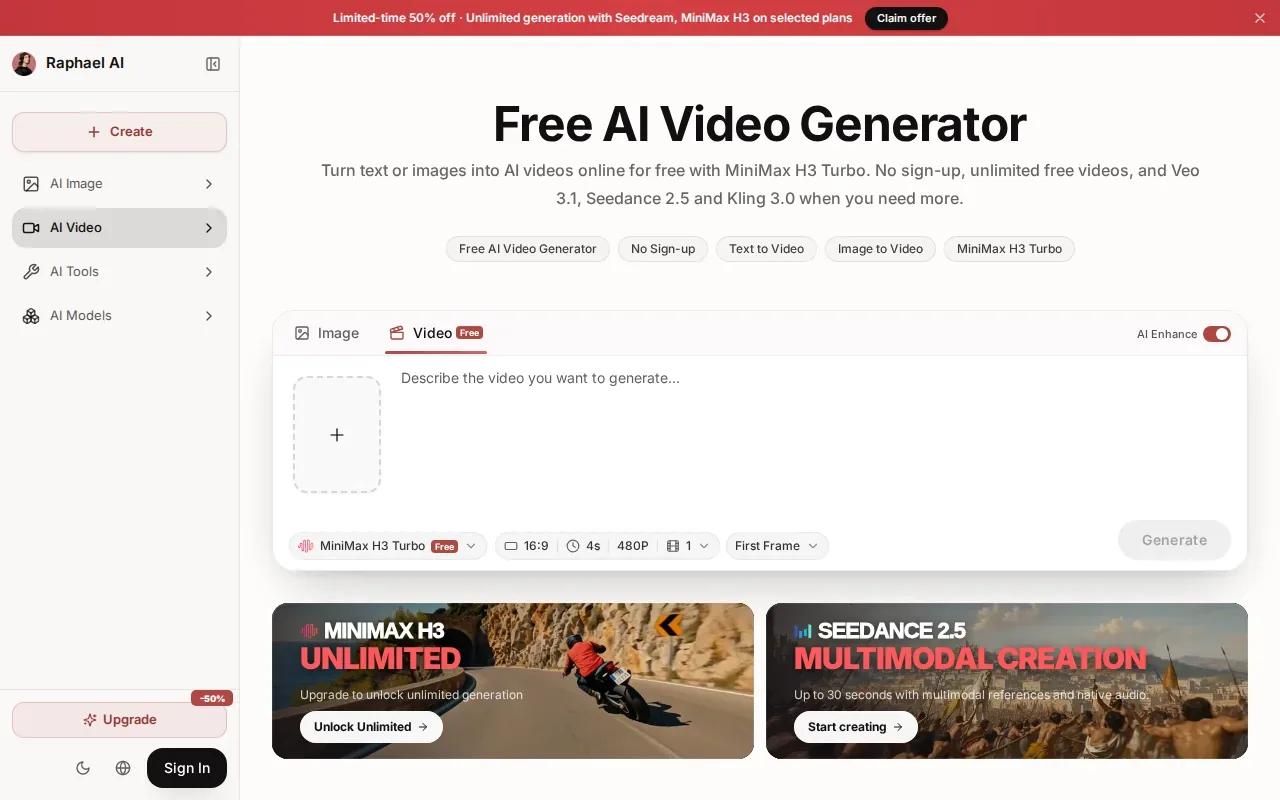
For text-to-video, describe the subject, what it does, and how the camera moves. For image-to-video, upload a still and request a small movement. A portrait might need a gentle blink or a slight turn; a product photo might need a slow camera push. Keep the source image clear, especially when the subject’s face or product shape must stay recognizable.
The free clip is short and low in resolution compared with formats often used for a polished campaign. Treat it as a preview, not a final master. If you are testing a social idea, choose the frame shape before generating when that setting is available. This saves you from finding out later that the subject sits too close to the edge for a vertical crop.
Raphael AI is useful for testing both a written scene and a still image in the same basic workflow. If you already have a photo, the image route gives the model a starting composition. If you only have a concept, text-to-video lets you check it before spending time on reference art.
Signing in lets you save a video to History, so a no-account session is best treated as a quick test rather than a reliable project archive.
4. Upsampler: Fast text-to-video with no watermark
Upsampler is a free browser-based video generator with no signup and no watermark. It focuses on fast text-to-video creation, with image animation as another way to start. It suits creators who need a clean short clip to bring into an edit or post.
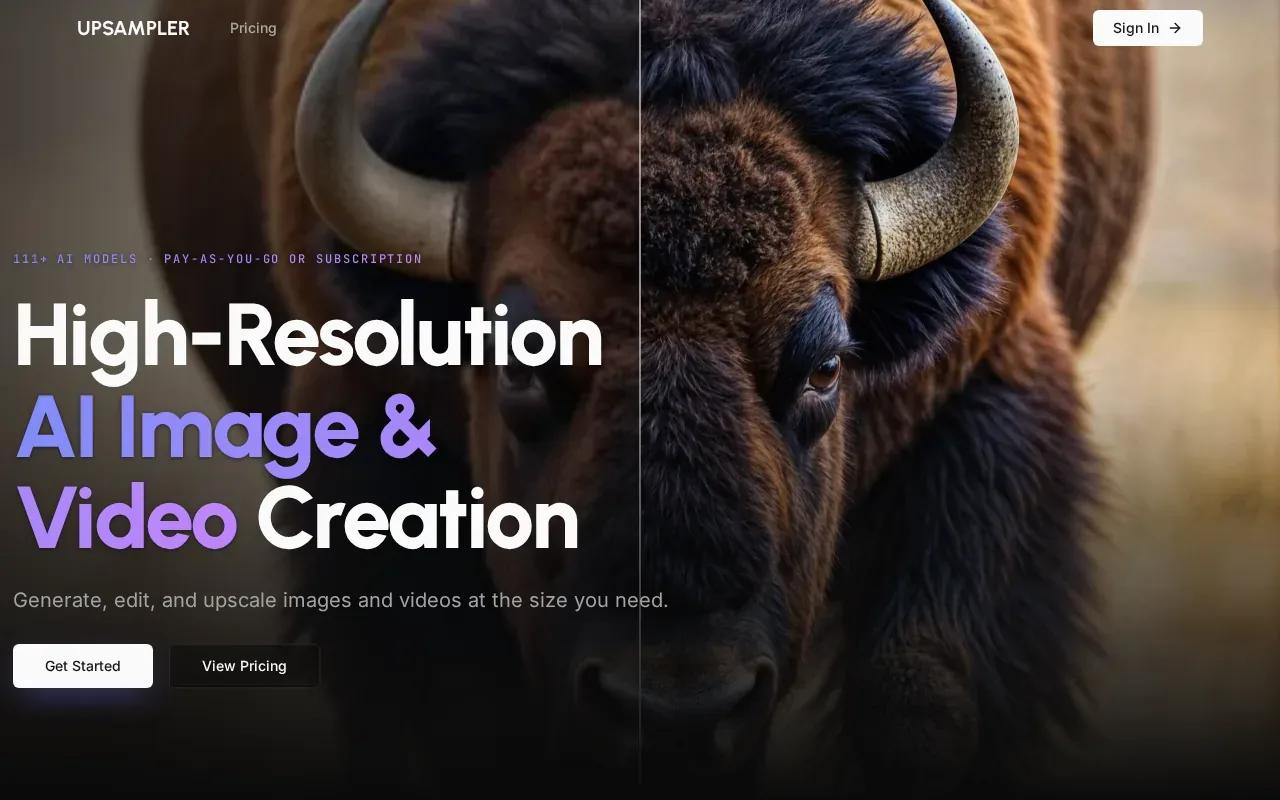
Choose a prompt when you are inventing a scene, or upload an image when you want to animate a specific picture. You can also choose resolution and frame rate before generation, with settings described as going up to 1080p and 60 frames per second.
Those settings can help when a clip needs to fit a specific delivery plan. A vertical social post and a wide presentation video have different shapes, so set the frame for the place it will appear. Keep the prompt centered on one main action. If you ask for several unrelated changes in a short clip, the motion can become hard to read.
A no-watermark file is useful when you want to test how an AI-generated shot sits inside an existing edit. Still, check the result before you publish it. Look at hands, faces, product details, and any text that should stay legible. The absence of a visible watermark does not by itself answer questions about permission, licensing, or disclosure.
For a quick draft, Upsampler’s appeal is simple: start from words or an image, generate a clip, then inspect it in your normal editing flow. If a watermark is a deciding factor across tools, check export concerns in this comparison.
5. Pixelbin AI Video Generator: Animate still images for marketing
Pixelbin AI Video Generator is built to turn images or text prompts into short video assets. It is a natural fit for marketing teams that already have product photos and want to test motion without starting with a blank screen.
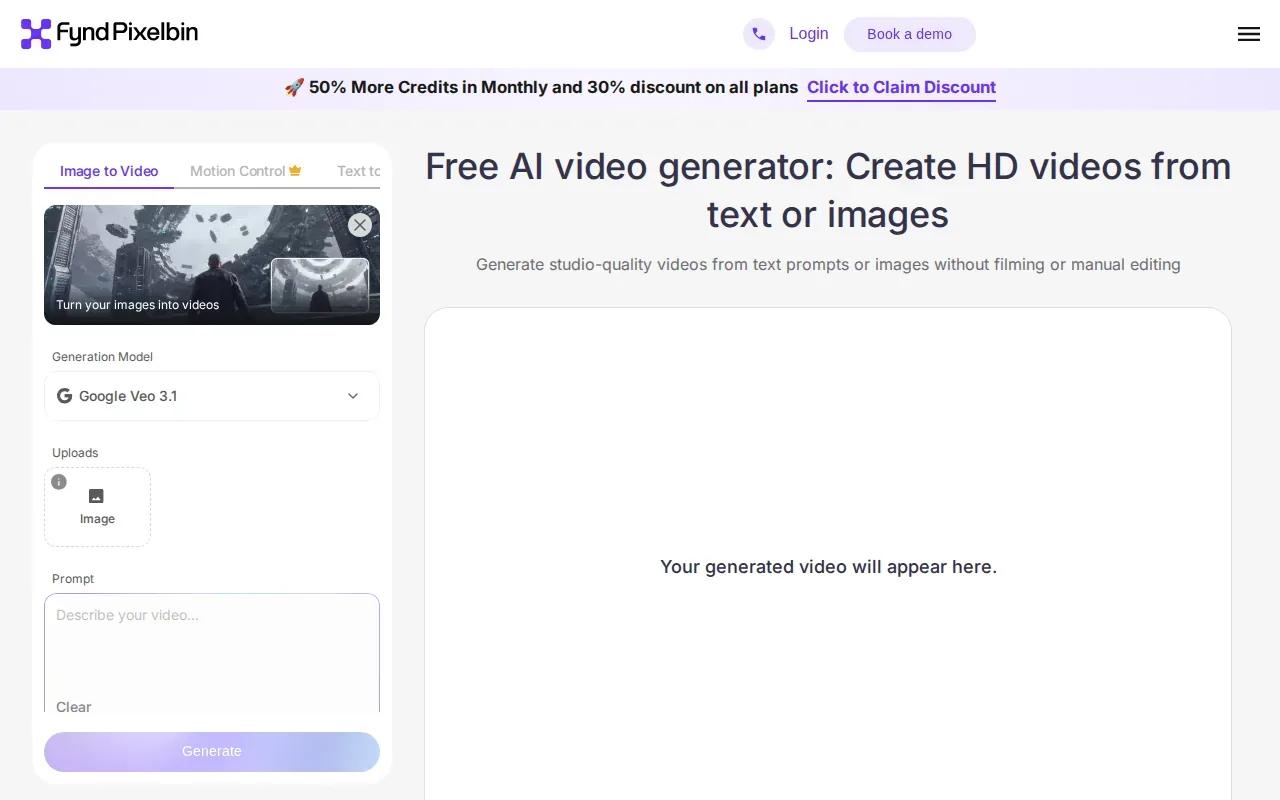
Depending on the model, you can upload an image or describe a video idea. The settings include clip lengths of four, six, or eight seconds. Common aspect ratios include 9:16, 16:9, and 1:1, so you can pick a shape that suits a vertical feed, a widescreen placement, or a square post.
Pixelbin also describes controls for camera movement and object motion. You can turn audio on or off, and guide a transition with a starting and ending frame. Those controls help when a simple product image needs gentle movement, such as a camera move that reveals more of the object while the background shifts.
For a shop or product team, begin with a clean source image. Decide what should move and what must stay still. If the package shape needs to remain clear, ask for motion in the setting or camera rather than making the product itself change. Then review the generated clip at full size before placing it in an ad or product page.
Pixelbin says guest accounts can use the tool without signup. Check the selected model and its controls before making a batch, since the available input and settings depend on the model you choose.
Use this option when the source image is already doing most of the creative work. It gives a product team a way to explore a moving version of an existing visual, rather than having to write every detail from scratch.
6. Runway Gen-4: Try a demo before committing
Runway Gen-4 is a video generation model for creating scenes with a focus on consistency. A demo mode is described as available without login, which makes it worth a first look if you want to test the feel of a model before deciding whether to set up a longer workflow.
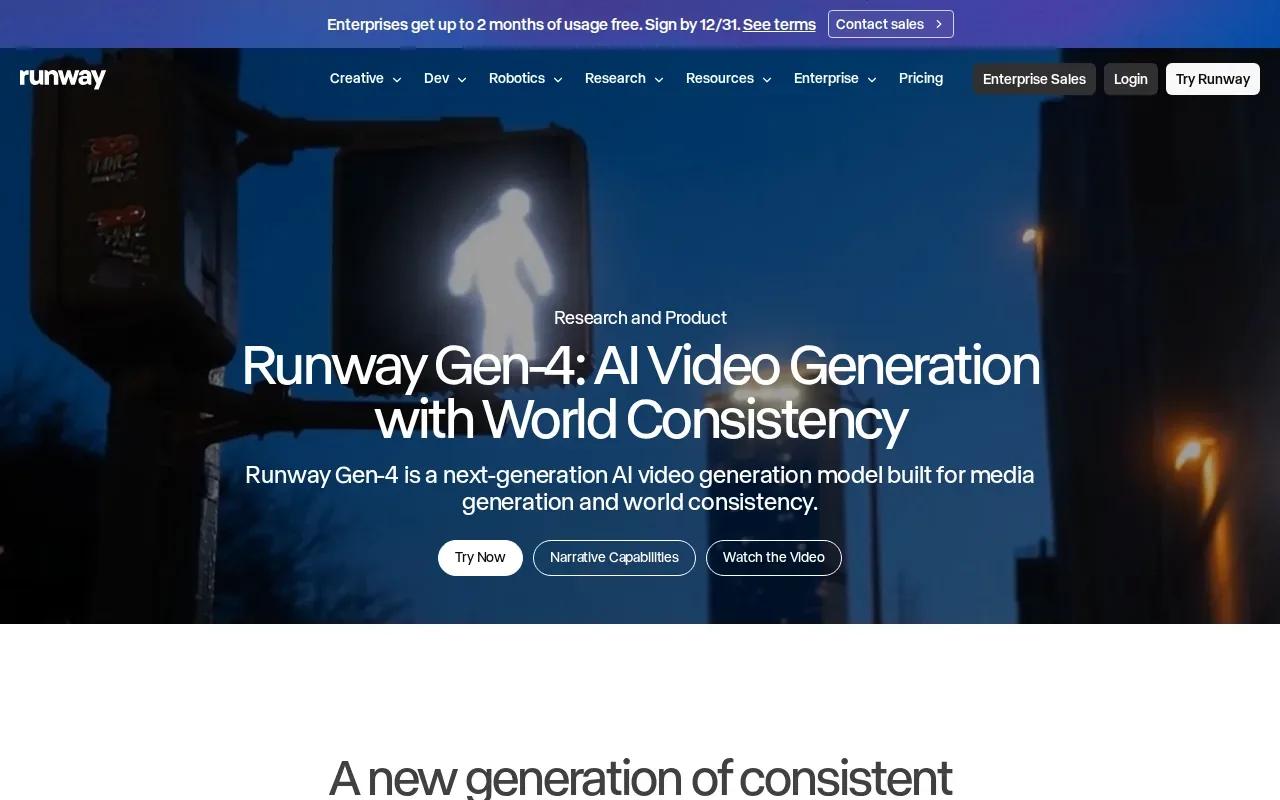
For example, a team could try a reference image to check the look of a character, then use editing tools to adjust parts of a clip. The key distinction is that the no-login demo is an entry point to try the model, while a full project may involve more steps than a single anonymous generation.
Before relying on a demo for a deadline, check whether the specific access path lets you finish the task you have in mind. Try the prompt, inspect the output, and confirm what export or edit actions are available. A demo can answer whether the model’s visual direction suits your concept, but it may not represent every part of a production workflow.
Runway Gen-4 is worth testing when scene consistency and follow-up edits matter. For a recurring team workflow, compare the demo experience with the time you need to save versions and prepare final exports.
AI video generators with no signup: quick comparison
These tools differ most in what you can test before making an account and how much a free generation can tell you. Use the table to match your starting material to the kind of clip you need.
| Tool | Good starting point | Access detail | Best use |
|---|---|---|---|
| Seedance Studio | Prompt or reference media | Free plan includes a couple of videos a month, no card required; watermark on free videos | Repeat creation with scene direction and reference inputs |
| Magic Hour | Text or image | Three free generations per day, three seconds each | Quick motion tests |
| Raphael AI | Text or image | Free default is a four-second, 480p clip | Checking a prompt or still-image animation |
| Upsampler | Text or image | Free, no signup, no watermark | Making a short clip for an edit |
| Pixelbin AI Video Generator | Text or image, depending on model | Guest access; clip settings include four, six, or eight seconds | Animating marketing images |
| Runway Gen-4 | Text, image, or existing video in its product workflow | Demo mode can be tried without login | Testing a model before a broader edit workflow |
“No signup,” “free,” and “no watermark” describe different things. A visitor may be able to generate a preview but still face a short duration or limited export path. For ongoing work, compare the free allowance with your monthly output needs. A price comparison can help frame that next decision.
When you compare output, use the same simple prompt and source image where possible. Check whether the subject stays recognizable, whether the motion feels right, and whether the file fits the intended format. These checks are more useful than judging a tool from a showcase clip alone.
FAQ
Can I make an AI video without signing up?
Yes, several tools in this shortlist let you start without an account. Magic Hour, Raphael AI, Upsampler, Pixelbin AI Video Generator, and the Runway Gen-4 demo each have a no-signup path. Check the limits before you begin, since clip length and access rules differ.
Are no-signup AI video generators free?
Some are free to try, but no-signup access and free use are separate terms. Magic Hour gives three three-second generations per day, while Raphael AI’s free default makes a four-second clip at 480p. Check the current allowance and export options before planning a larger job.
Can these tools turn a photo into a video?
Yes. Magic Hour, Raphael AI, Upsampler, and Pixelbin AI Video Generator support image-based video creation in the described workflows. Start with a clear image, then ask for one small movement. A restrained motion prompt often makes it easier to see whether the source image will work for your intended clip.
What should I check before using an AI-generated clip in an ad?
Review the tool’s terms and the rights tied to your plan before using a clip commercially. Then inspect the file for visual errors, check its aspect ratio, and confirm whether it has a watermark. Avoid uploading confidential campaign material or private images unless you have reviewed the service’s privacy terms.
How do I get a better result from a short prompt?
Say what the subject is doing and how the camera should move. Add one detail about lighting or mood if it helps. For image-to-video, name the part that should move and the part that should stay stable. Generate a small test first, then revise one instruction at a time.
Conclusion
For a fast anonymous test, choose the tool that matches your input and clip length. If you expect to make videos regularly, Seedance Studio gives you a free way to try Seedance 2.5, then paid plans start at $14 per month. Start with one prompt or reference image, review the result, and decide whether you need a repeatable workflow.