If you're looking for the best free AI video maker, start by asking what you need: new footage, an AI presenter, or help editing clips you already shot. We’ve picked tools for each job, with Seedance Studio first for prompt-led video creation.
We analyzed 52 comments and questions from Reddit, YouTube and Quora about FREE AI video makers and found that 13% mentioned inconsistent video quality.
1. Seedance Studio
Seedance Studio is a browser-based AI video and image generator built around Seedance 2.5. Seedance Studio uses a text-to-video model that you can access in a browser.
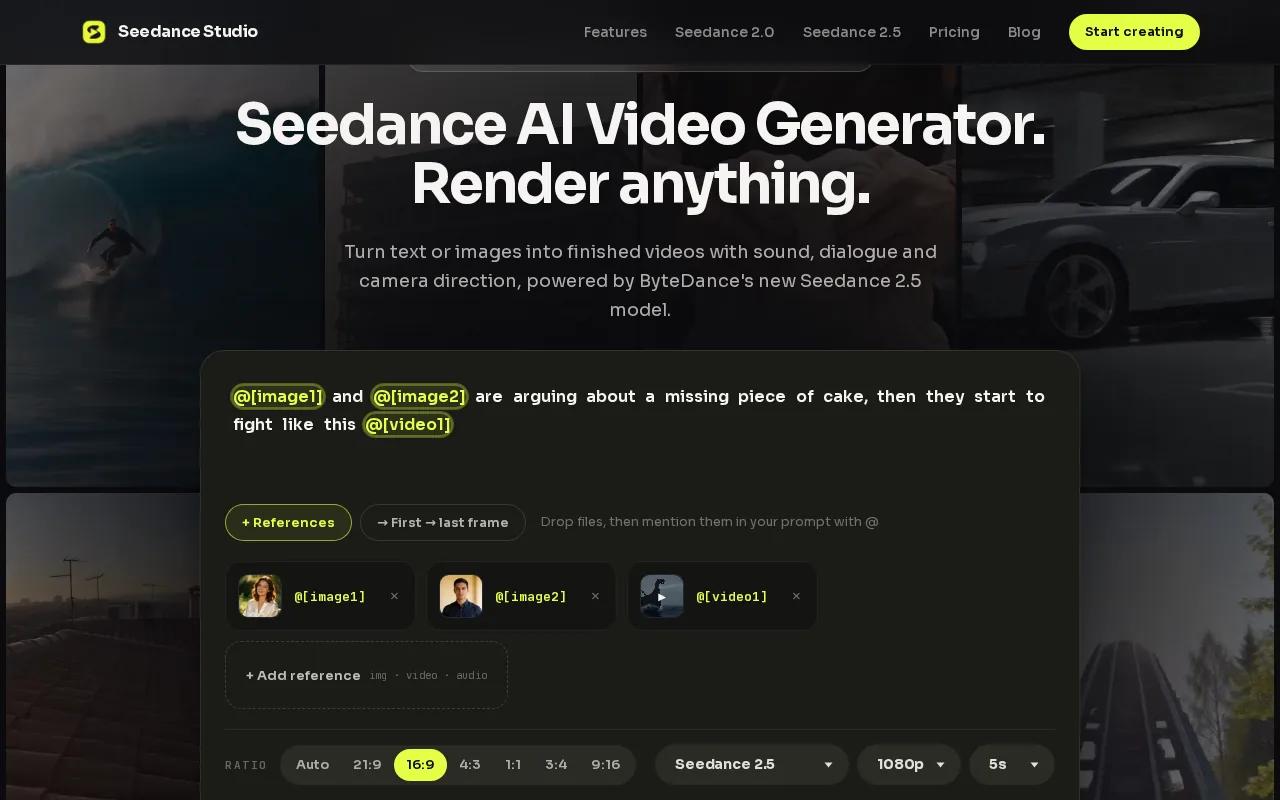
It’s a strong fit when you want to start with an idea instead of filmed footage. Seedance 2.5 plans a scene with camera moves and characters that stay consistent from shot to shot. The generator also makes sound with the video, so a prompt can describe the scene and its audio together.
That can help when you’re testing a short social concept before a shoot. For example, you can describe a product reveal, review the generated clip, then revise the prompt if the action or camera movement doesn’t match your idea. Plain language works. You don’t need to write like a film director.
The free plan gives you a couple of videos a month, with a watermark and no card required. That’s enough to test a prompt or see how a reference image moves, but it won’t support a busy posting schedule. Paid plans start at $14 per month. The site says every plan includes AI video and image generation, a media gallery, and a commercial license.
If your first test is based on a still image, our free image-to-video tools roundup gives more options to compare. Seedance Studio also lists common social formats, including vertical 9:16 and square 1:1, which helps you plan the frame before you generate.
Choose Seedance Studio when you want a prompt or image to become a directed scene, with consistent characters and built-in sound. The monthly free allowance is small, so save each generation for a prompt you actually want to test.
2. Google Flow: generous daily video generation
Google Flow is an AI video generator for people who want several short clips to test in a day. Its stated free allowance is five clips of eight seconds each per day, which gives you more daily chances to explore an idea than a small monthly sample.
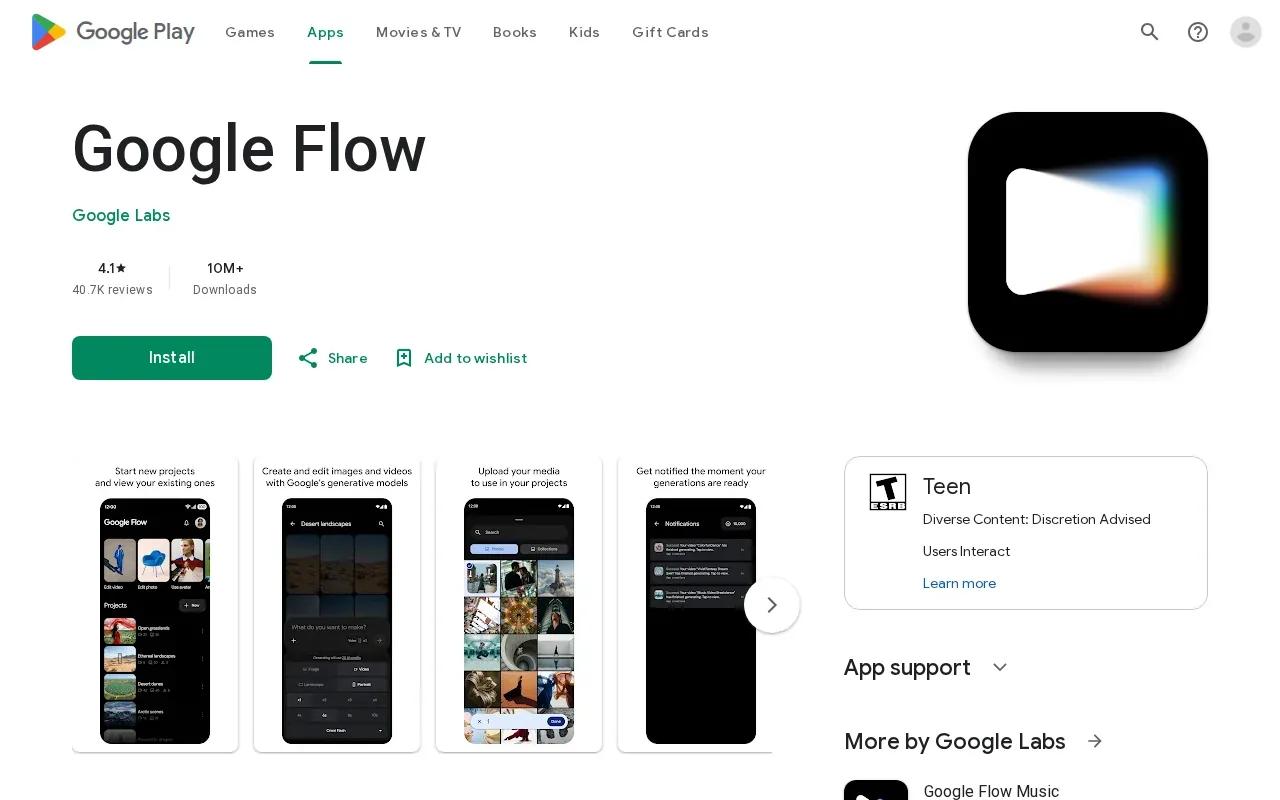
That daily rhythm suits creators who can work in short bursts. You might use one clip to test the main action, then spend later generations trying a different scene or prompt. Each result is short, so plan for a montage or a few cutaways rather than one long finished video.
Flow’s free outputs have an invisible SynthID mark. That’s different from a visible logo over the image, but it still means the output carries an AI-generated mark. If you’re making a clip for a client or a public campaign, check the terms that apply to your account and planned use before publishing.
Think through the edit before spending a daily generation. A useful prompt names the subject, what it does, and the setting. Then decide whether the clip needs to work as a standalone post or as one shot in a longer edit. With eight seconds per clip, a clear action matters more than a long setup.
Flow is a fit if you want repeated short-form experiments and can make use of a daily allowance. If your project needs a presenter speaking to camera, an avatar tool may be a better match. If you want to compare more prompt-first options, our text-to-video generator picks focus on that workflow.
3. Runway: generative scenes from prompts and images
Runway makes new video scenes from text prompts and image inputs. It suits creative teams testing a visual idea, especially when the project calls for cinematic or abstract scenes rather than a talking presenter or an edit of existing footage.
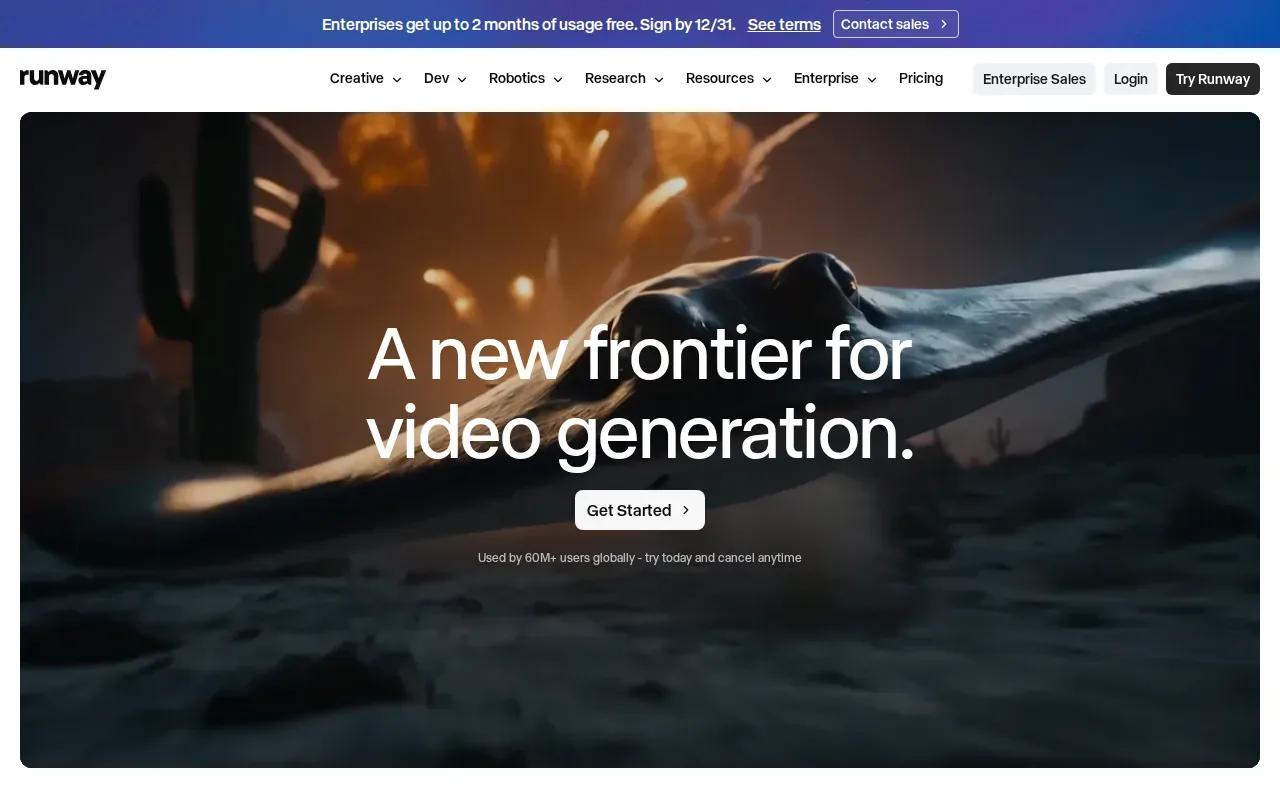
Starting with an image gives you a visual reference for the scene. Starting with text lets you describe what should happen without first making an image. That distinction matters when you’re deciding whether to explore a broad mood or build from a specific frame you already like.
The free plan comes with 125 credits as a one-time amount. Those credits don’t refresh. Free outputs carry a watermark, and the plan has a limit of three active projects. It also doesn’t include access to Gen-4 or Veo models. Treat the free allowance as a test budget, not a monthly production supply.
For a small creative team, a useful test could be a handful of distinct shots for a pitch deck or mood board. Agree on what you want to learn before generating: perhaps whether a visual style works, or whether an image reference can guide the motion. That keeps the limited credits focused on a decision.
Runway’s appeal is the freedom to explore a scene from a prompt or image. Its fixed credit pool and watermarked outputs make it less suited to repeated free publishing. If you need a finished clip from your own footage instead, look at an editor rather than a generative scene tool.
Pick Runway for a short creative trial when the concept itself is still taking shape. Keep a note of the prompts that produce useful results so the team can judge the test without repeating the same experiments.
4. HeyGen: AI avatar videos for talking-head content
HeyGen is built for AI avatar talking-head videos. It’s a useful option for solo creators testing an on-screen presenter workflow, or for marketers who want to see how avatar video might fit into a content plan before choosing a paid setup.
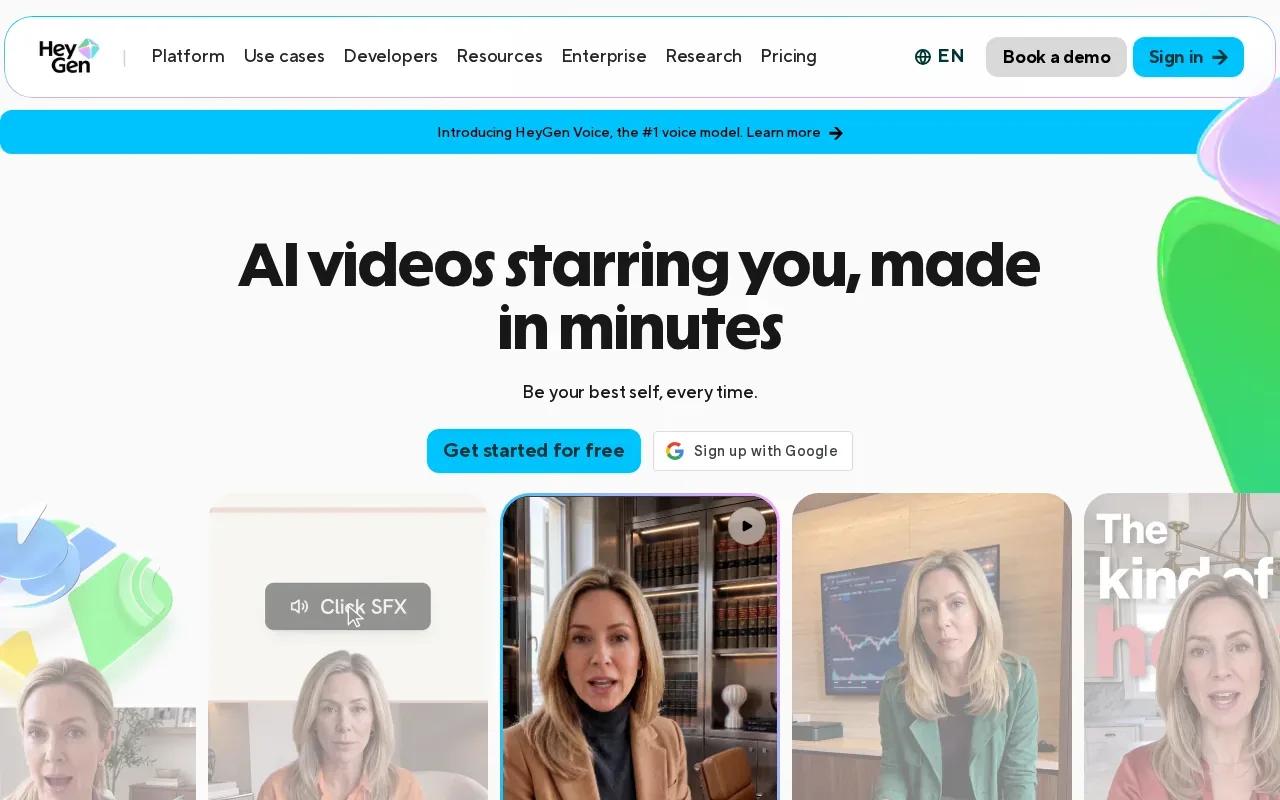
An avatar workflow starts with a script or message rather than a filmed performance. That can suit a short explainer, an internal update, or a social post where a presenter needs to deliver a clear line. You still need to review the final result as a viewer: check the wording, pacing, and whether the presentation feels right for your audience.
The free plan allows three videos per month, with a watermark on each export. It also limits video length to three minutes. Free users can’t make custom video avatars or use voice cloning. Those limits make the plan best for evaluating the format, not producing a regular set of branded presenter videos.
Try one script with a single clear point. If the video is a product update, lead with what changed and explain what the viewer should do next. A tighter script is easier to assess than a long message with several ideas competing for attention.
HeyGen is the more relevant choice when the human-presenter format is the point of the video. It won’t replace a scene generator if you need imagined action or a visual concept with no presenter.
If you’re comparing avatar tools, judge the output on the actual message you plan to share. A polished face alone doesn’t make a useful video; the script still needs a clear purpose.
5. Clipchamp: free exports and practical editing tools
Clipchamp is an editing tool for footage you already have. Its free plan supports unlimited 1080p exports with no watermark, which makes it a useful pick when your main task is to polish a recording rather than generate every scene from a prompt.
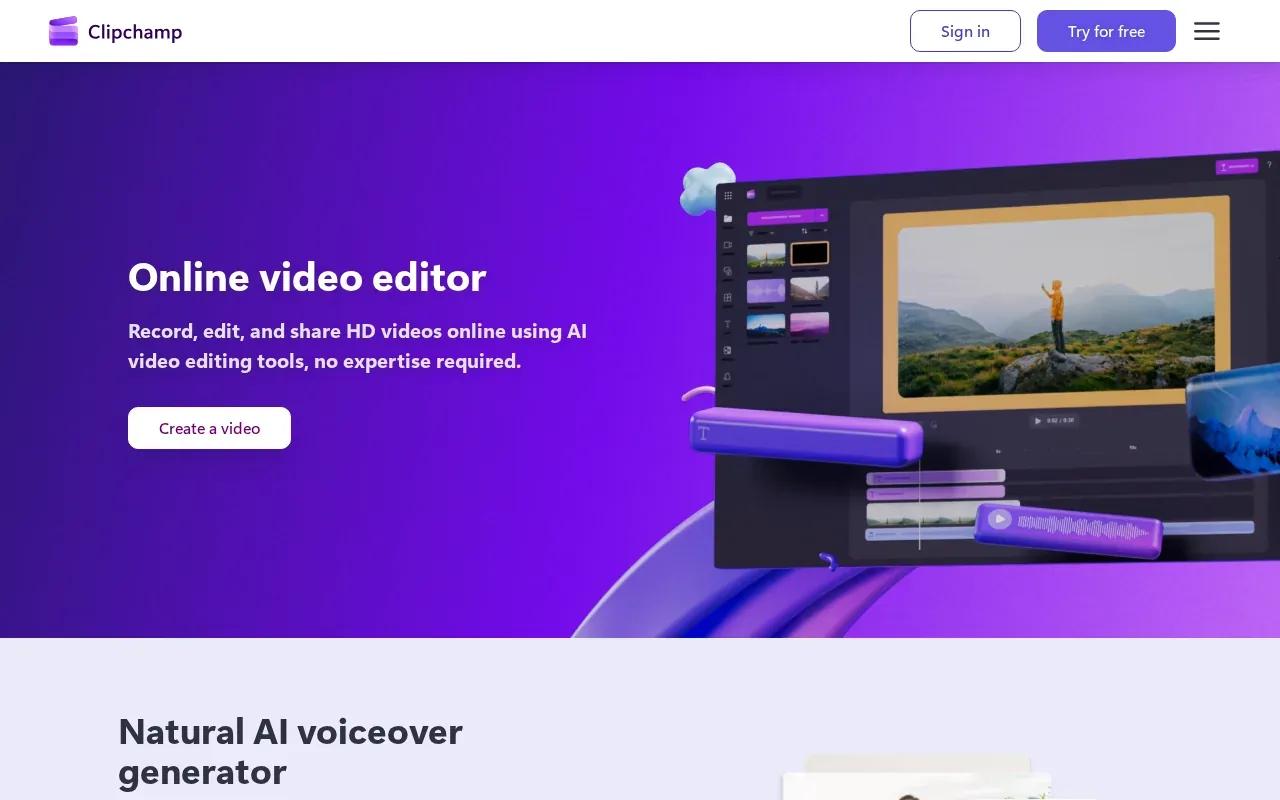
Its AI helpers cover tasks that often slow down a simple edit. You can use AI text-to-speech, auto-captions, or background removal as part of a project. Text-to-speech supports more than 70 languages, giving creators a way to add narration without recording a voice track for every version.
Picture a tutor who has recorded a lesson at a desk. The useful work is trimming pauses, adding captions, and making the voice track clear. That’s an editing job, not a reason to generate a new scene. Clipchamp’s free 1080p export can take that finished cut to a shareable file without adding a watermark.
Before exporting, check whether you’ve used a premium asset or feature. Clipchamp says a project with premium stock media or a feature outside the account plan can’t be exported until the account moves to a plan that includes it. That’s a good reason to check the timeline before you finish the edit.
Choose Clipchamp if you have footage and want straightforward editing with AI-assisted captions or speech. It’s also a sensible option for educators making tutorials and for beginners who want a browser-based editor. It won’t generate a complete prompt-led scene in the same way as a video model.
For the fastest workflow, make your first pass with the footage and voice you already have. Add captions after the cut is clear, then watch the export once before posting to catch a missed pause or an awkward trim.
6. CapCut: social video editing with AI helpers
CapCut is a social video editor with a full multi-track editor on its free plan. It supports exports up to 4K, and its AI helpers include auto-captions, auto-cut, and text-to-speech voiceover. That combination suits short-form creators who need to assemble a finished post quickly.
A multi-track timeline lets you arrange separate visual and audio pieces in one edit. For a Reel, for example, you can place a clip on the timeline, add a voice track, then use captions to make the spoken message easier to follow. The result still needs your eye. Check that the captions match the speech and that the opening gets to the point.
CapCut can also help when you’re joining AI-generated clips into one finished video. Use the editor to set the order, trim the ends, and place the sound where it belongs. This is a different job from generating the scene itself, and it’s often the last step before a clip is ready to post.
The free plan has a specific watermark caveat: some AI-template and premium-effect exports include a CapCut watermark. Check the export preview if you use those elements. The general editor’s free export allowance and the output from a particular AI template aren’t always the same thing.
CapCut fits mobile-first creators who want to caption and edit short videos, along with people who need to assemble generated clips. If your main need is clean exports from existing footage, compare that workflow with Clipchamp. If you’re generating scenes from scratch, start with Seedance Studio, Flow, or Runway instead.
CapCut’s role is strongest at the edit stage: bring the pieces together, add captions, and check the final frame before you export.
Free AI video makers compared
The right pick depends on where your project starts. Use this quick comparison to separate tools that generate scenes from tools that help finish existing footage.
| Tool | Best starting point | Free-plan detail | Good fit when |
|---|---|---|---|
| Seedance Studio | Prompt or reference material | A couple of videos each month; watermark | You want a directed scene with sound |
| Google Flow | Text prompt | Five 8-second clips per day; invisible SynthID mark | You want several short daily tests |
| Runway | Text prompt or image | 125 one-time credits; watermark | You’re testing cinematic or abstract ideas |
| HeyGen | Presenter-style video | Three videos per month; watermark | You need to test an AI avatar workflow |
| Clipchamp | Existing footage | Unlimited 1080p exports; no watermark | You need editing and captions |
| CapCut | Existing clips or AI templates | Up to 4K; watermark on some AI-template and premium-effect exports | You’re making a short social edit |
A free plan can be limited by more than the number of videos. Check whether the output has a visible watermark, whether the allowance refreshes, and whether the tool makes footage or edits footage you already own. For a prompt-first project, the comparison in our free AI video generator shortlist gives you another view of the options.
Frequently asked questions
What is a free AI video maker?
A free AI video maker uses AI to generate video or help edit footage without an upfront payment. Some turn text or images into new scenes; others add captions, voice, or edits to clips you already have. Free plans can limit how many videos you make, add watermarks, or restrict certain effects, so check the terms that matter for your project.
Can I make TikTok, Reels, or Shorts videos for free?
Yes, you can make short videos for social platforms with these tools’ free plans. Seedance Studio can generate a scene from a prompt or reference, while Clipchamp and CapCut help edit existing footage. Check the export frame and watermark before posting. A watermark may be fine for a draft, but it can change whether a finished clip suits your account or client.
Which free AI video maker has no watermark?
Clipchamp’s free plan supports unlimited 1080p exports with no watermark. Other tools in this shortlist have stated watermark limits: Seedance Studio and HeyGen watermark free videos, Runway watermarks free outputs, and CapCut adds a watermark to some AI-template and premium-effect exports. Google Flow’s SynthID mark is invisible, rather than a visible logo on the video.
Can I use a free AI video maker for commercial work?
Check the specific plan terms before using a free output in a paid campaign. Seedance Studio says every plan includes a commercial license, while the free-plan facts for the other tools here focus on generation limits and watermarks. A visible mark can also affect whether an export meets a client’s needs, even when the use itself is allowed.
Conclusion
For prompt-led short videos, start with Seedance Studio’s free plan and test one scene you might actually publish. You’ll get a couple of monthly generations without a card, then can decide whether the output fits your workflow. Learn the Seedance video workflow before you make your first clip.