The best AI video generator for creators depends on the video you need, not the size of the model name. Some tools shape cinematic clips, while others turn a script into a presenter-led video or a product promo. Here are seven options, starting with Seedance Studio, and the kind of work each suits.
We analyzed 39 YouTube comments about AI video generators and found that 31% mentioned model quality and suitability.
1. Seedance Studio
Seedance Studio is a browser-based video and image generator built on Seedance 2.5. Type a prompt or upload reference images, clips, or audio to shape a finished video with camera direction, consistent characters, and native sound. You can also generate a still image. It’s a strong fit for creators and marketers making short social videos who want to get from an idea to a usable draft without installing software.
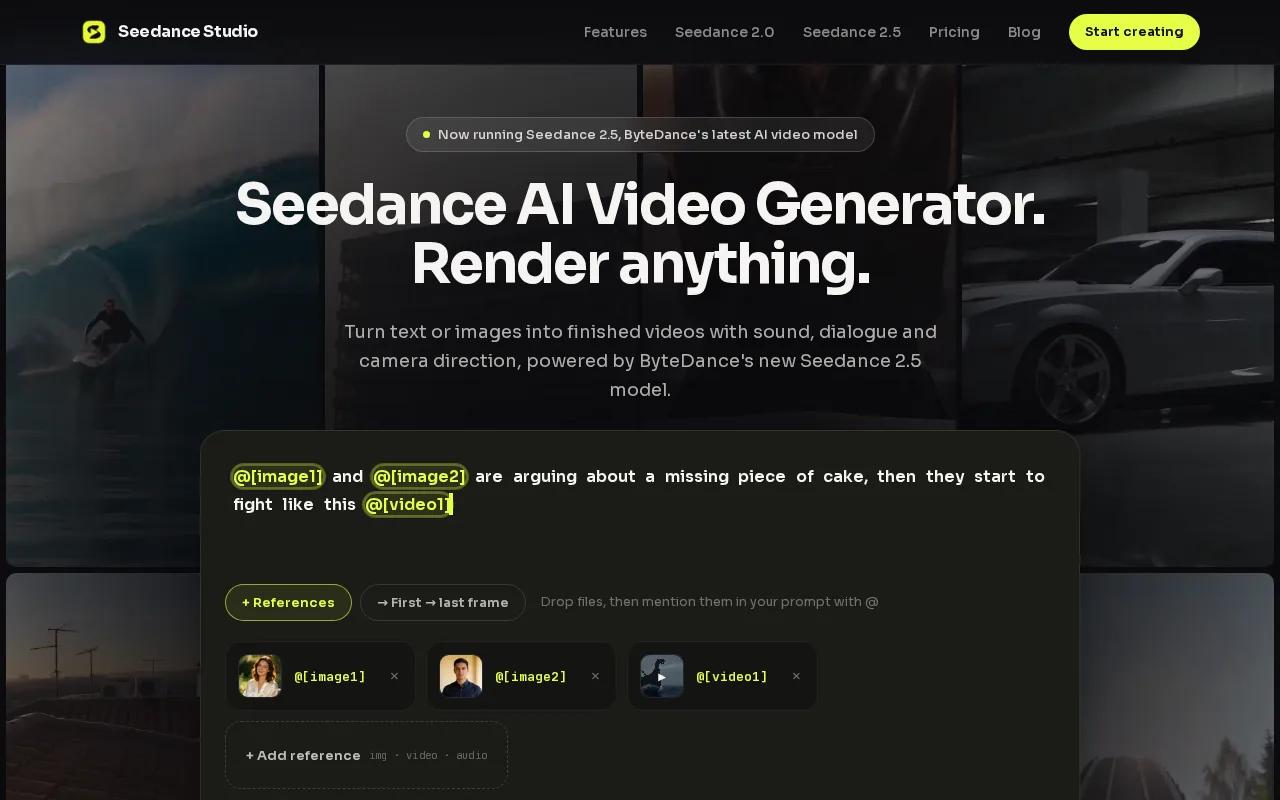
Seedance 2.5 is the default model on every account and plan. The free plan includes a couple of videos each month, with a watermark and no card required. Paid plans start at $14 per month, and include a commercial licence. That gives you a way to test your prompts before paying, then move to a paid plan if you need more videos or commercial use.
The model plans a scene across its shots, which helps keep characters looking the same from one shot to the next. That can help with a short story or product clip where the subject must stay recognizable. Plain language works: describe the subject, what it does, and the scene around it. Then refine the result through your references and prompt.
Seedance Studio makes sense when you want flexible short-form footage rather than a talking presenter reading a script. A browser-based workflow also lowers the setup friction: open the app, add your prompt or reference, and start generating. For a wider look at creator-focused choices, see our comparison of AI video generators for content creators.
2. Runway Gen‑4.5: precise creative control
Runway Gen‑4.5 is a fit for filmmakers, motion designers, and marketers who want more control over how a shot moves. Its strengths include camera moves, a motion brush for directing movement in parts of a scene, and an editing suite in the same platform. It also supports text-to-video, native audio generation, and audio editing.
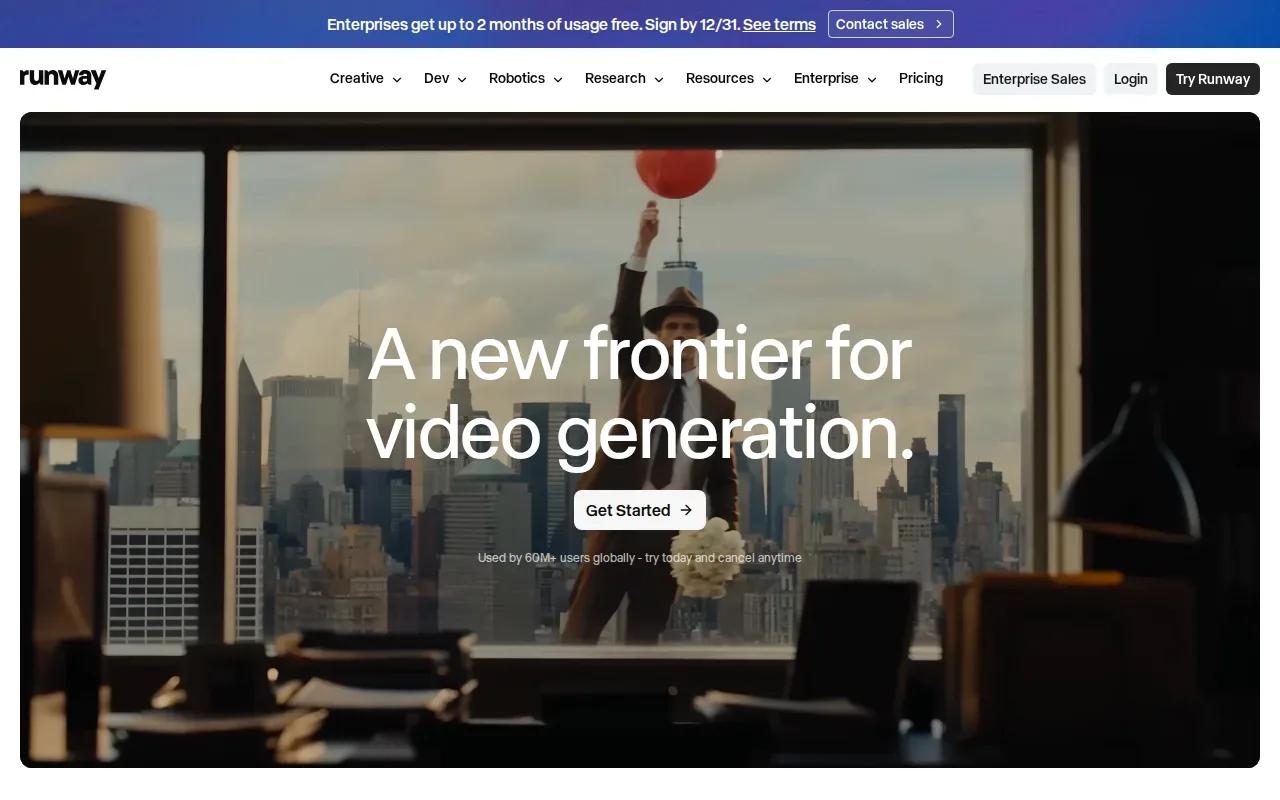
That control matters when a broad prompt leaves too much to chance. You can direct the camera, specify which part of an image should move, then refine the clip instead of treating every generation as a finished answer. For example, a team testing a product reveal can focus motion on the item while keeping the framing deliberate.
Runway’s free access is a one-time allowance of 125 credits, not a monthly credit refresh. That makes it useful for a first test, but it’s a different kind of free plan from one that renews credits every month. The credit-based setup also means you’ll want to watch how quickly your chosen generations use credits.
There’s a trade-off: fine control can take more time than a quick prompt-and-post workflow. It’s worth considering when a shot needs direction or a client may ask for visual changes. If your main concern is cost across different tools, our AI video generator price comparison can help you think through free access and paid-plan fit.
3. Kling 3.0: storyboards with synced audio
Kling 3.0 is a good match for creators who want a sequence of connected shots rather than one isolated clip. Its multi-shot storyboard mode can create cuts within a video, while native audio sync keeps sound aligned across the sequence. The model is also noted for cinematic lighting and is positioned as a value-focused option for repeated creative tests.
Think of a short scene with an opening view, a closer shot, and a final reaction. A storyboard workflow gives you a way to describe how those shots fit together. That can save hand-editing when the video needs a small story arc, though you should still review each cut for continuity before posting.
Native audio is useful when dialogue or sound cues are part of the idea. Instead of treating the visuals as complete and adding sound as a separate task, you can generate a clip with synchronized audio. For more detail on how sound fits into a generated video workflow, see our guide to using an AI video generator with sound.
Kling 3.0’s free tier includes a watermark and 1080p video. If you’re making a draft for internal review, that may be enough to judge the story and pacing. For public or client work, check what the current plan allows before you commit to a final export.
Choose Kling when the scene benefits from multiple shots and synced sound. For a single fast clip, a simpler text-to-video workflow may take fewer decisions.
4. Pika: quick, punchy clips for social media
Pika is aimed at short, punchy clips for social media. It supports text-to-video and image-to-video, so you can start with a written idea or animate a still image. Its standout draw is speed and price, which suits creators who want to try several quick visual directions before choosing one.
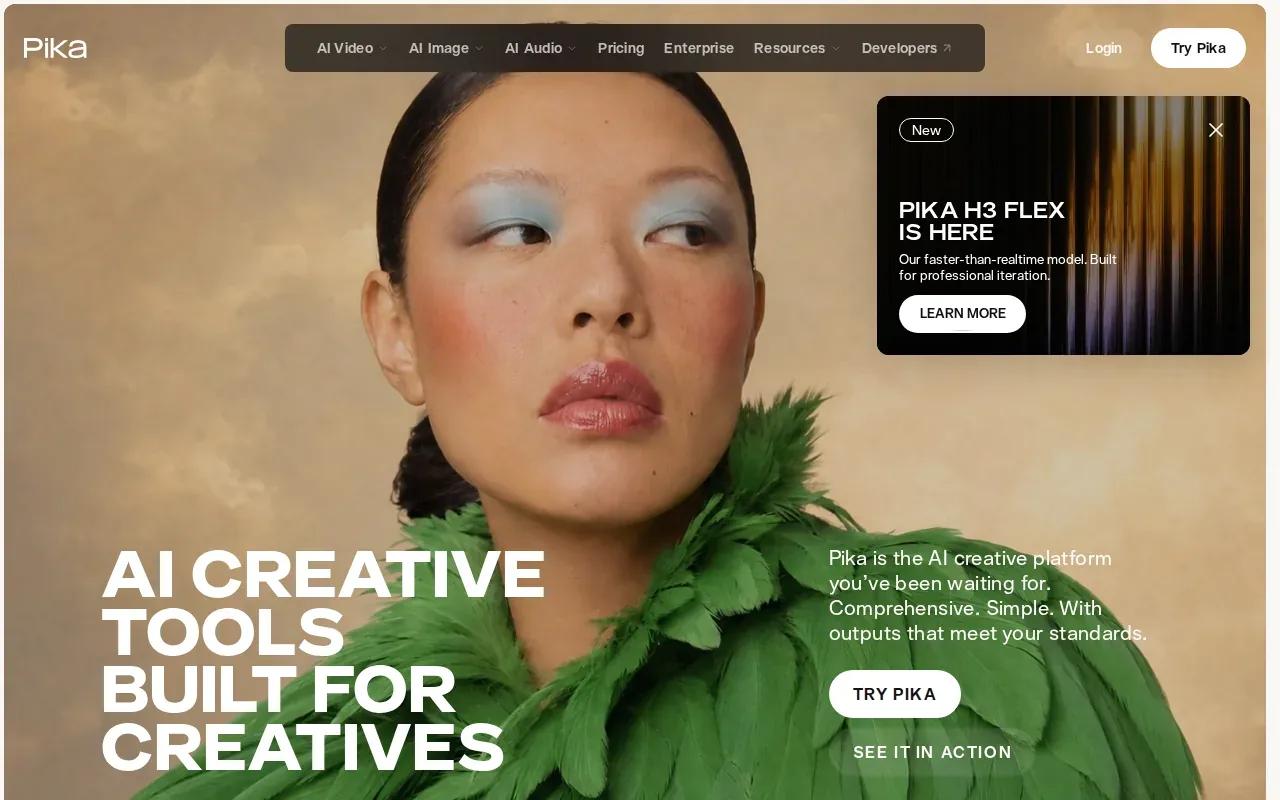
Image-to-video can give a campaign still a little movement for a Reel or short post. Text-to-video can turn a simple visual idea into a clip without a shoot. In either case, keep the prompt focused on one subject and one clear action. A narrow prompt gives you a more useful first draft than a list of unrelated details.
Pika’s free tier includes 80 credits per month. The tier is limited to image-to-video and 480p output, so treat it as a way to test the workflow rather than a promise of a final export that fits every channel. Those limits matter if your brief calls for sharper footage or if you need to generate from text.
For example, a creator with a product photo can test how a subtle camera move feels before editing it into a larger post. But if a scene needs precise control or several connected shots, compare the available workflow before building a whole campaign around quick generations.
Match Pika to a social calendar built around short experiments. If Instagram is your main outlet, our Instagram video generator comparison looks at tools through the needs of Reels creators.
5. HeyGen: AI presenters and broad language support
HeyGen is built for videos where a presenter delivers a message. Paste a script, choose a presenter or use a voiceover, then produce a video without filming a person. Its language reach and voice cloning make it useful for teams that need to adapt a message for audiences in multiple markets.
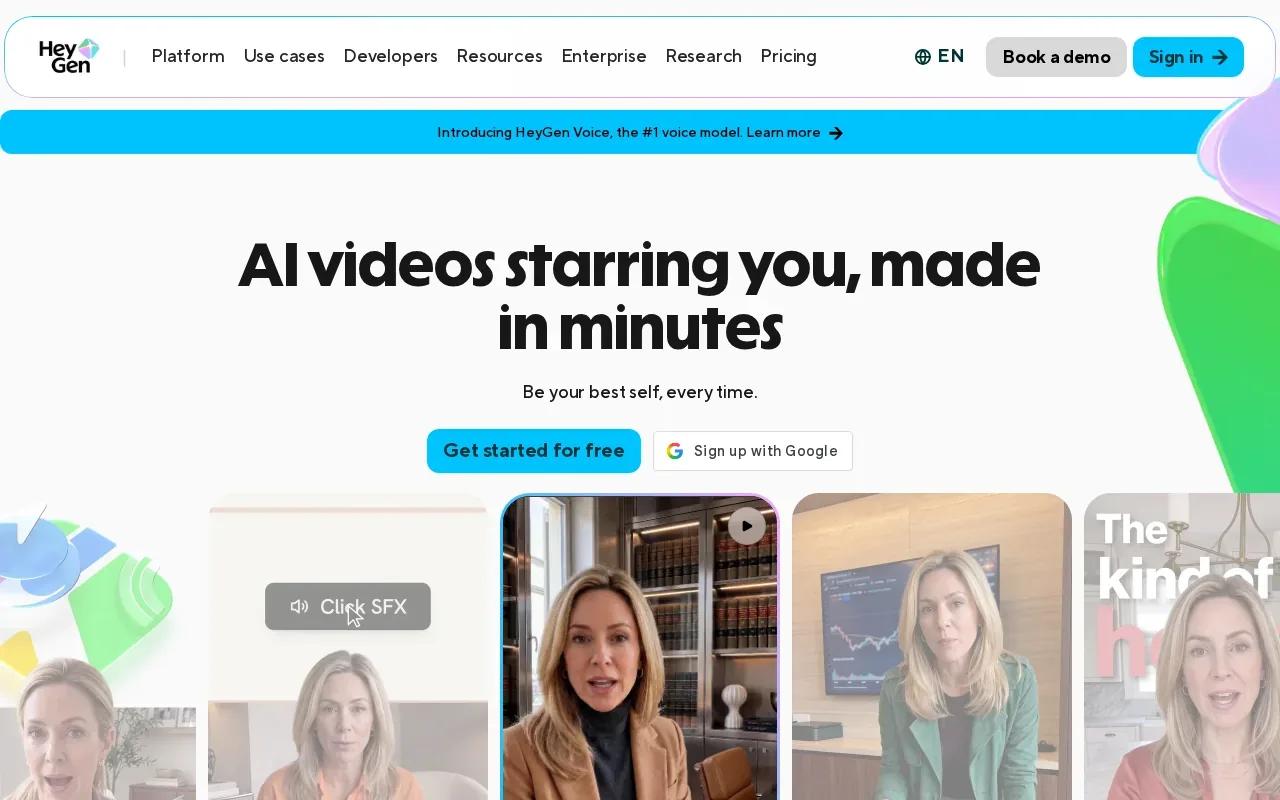
This setup fits product explainers, staff training, and campaign updates. If a product feature changes, revise the script and make a new version instead of scheduling another shoot. A team can also keep the same presenter style across a batch of related videos, which gives viewers a consistent format.
HeyGen’s free tier includes three videos per month, each up to one minute, and one custom twin. Its stated language reach is more than 175 languages and dialects, with voice cloning. That breadth can help when the same core message needs localized voice delivery, but review each version before publishing so the wording and tone suit its audience.
For a simple presenter-led announcement, start with the script and decide whether the viewer needs to see a person on screen. If the message is better carried by visual action or atmosphere, a cinematic generator may be a better fit. A presenter tool is strongest when the spoken explanation is the main content.
6. Synthesia: scripted videos with virtual presenters
Synthesia turns a script into a video with a virtual presenter. It’s a natural fit for training, onboarding, product explanations, and internal updates where the same message may need edits or versions in several languages. The tool supports presenters speaking in more than 140 languages and voices.
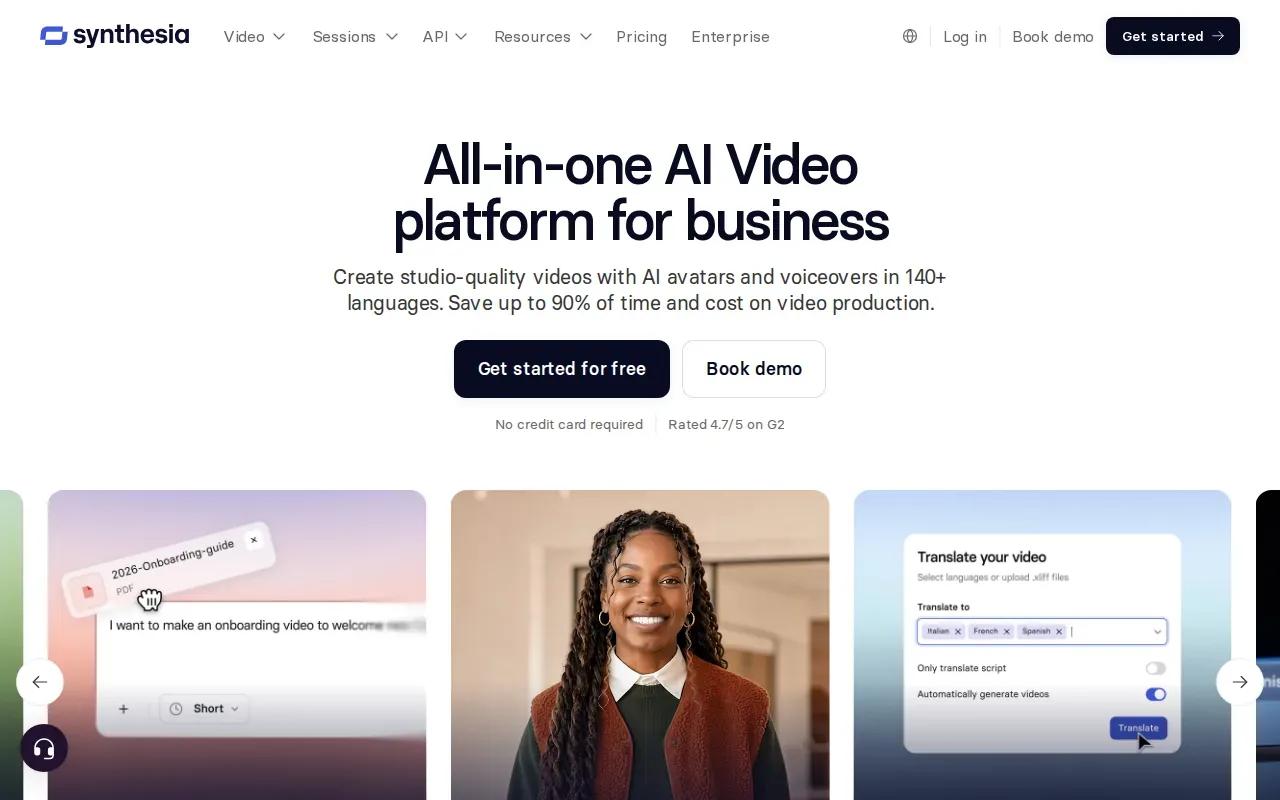
The basic workflow is script-first: choose a presenter, add your text, and generate the narration. When a policy or product detail changes, you can update the script and make a new version. That can be easier to maintain than re-filming a person for every small correction.
Synthesia’s free tier includes 10 minutes of watermarked video per month and nine stock avatars. The watermark and monthly allowance shape what you can do with a free account, so use it to check whether the presenter style works for your audience before planning a larger series.
Virtual presenters are not the right choice for every message. A training module may benefit from a clear speaker, while a mood-led brand clip may need motion and scenery instead. Make the format serve the content. If viewers need to hear a person explain steps, a scripted presenter video is a sensible place to start.
7. Pippit AI: product promotions and marketing videos
Pippit AI focuses on marketing content, including product promotions and short social videos. It can work with text prompts, reference photos, product pages, presentations, and local footage. For a marketer with product assets ready, this gives several ways to turn existing material into a promotional draft.
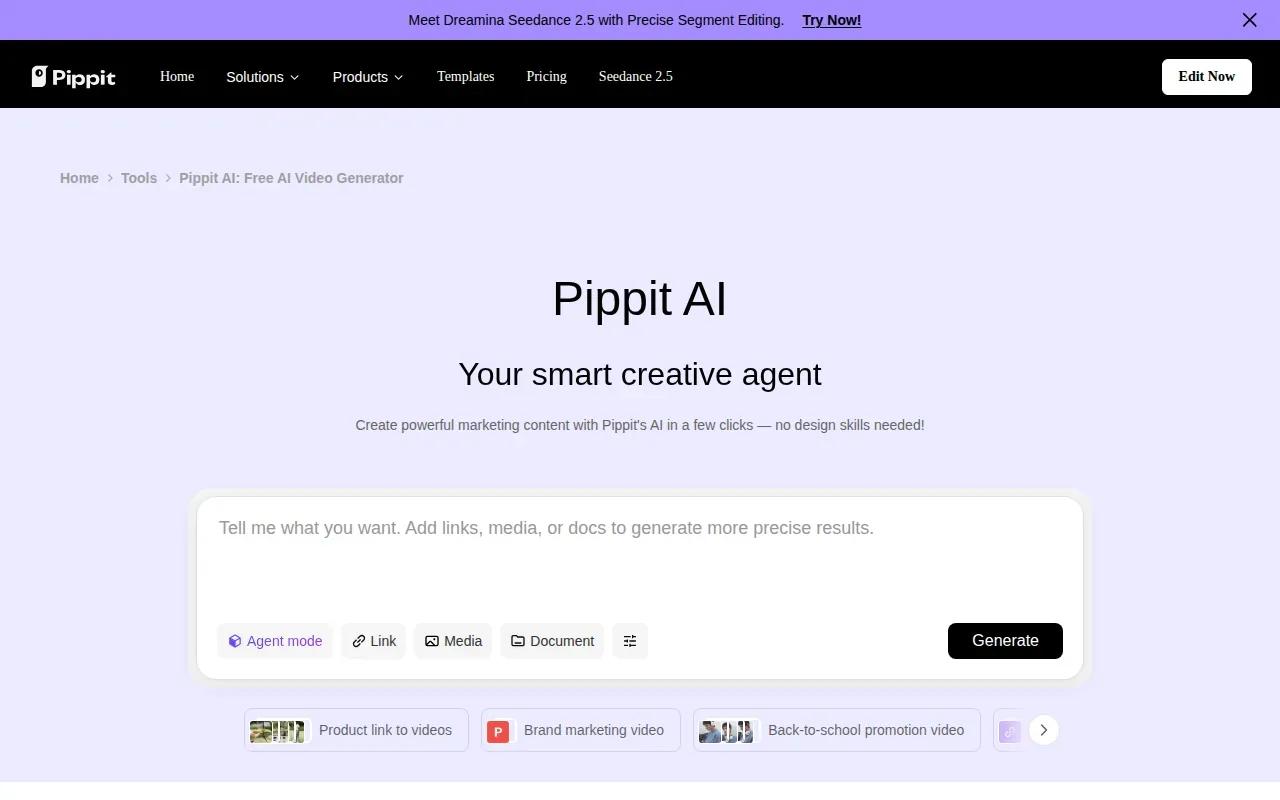
Its workflow can connect a product input to a video: choose a model, set an aspect ratio and length, then generate a draft. You can preview and refine the result before downloading or publishing. That’s useful when you need a product highlight for a social channel but don’t have time to plan a full shoot.
Pippit AI’s free plan includes daily credits. Since credit amounts and plan features can vary by tier, check current terms before scheduling a campaign around a specific output volume. The table below compares the kinds of work each tool in this shortlist is best suited to, rather than treating every generator as interchangeable.
| Tool | Good fit for | Free access detail | Check before publishing |
|---|---|---|---|
| Seedance Studio | Short-form videos with references, camera direction, and native sound | A couple of videos monthly, with watermark | Confirm the plan fits your volume and commercial use |
| Runway Gen‑4.5 | Directed shots and creative control | 125 credits once | Track credit use during iteration |
| Kling 3.0 | Multi-shot sequences with synced audio | Watermark, 1080p video | Review continuity across storyboard cuts |
| Pika | Fast short clips and image animation | 80 credits monthly, image-to-video only, 480p limit | Check resolution needs for the final channel |
| HeyGen | Presenter-led messages and localized videos | Three one-minute videos monthly, one custom twin | Check the presenter and localized script |
| Synthesia | Scripted training or explainers with virtual presenters | 10 watermarked minutes monthly, nine stock avatars | Check watermark and monthly allowance |
| Pippit AI | Product promos and marketing videos | Free plan with daily credits | Check current credit rules and export needs |
A product promo usually needs a clear subject and one useful message. Start with the product page or a clean reference image, then decide what the viewer should notice first. For more options built around catalog and shop content, see our product video generator comparison.
FAQ
What is an AI video generator?
An AI video generator uses artificial intelligence to make or change video from inputs such as text or images. Some tools produce short scenes from prompts, while others turn a script into a narrated video with a virtual presenter. The results vary by tool, so pick one based on the format you need.
Which AI video generator is easiest for beginners?
Seedance Studio is a straightforward place to start if you want to type a prompt or upload references in a browser. The free plan lets you try a couple of videos each month without a card. For presenter-led videos, HeyGen and Synthesia use a script-first workflow, which may feel more familiar if you already write scripts.
Which AI video tool is best for social media clips?
For short clips, compare Seedance Studio and Pika based on the source you have and the control you need. Seedance Studio accepts prompts and visual or audio references, while Pika supports text-to-video and image-to-video. Pika’s free tier has a 480p limit and supports image-to-video only, so check that against your planned post.
Can I use AI-generated videos for business?
Yes, but check the terms for the plan and tool you use before publishing. Seedance Studio’s paid plans include a commercial licence. The details can differ across products and plan tiers, so confirm usage rights for your intended work, especially if you’re making ads, client deliverables, or videos for paid campaigns.
How should I choose an AI video generator?
Start with the end format. Pick a cinematic tool when camera movement or scene continuity matters; choose a presenter tool for a script-led explanation; use a marketing-focused workflow for product promos. Then test the free tier with one representative prompt. Check the output resolution, watermark, credit limit, and commercial terms before building a repeatable workflow.
Conclusion
For creators who need flexible short-form videos, Seedance Studio is the best place to start in this shortlist, with a free tier and paid plans from $14 per month. Try one real prompt or reference image first, then judge the result against your channel’s format and usage needs. Create a free account to test a draft.