A single photo can become a moving social clip, a product ad, or a talking portrait. The right image to video maker depends on what you need the image to do. Here are six tools, starting with Seedance Studio, and the work each one fits best.
1. Seedance Studio
Seedance Studio is a browser-based AI video and image generator built around Seedance 2.5. Upload a photo, describe the motion, and generate a clip with camera direction, consistent subjects, and native sound. It runs in your browser, so there’s no download or waitlist.
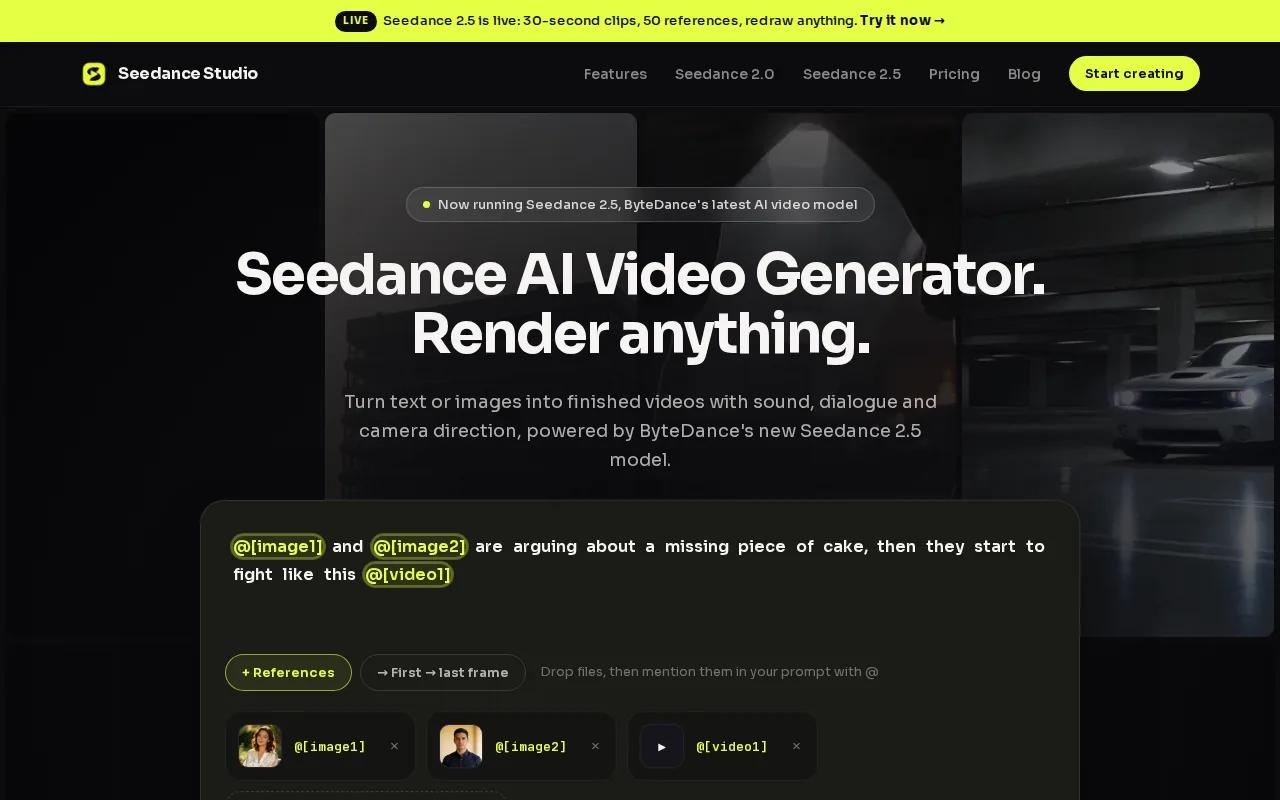
It’s a strong fit for creators and marketers who need one workflow for social clips, product ads, or short story scenes. You can use a still image as the visual anchor, then describe what should move, how the camera should act, and what sound belongs in the scene. Plain language works. A prompt can be as simple as: “The bottle turns slowly toward the window. The camera moves closer. Soft music plays.”
Seedance Studio’s free plan includes a couple of videos a month, with no card required. Free videos have a watermark. Paid plans start at $14 per month and include a commercial licence. The model, duration, resolution, and credit cost appear in the generator before you start, so check those settings before spending credits.
For a product launch, you could upload a product photo and ask for a slow camera move that reveals one feature. For a short story, reference images can help keep a character’s face and clothing consistent across shots. The available resolution depends on the selected model and mode, so confirm it in the generator rather than assuming every clip will render at the same size.
If you’re comparing tools for a broader image-led workflow, our roundup of AI video generators from images looks at more ways to turn stills into clips. For a new campaign, start with one clear image and one action. Then review the result before building out more versions.
2. Kling AI: flexible motion and talking portraits
Kling AI is an image-to-video tool with motion controls and lip sync for talking portraits. It suits creators who want to guide a subject’s movement or turn a still face into a speaking character.
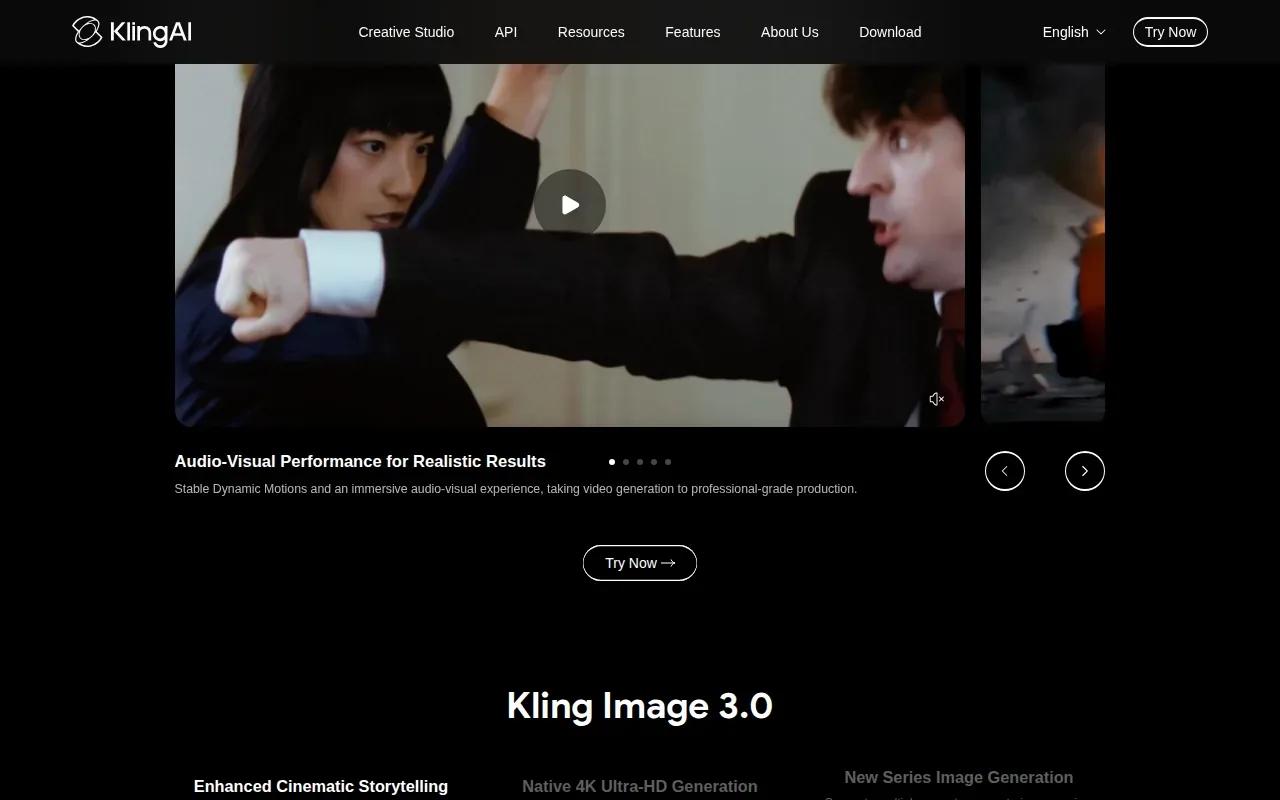
Its motion brush lets you mark where movement should happen. That can help when the scene needs a moving subject but a steadier background. Advanced camera controls give you another way to guide the shot, while lip sync can pair a portrait with audio.
Kling AI has a free tier with 66 daily credits. That makes it useful for testing a few prompt ideas before you settle on a direction. Credits are not the same as a fixed number of clips, though. The number of generations you can make depends on the settings and credit cost for each one.
Try a focused prompt: “The person turns slightly and smiles. Keep the background still.” A narrow instruction gives the motion a clear job. If you ask for a big gesture, a fast camera move, and a speaking line all at once, it can be harder to tell which part needs a revision.
For a social post, a talking portrait can work as a quick hook before captions or other footage. For a product image, motion controls can help direct a small shift instead of changing the whole scene. If free use is part of your decision, our free image-to-video tool roundup explains why credit counts and export limits deserve a close look.
One thing to test early is how the generated face and movement hold up on a phone screen. Watch the full clip before you post it, especially when the image includes small details or text.
3. Veo 3.1 by Google: precise first- and last-frame control
Veo 3.1 by Google makes short clips with control over the opening and closing frames. It’s a fit when you already know how a shot should begin and where it should end, such as a product reveal or a planned camera move.
Veo 3.1 can generate 4-, 6-, or 8-second clips. First-frame and last-frame control gives you a way to define the visual endpoints, rather than leaving the whole shot open to interpretation. That can help when a clip needs to land on a specific pose, product angle, or layout.
The listed starting cost is $0.20 per second without audio. The free plan supports videos up to 720p, and Veo videos include a watermark on that plan. For a short ad, decide whether the clip needs sound before estimating the generation cost, then check resolution and watermark rules before building the export into a campaign.
Use this tool when the frame-to-frame change matters more than a long scene. For a vertical post, check the crop before you generate. A strong start and end frame won’t fix a subject that gets cut off at the edge.
4. Pika: playful effects for short social videos
Pika is an image and video tool for playful effects and short creative ideas. Its Pikaffects can make an object melt, explode, crush, inflate, or dissolve within an image. That makes it a natural fit for a visual gag, a quick transition, or a post designed to stop a scroll.
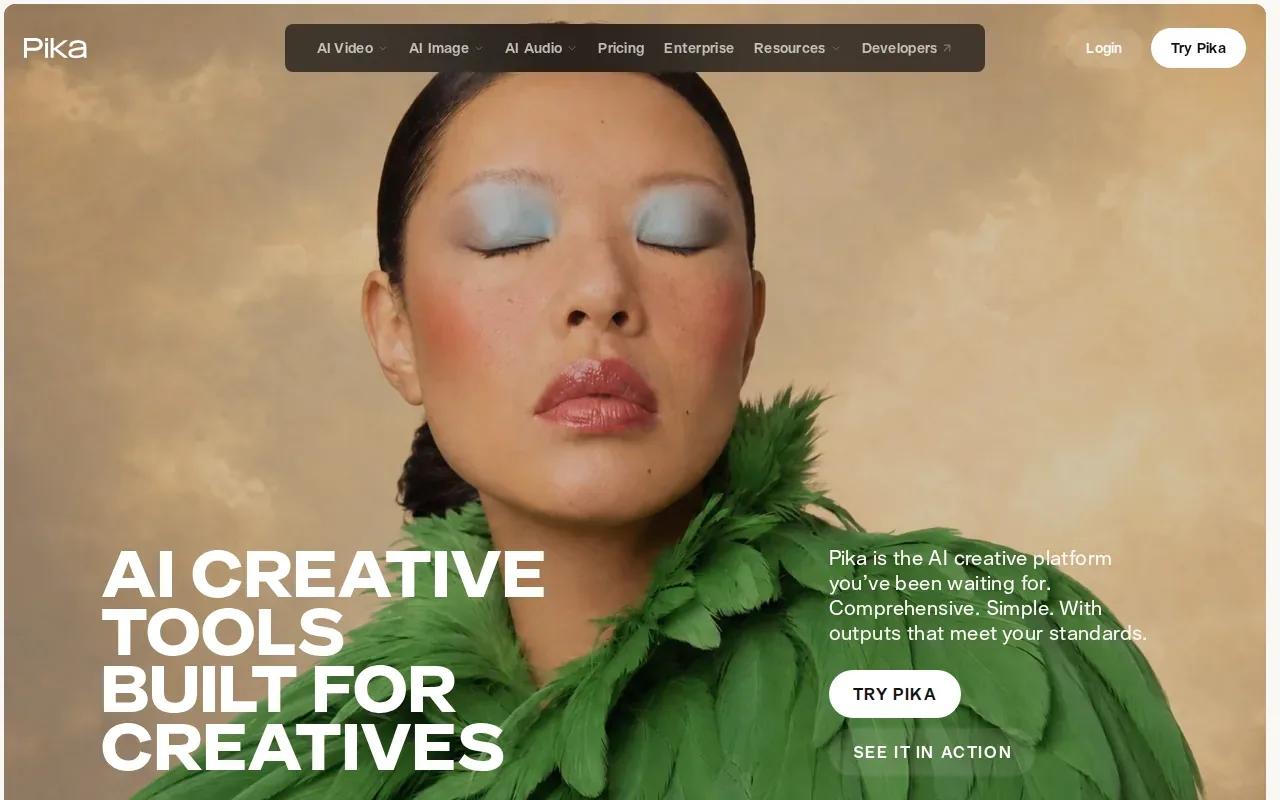
Use an effect when the transformation is the point of the clip. A still image of a soft toy could inflate; a portrait could shift into a more stylized scene. Keep the rest of the prompt focused so the effect remains easy to read.
For a small brand team, the practical test is whether the effect supports the message. If you’re promoting a new product, a visual change should point toward the product or its use. If it pulls attention away from the item, try a subtler effect or a simpler camera move.
Make a few short versions with one effect change at a time. That gives you a fair look at which treatment fits the post, without mixing several visual ideas into a single clip. For guidance on preparing an image and shaping a motion prompt, see our free image-to-video workflow.
Pika is the playful pick here. Choose it when you want an obvious transformation, not when the brief calls for a restrained product shot or a speaking presenter.
5. Hailuo AI by MiniMax: realistic motion for the cost
Hailuo AI by MiniMax is an image-to-video option known for realistic motion, including physics-driven movement and hair dynamics. It’s aimed at creators who want a still subject to move in a way that feels grounded rather than exaggerated.
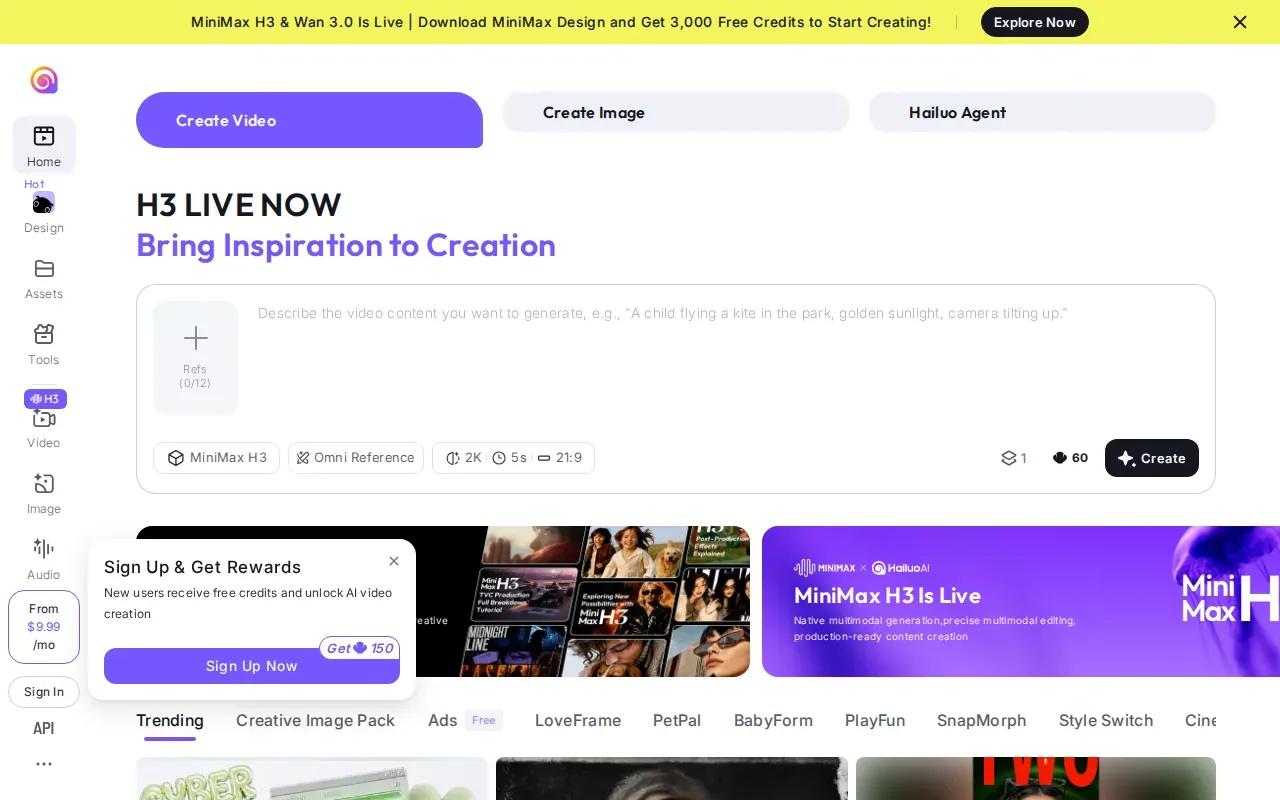
You can direct the camera through a prompt. That helps when you want to describe the shot in plain terms, such as a slow push toward a portrait or a gentle pan across a scene. Keep the subject’s action simple at first. A small turn or a brief look can be easier to judge than a complicated sequence.
Hailuo AI by MiniMax has a trial tier. Its available plan details depend on the service and current offer, so check the terms before relying on a trial for recurring work. For a one-off test, use the trial to see how it handles the subject and movement you actually need.
Consider a fashion image with loose hair or fabric. A prompt can ask for a slight turn and a soft breeze, while the camera stays steady. If the result looks right, then try a more active camera direction. This keeps the first generation focused on motion quality rather than several changes at once.
Before you use any generated clip in a paid campaign, review the plan’s usage rights and the output itself. Check that the subject still matches the source, especially if the image includes a product, logo, or person whose likeness needs approval.
Pick Hailuo when realistic movement matters more than a dramatic visual effect. The trial is a sensible way to test that fit before planning a larger batch.
6. HeyGen: turn a photo into a talking presenter
HeyGen’s Instant Avatar feature turns a single photo into a talking AI presenter. It’s the focused choice for a portrait that needs to deliver a script, rather than a general scene that needs cinematic motion.
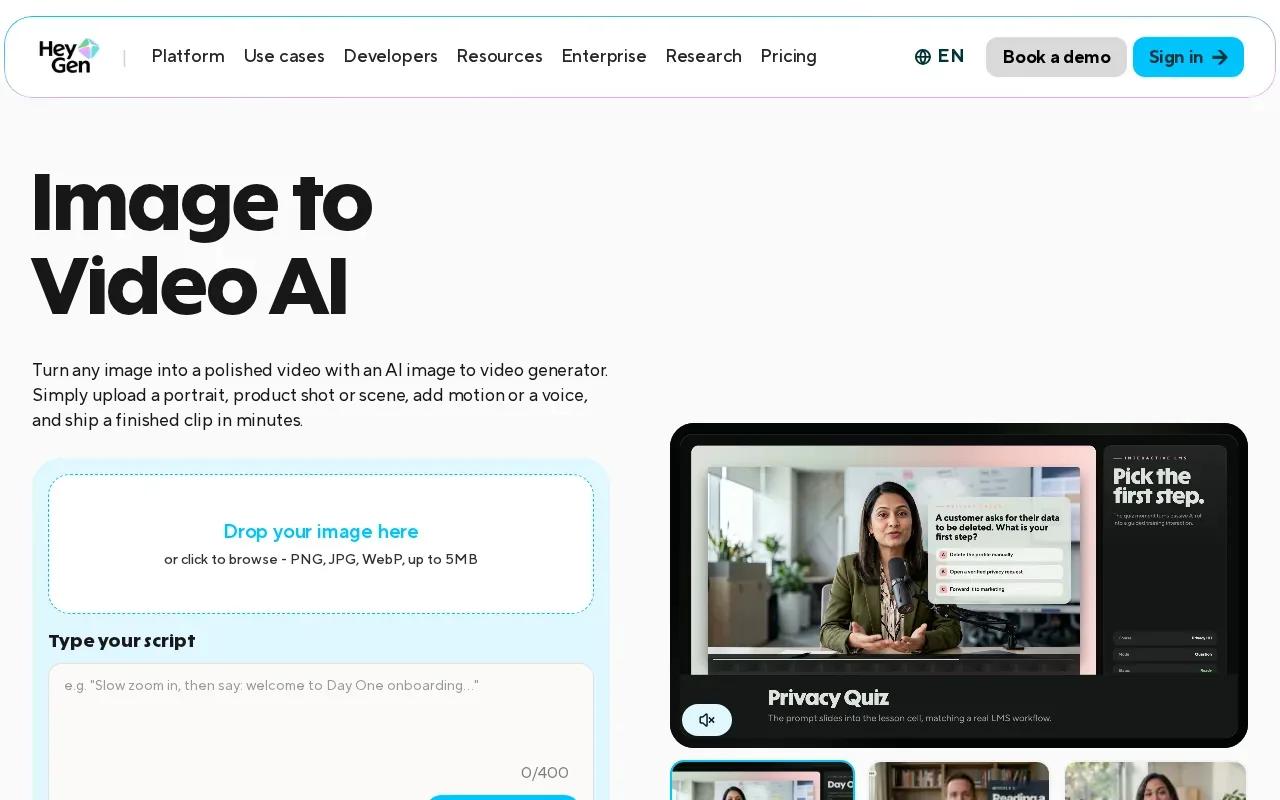
That makes it useful for a product explainer, a short training message, or a social clip with a presenter-led hook. Add a script and use lip sync so the spoken words line up with the face. HeyGen also supports voice cloning and multilingual video translation, which can help teams adapt presenter content for more than one audience.
HeyGen’s free tier includes three videos per month. That’s enough to try a short presenter concept before you plan regular output. If you’re preparing a campaign, decide what the presenter needs to say first. A clear script gives the avatar a job and helps you judge whether the voice and facial movement fit.
Keep the motion prompt specific. Describe the delivery you want, such as a calm introduction or an upbeat product feature. Avoid packing the script with instructions for every gesture. A few clear cues are easier to review, and the message stays in focus.
Use this option when the photo should speak. If the goal is a moving landscape or a camera-led product scene, a general image animation tool may be a better match. Our photo-to-video overview covers the broader workflow, including how to start from a still.
For multilingual content, check the translated clip closely before publishing. Make sure the wording, spoken delivery, and lip movement all match the audience and the brand’s intended message.
Image to video maker comparison: which tool fits your project?
These tools solve different jobs. Start with the output you need, then narrow the choice by motion style, sound, and free access. This table is a quick decision aid, not a claim that one tool will fit every image.
| Tool | Best fit | Notable control | Free access detail |
|---|---|---|---|
| Seedance Studio | Social clips, ads, and short scenes | Camera direction, consistent subjects, native sound | A couple of videos monthly; watermark |
| Kling AI | Directed movement or talking portraits | Motion brush, camera controls, lip sync | 66 daily credits |
| Veo 3.1 by Google | Short clips with planned start and end frames | 4-, 6-, or 8-second clips; first- and last-frame control | Up to 720p; watermark |
| Pika | Playful transformations for social posts | Pikaffects, including melt and inflate | — |
| Hailuo AI by MiniMax | Realistic subject motion | Prompt-based camera direction and physics-driven motion | Trial only |
| HeyGen | Photo-based speaking presenter | Instant Avatar, lip sync, voice cloning | Three videos monthly |
If sound and scene direction belong in the same generation, start with Seedance Studio. If the key job is making a portrait speak, try HeyGen. For a visual gag, Pika’s effects are the point. And if you need to control where a short shot begins and ends, Veo 3.1 is worth a look.
FAQ: Image to Video Makers
How does an image-to-video tool work?
An image-to-video tool uses a still image and your prompt to generate moving frames. The image gives the model a visual starting point, while the prompt can describe the action or camera movement. The result is a short clip to review and export. Check the subject’s appearance and any fine details before you post it.
What should I write in an image-to-video prompt?
Write what should move, then add a camera direction if you need one. For example: “The cat slowly looks toward the window. The camera stays still.” Your image already shows the subject, so you usually don’t need to describe every visible detail. Start with one action, review the clip, and revise only what needs work.
Can I make an image-to-video clip for free?
Yes, some tools have free access, but the limits differ. Seedance Studio includes a couple of videos each month with a watermark, while Kling AI has 66 daily credits. HeyGen includes three videos per month, and Hailuo AI by MiniMax has a trial tier. Check each tool’s current terms and export limits before planning a project.
What should I check before exporting a video?
Check the crop and resolution first, then watch the full clip for changes to the face, product, or scene. Look for a watermark and confirm the sound matches your intent. If the clip will run as an ad, review the usage rights and any platform rules that apply to the content you’re publishing.
Can a photo become a video with a speaking person?
HeyGen’s Instant Avatar feature turns a single photo into a talking AI presenter, with lip sync and voice cloning. Kling AI also has lip sync for talking portraits. Pick the option based on whether you need a scripted presenter or want to test portrait motion with audio.
Conclusion
For a flexible first test, we recommend Seedance Studio: upload a photo, describe one clear motion, and check the output before making more versions. Create a free account and try one clip with the image you plan to publish.