You can make a polished commercial from scratch using AI tools, a browser, and less than an afternoon. No production crew, no studio, no five-figure budget. This guide walks you through every step, from writing the script to exporting a finished ad ready for TikTok, Reels, or YouTube.
Step 1: Brainstorm & Script with AI
Your goal here is a tight, scene-by-scene script that tells the AI exactly what to show. A vague idea produces a vague video. Specificity is everything.
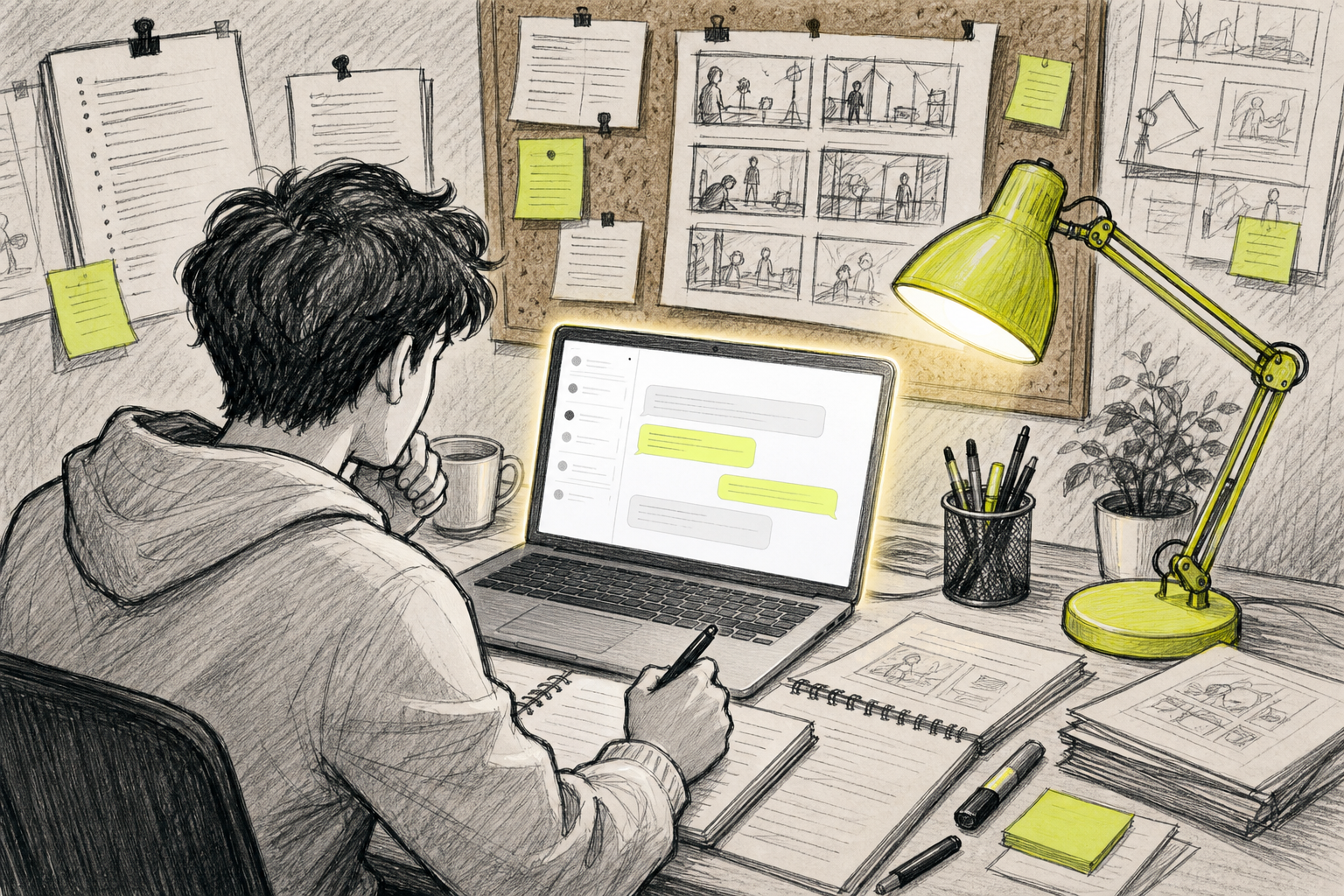
Open ChatGPT and give it a prompt like:"Write a 30-second commercial script for a yoga studio. Include a scene-by-scene breakdown with camera directions, lighting notes, and a voiceover line for each shot."ChatGPT will return a structured storyboard, not just a paragraph of text. Each scene gets its own visual description, which you'll use as a prompt in the video generator later.
A few things to nail at this stage:
- Keep the spoken script tight. A 15-second ad needs roughly 30, 40 words of voiceover copy. A 30-second ad needs 60, 80.
- Write camera directions into each scene. "Slow push-in on a product sitting on a marble countertop, warm morning light" is far more useful than "show the product."
- Ask ChatGPT to give you the image prompt for each shot separately. You'll paste those directly into your video generator.
Once the script is ready, save the voiceover lines and the visual prompts in two separate text files. You'll need both in later steps.
If you want to go deeper on prompt structure, the guide on how to use an AI commercial generator step by step covers the exact formula for writing visual prompts that produce director-level results.
Step 2: Generate Visual Assets Using AI Video Generators
Now you turn those prompts into actual footage. This is where most of the production magic happens.
Paste your first scene prompt into an AI video generator. For text-to-video, Seedance Studio is the tool we use here. It runs on Seedance 2.0, currently ranked #1 for text-to-video, and it handles camera direction, character consistency, and native audio in a single generation pass. No waitlist, no download, free to start. That matters when you're iterating fast on multiple scenes.
Before you hit generate, set three things every time:
- Aspect ratio:9:16 for TikTok and Reels, 16:9 for YouTube ads, 1:1 for feed posts.
- Resolution:Draft at 480p or 720p to save credits. Regenerate your keeper shots at 1080p or 4K.
- Duration:5, 8 seconds per clip is the sweet spot. Shorter clips generate faster and give you more flexibility in the edit.
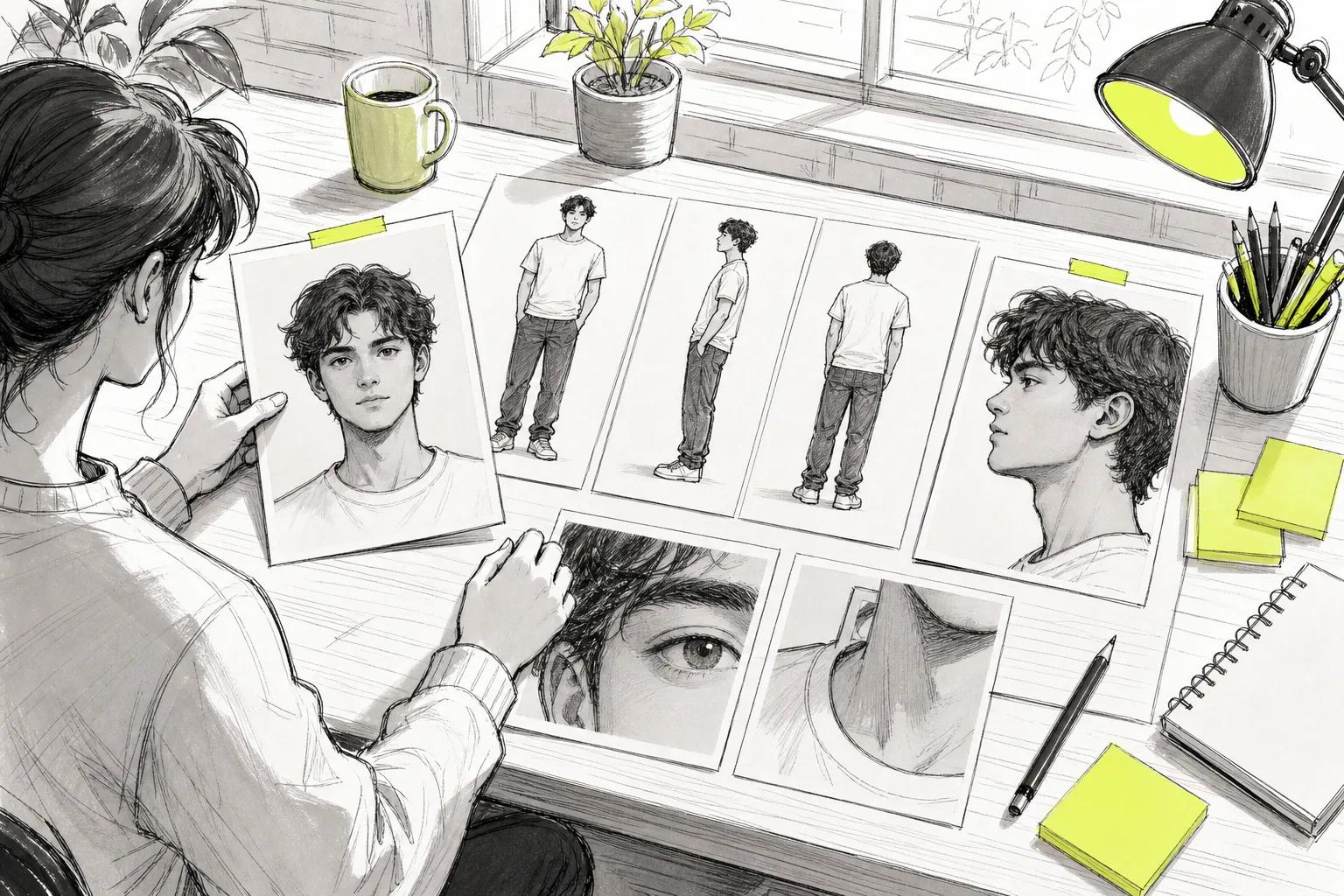
If your commercial needs a consistent character across scenes, upload a reference photo. Seedance Studio lets you attach up to 12 reference files per generation, so you can lock in a face, a product, or a location and carry it through every shot without restarting from scratch.
Here's a quick comparison of what different tools are best suited for at this stage:
| Tool | Best For | Free Tier | Starting Price | Key Limitation |
|---|---|---|---|---|
| Seedance Studio | Full commercial pipeline, audio-synced output, 4K multi-format | Yes | $14/mo | Clips up to 15 seconds |
| Kling 3.0 | Cinematic B-roll, creative directors, filmmakers | Yes | ~$10/mo | Less automation depth |
| Luma Ray 3.14 | Fast visual iteration, social content, B-roll | Yes | $9.99/mo | Draft Mode previews cost credits |
| HeyGen | Multilingual content, avatar-driven ads | Yes (3 videos/mo) | $29/mo | Avatar-focused, not general video |
| Sora | High-end concept development, frontier creative | No | — | No free tier, less format control |
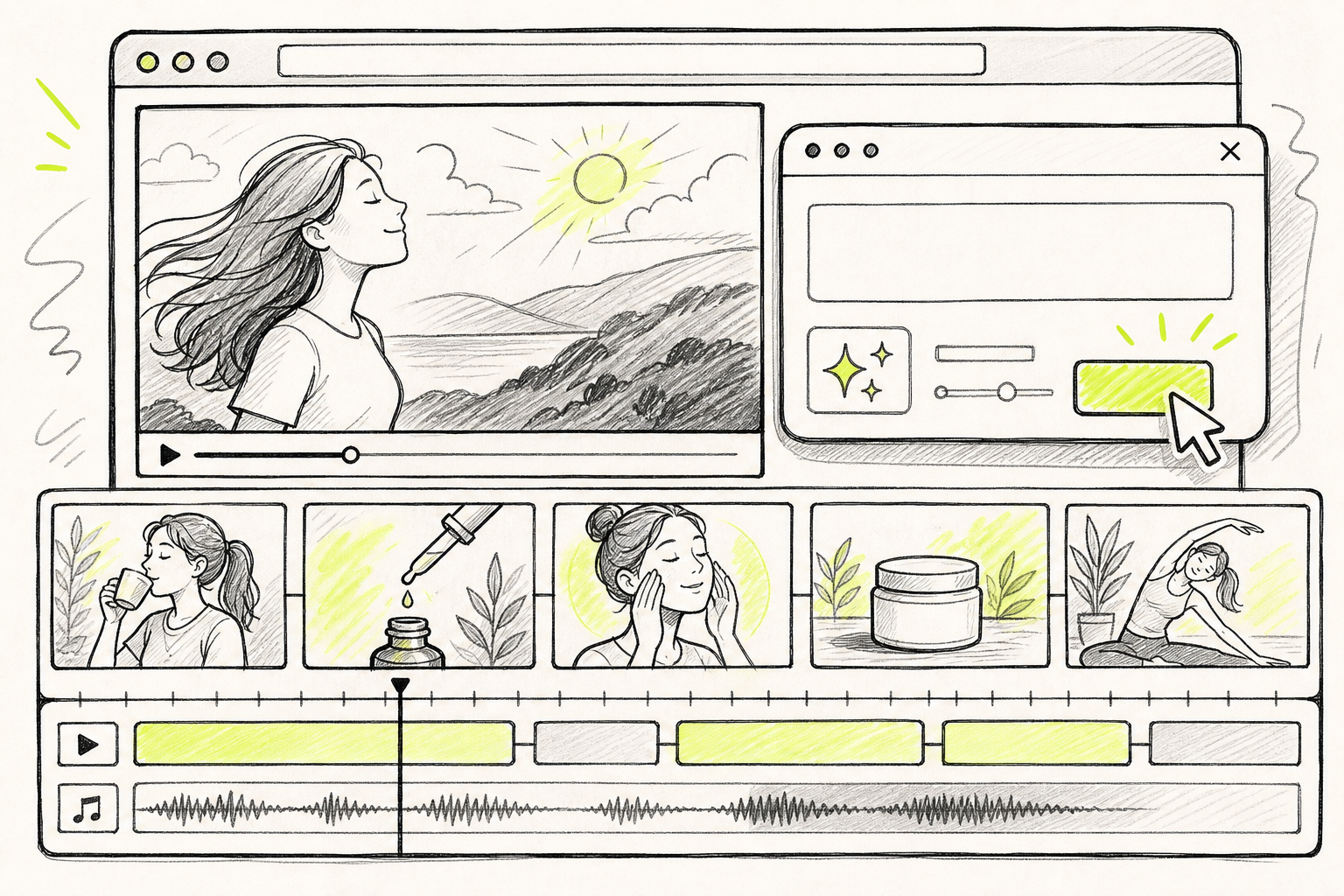
Generate all your scenes before moving on. Download each clip and organize them in a folder named by scene number. You'll thank yourself during the edit.
Step 3: Create AI Voiceovers and Narration
With your visuals ready, the voiceover is what turns a collection of clips into a commercial. A strong voice adds authority and keeps viewers watching.
Open your voiceover text file from Step 1. Paste each line into a text-to-speech tool. These tools offer a wide selection of voices built for ad delivery, covering spokesperson styles, hard-sell tones, and brand voices across many languages and accents. Pick a voice that matches the mood of your ad. A luxury product needs a different tone than a fast-food spot.
A few things worth doing before you export the audio:
- Preview the voice at your actual script pace. Some voices sound great at normal speed but rush through punchy ad copy.
- Add a short pause between sentences. Most tools let you insert pause markers. A half-second gap between lines gives the viewer time to absorb each point.
- Export as WAV if possible. WAV keeps full audio fidelity and syncs more cleanly in the editor than a compressed MP3.
If your commercial needs multiple voice lines, export each one as a separate file labeled by scene. That way, dropping them onto the timeline in Step 4 is straightforward rather than a guessing game.
One note on Seedance Studio: if you want native audio already mixed into the clip itself, you can attach an audio reference file during generation. The model will sync the visuals to the audio track, which cuts out a separate voiceover step for some workflows. For more detail on that, the Seedance Studio usage guide walks through exactly how to attach audio references and call them in your prompt.
Step 4: Assemble & Edit the Commercial
You have your clips, your voiceover files, and a script that tells you what order everything goes in. Now you put it together.
Open a video editor. CapCut works well for this because it's browser-based, free, and has a sound effects library built in. Magic Hour is a solid choice if you already use it, especially for one‑minute videos, multi‑scene storytelling, product demos, marketing creatives, and repurposing existing footage. The choice matters less than getting the order right.
Work through this sequence:
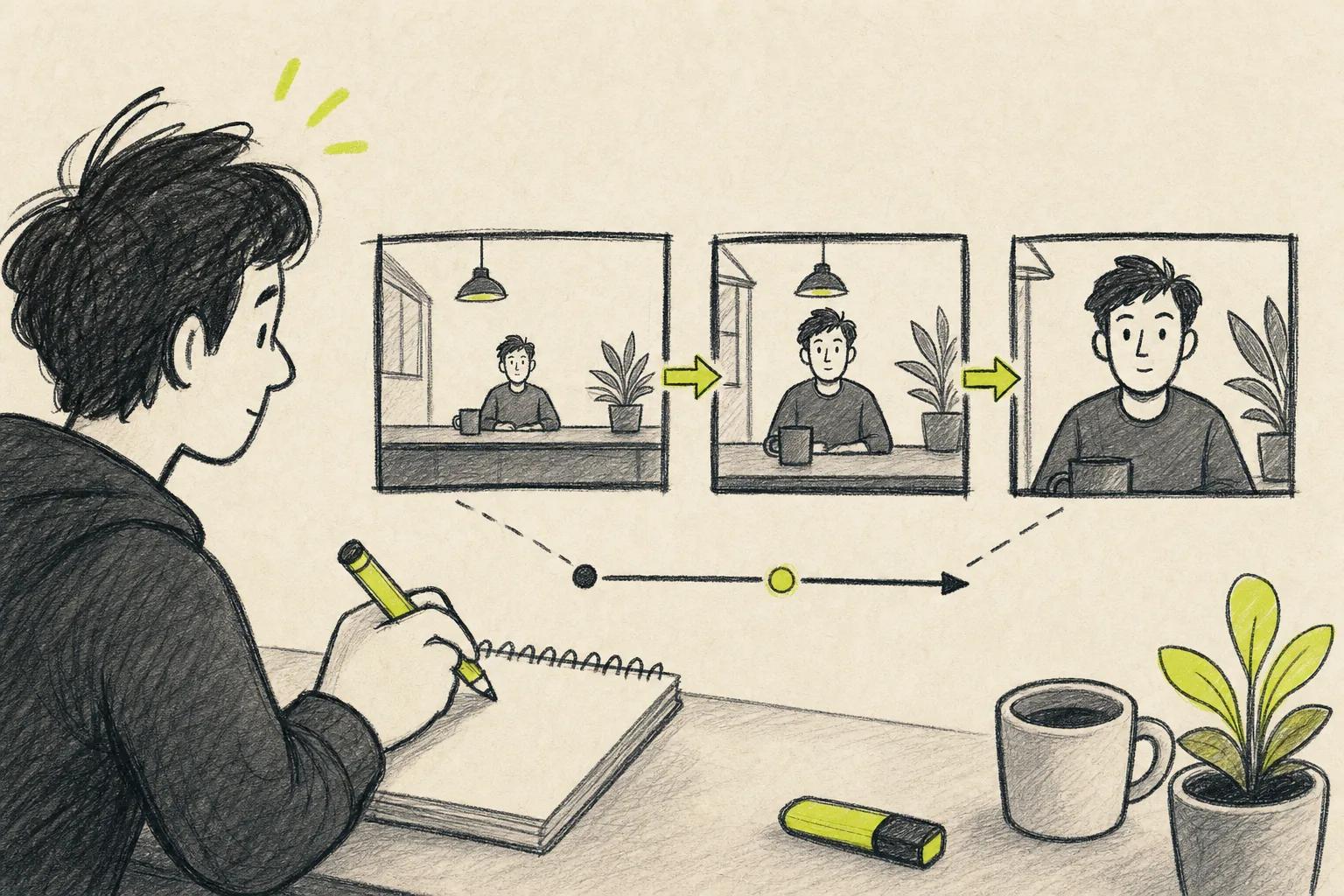
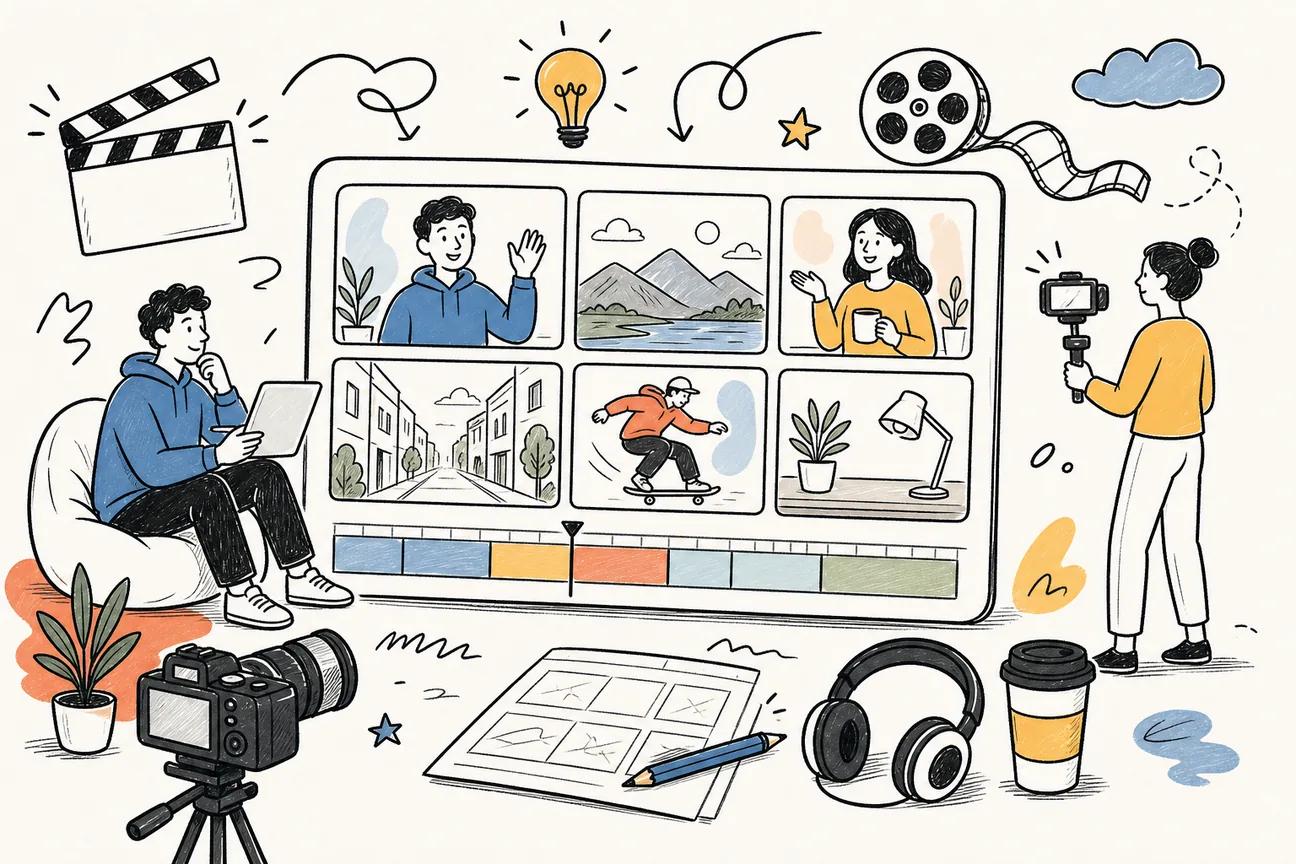
- Drop your video clips onto the timeline in scene order. Watch the full sequence without audio first. Check that the visual flow makes sense before you add anything else.
- Add your voiceover files. Align each audio file to the clip it was written for. Trim the clip length to match the voiceover if needed.
- Add transitions between clips. Keep them subtle. A simple cut or a half-second dissolve works better than a flashy wipe for most commercials.
- Drop in any sound effects. If you're making a food ad, a sizzle or a pour adds realism. If it's a product demo, a soft whoosh on a reveal can punch things up.
Once the timing feels right, check your pacing. Most social media commercials run 15, 30 seconds. If your edit is running long, cut the weakest scene rather than speeding everything up. Speed changes make voiceovers sound unnatural.
For ads going to Instagram, the step-by-step guide to making Instagram ads covers aspect ratios, caption placement, and what the platform's algorithm rewards in terms of video structure.
Step 5: Add Music, Sound Effects, and Final Polish
Music is the last layer, but it's not optional. The right track changes how the whole ad feels.
For royalty-free music, AI-powered music generators let you describe the mood and generate a track. Type something like "upbeat, energetic, 120 BPM, no vocals" and it'll return a usable bed. For higher quality, Suno and Udio generate music from text prompts and give you more stylistic control. Keep the music low in the mix. The voiceover should sit clearly on top.
Final polish steps to run through before export:
- Color grade:Most editors have a one-click color preset. Even a slight warm grade makes AI-generated clips look more cohesive across scenes.
- Captions:Auto-caption tools in CapCut or similar editors add subtitles in one click. Captions increase watch time significantly on social platforms where video plays with sound off by default.
- Logo and CTA:Add your brand logo in the final two seconds. If the ad has a call to action, put it as text on screen at the same time the voiceover delivers it.
- Audio levels:Music at around -18 dB, voiceover at -6 dB. That ratio keeps the voice front and center without the music disappearing.
Export as MP4 in H.264 at 1080p minimum. That's the baseline every major platform accepts. If you're running the ad on YouTube at full quality, render at 4K. Check the finished file on your phone before posting. What looks sharp on a desktop monitor can look washed out on a mobile screen.
For commercials built around a specific visual style, the guide to making cinematic videos with AI covers color grading and camera consistency in more depth.
One thing worth building as you go: a reference library. Save your best character images, location shots, and audio files in a labeled folder. The next commercial you make will start from that library instead of from zero. Seedance Studio stores your generated media in a gallery, so your past generations are always available as starting points for future ads.
That's true at every step of this process. The tools handle the heavy lifting. You handle the decisions: what the ad says, who it's for, and what it should make people feel.
Frequently Asked Questions
How long does it take to make an AI commercial?
A basic 15, 30 second commercial takes 2, 4 hours from script to export if you're working through each step for the first time. Once you've done it once and have a reference library set up, you can produce a finished ad in under an hour. The video generation step is the longest, typically 5, 15 minutes per clip depending on resolution and the tool you're using.
Do I need to pay for tools to make an AI commercial?
You can make a rough first version entirely free. Seedance Studio has a free tier, ChatGPT's free version handles scripting, and many AI voice services offer free voice generations. The free tiers have limits on resolution and volume, so for a polished, watermark‑free commercial you'll want a paid plan. Seedance Studio's paid plans start at $14/month, which includes a commercial license.
Can I use AI-generated videos commercially?
It depends on the tool. Many AI video generators require a paid plan to use output commercially. Seedance Studio includes a commercial license on all paid plans. Always check the terms of service for any tool you use before running the content as a paid ad. Purely AI‑generated works without human authorship may not be eligible for copyright protection, so review your ownership rights before publishing.
What's the best AI tool for making a commercial?
For a full end-to‑end workflow, Seedance Studio handles text-to-video generation with camera direction, character consistency, and native audio in one pass. It supports 4K output in multiple aspect ratios and has no waitlist. For voiceover, many AI voice services are strong options. For music, AI music generators or Suno work well depending on how much control you want over the style.
How do I keep characters consistent across scenes in an AI commercial?
Upload a clear, well‑lit reference photo of your character and attach it to every generation. In Seedance Studio, you can add up to 12 reference files per generation and call them by name in your prompt. Use the same reference image across all scenes rather than regenerating the character from scratch each time. Front‑facing photos on simple backgrounds give the model the most to work with.
What aspect ratio should I use for an AI commercial?
Match the ratio to the platform. Use 9:16 for TikTok, Instagram Reels, and YouTube Shorts. Use 16:9 for YouTube pre‑roll ads and horizontal placements. Use 1:1 for feed posts on Instagram and Facebook. Set the aspect ratio before you generate, not after. Cropping a 16:9 clip to 9:16 in post cuts off the sides and usually ruins the composition.
Conclusion
The full workflow comes down to five steps: write a tight script with AI, generate your visuals with a strong prompt and reference images, record the voiceover, assemble everything in a video editor, and finish with music and a final quality check. If you want to skip the multi-tool juggling and generate visuals with native audio already mixed in, try building your first AI video ad in Seedance Studio and see how much of the pipeline collapses into a single generation pass.