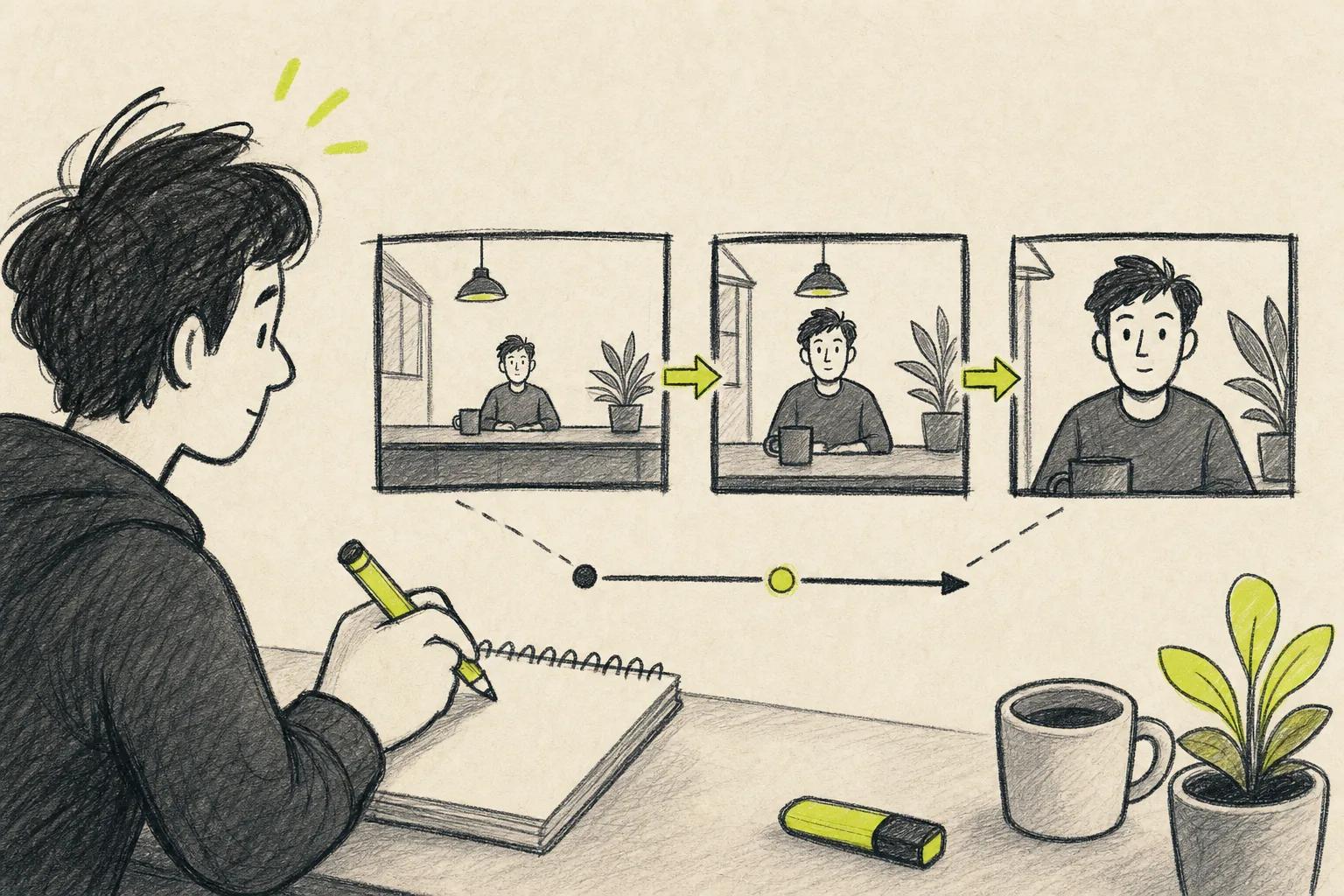
AI can turn one clear idea into a TikTok draft in minutes. But there is a catch: a review of 40 AI video platforms found that only 15 clearly listed TikTok's native 9:16 format. Follow these five steps to pick the right format, write better prompts, fix weak scenes, and post a clean video before the trend fades.
Step 1: Choose a TikTok idea and define the video format
The first step in making TikTok videos with AI is to choose one idea and one job for the video. Your goal might be to teach a quick tip, show a product, tell a short story, or make viewers feel curious.
Don't start with a vague prompt such as “make something cool.” Start with a viewer problem or a clear promise. For example, “Show three ways to make a small room feel larger” gives the tool a useful path.
Pick one format before you open a generator:
- Quick tutorial: Open with the result, then show the steps.
- Before and after: Show the old state first, then reveal the change.
- POV story: Put the viewer inside a short situation.
- Mini case study: Set up a problem, show the test, then share the result.
- Visual loop: End in a way that leads back to the opening frame.
Write a simple three-beat plan. The first beat is the hook. The second gives the useful detail. The third gives the payoff or next action. A 15-second clip may need only one sentence per beat.
Retention matters more than a fancy plot. The viewer should understand the subject in the first few seconds. If you need ideas, this list of TikTok hooks and video formats can help you shape the opening before you generate anything.
Set the frame to 9:16 at this stage. That means a tall video made for a phone screen. Keep faces, products, and key text near the center. TikTok's buttons and captions can cover the top and bottom edges.
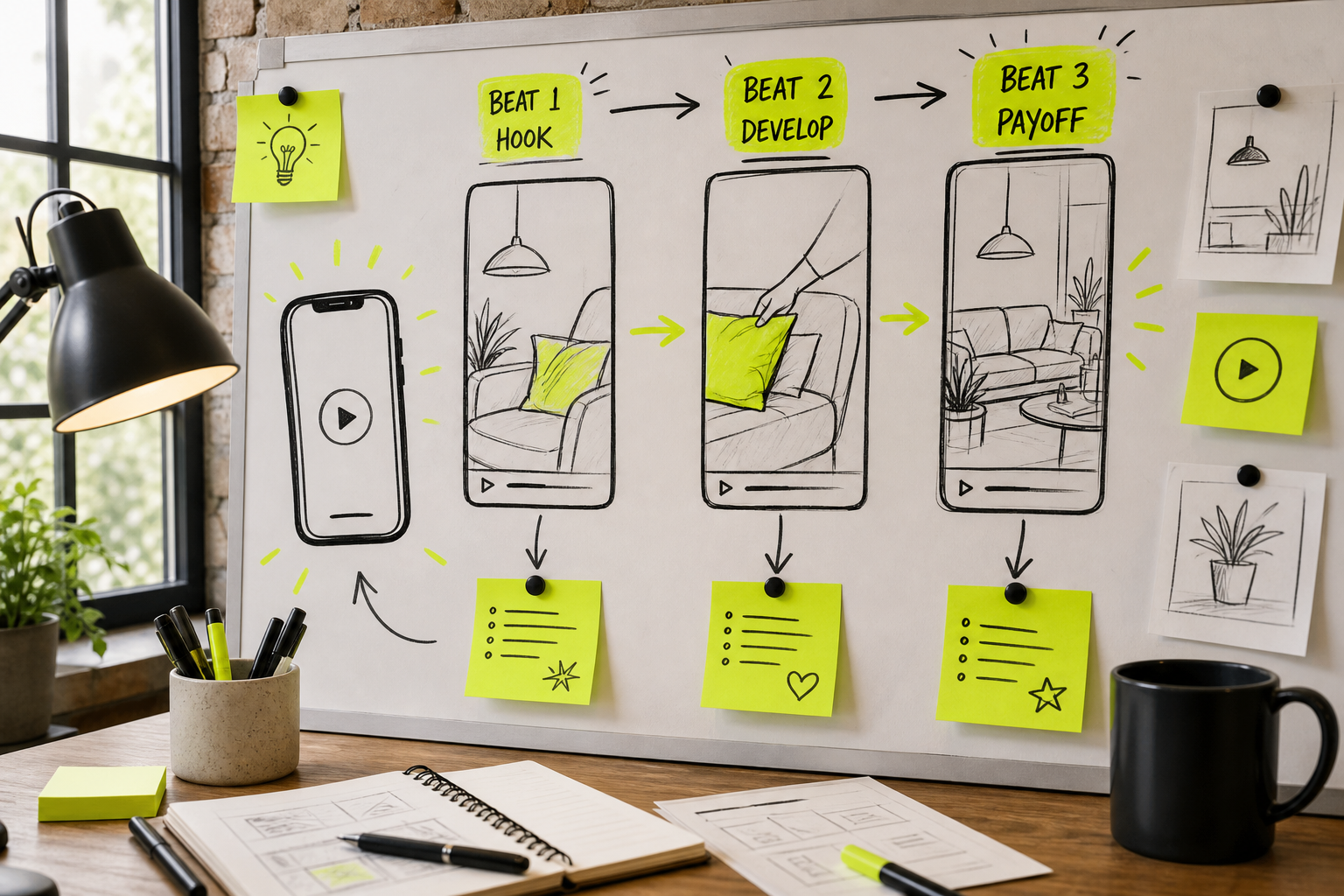
By now you should have one audience, one topic, one hook, and a short scene plan. If the idea needs five different topics, split it into a series instead.
Step 2: Pick an AI video generator and write a focused prompt
To make TikTok videos with AI, choose a generator that matches the work you need. A tool built for short-form editing may suit caption-heavy tutorials. A text-to-video tool may work better for visual stories or product scenes. If you want to compare features before choosing, review these best AI video generators for TikTok.
Check four things before you spend time on a draft:
- Does it support a clear 9:16 export?
- Can it use a reference image when your subject must stay consistent?
- Does it make sound, or will you add sound later?
- Can you export without a watermark on the plan you need?
Cost can mislead you. Pricing varies by tool and plan. Most basic creators don't need an enterprise plan. Start with the lowest plan that supports your format and export needs.
Seedance Studio is a useful choice when you want the generator to handle more of the shot itself. We let you type a prompt or upload reference images, clips, and audio in a browser. The app can return a finished clip with camera direction, consistent characters, and native sound. It has a free tier, with paid plans starting at $14 per month.
Write your prompt like a short director's brief. Include these details in a natural order:
- Subject: who or what appears.
- Action: what moves or changes.
- Setting: where the scene takes place.
- Camera: the shot type or camera movement.
- Look: light, color, mood, or visual style.
- Format: vertical 9:16 and the target duration.
For example: “Close-up of a ceramic cup on a kitchen counter. Steam rises as a hand pours coffee. Slow push-in camera move, warm morning light, calm mood, vertical 9:16, 8 seconds.” Plain language works. You don't need a long block of film terms.
Keep each generation to one scene when possible. Simple prompts work well, and packing several scene changes into one request can make the result harder to control. You can read more about using Seedance Studio with prompts and reference files if you want to keep a character or product stable across clips.
Make the first prompt specific, not huge. A focused prompt gives you a clean draft that is easier to fix.
Step 3: Generate the first video draft and review each scene
The first AI video draft is a test. Generate it, then inspect the result before you add captions or music.
Set the aspect ratio to 9:16. Pick a short duration that fits the idea. If your plan has a low-resolution preview mode, use it while testing prompts. Save the higher-quality render for the version you want to post.
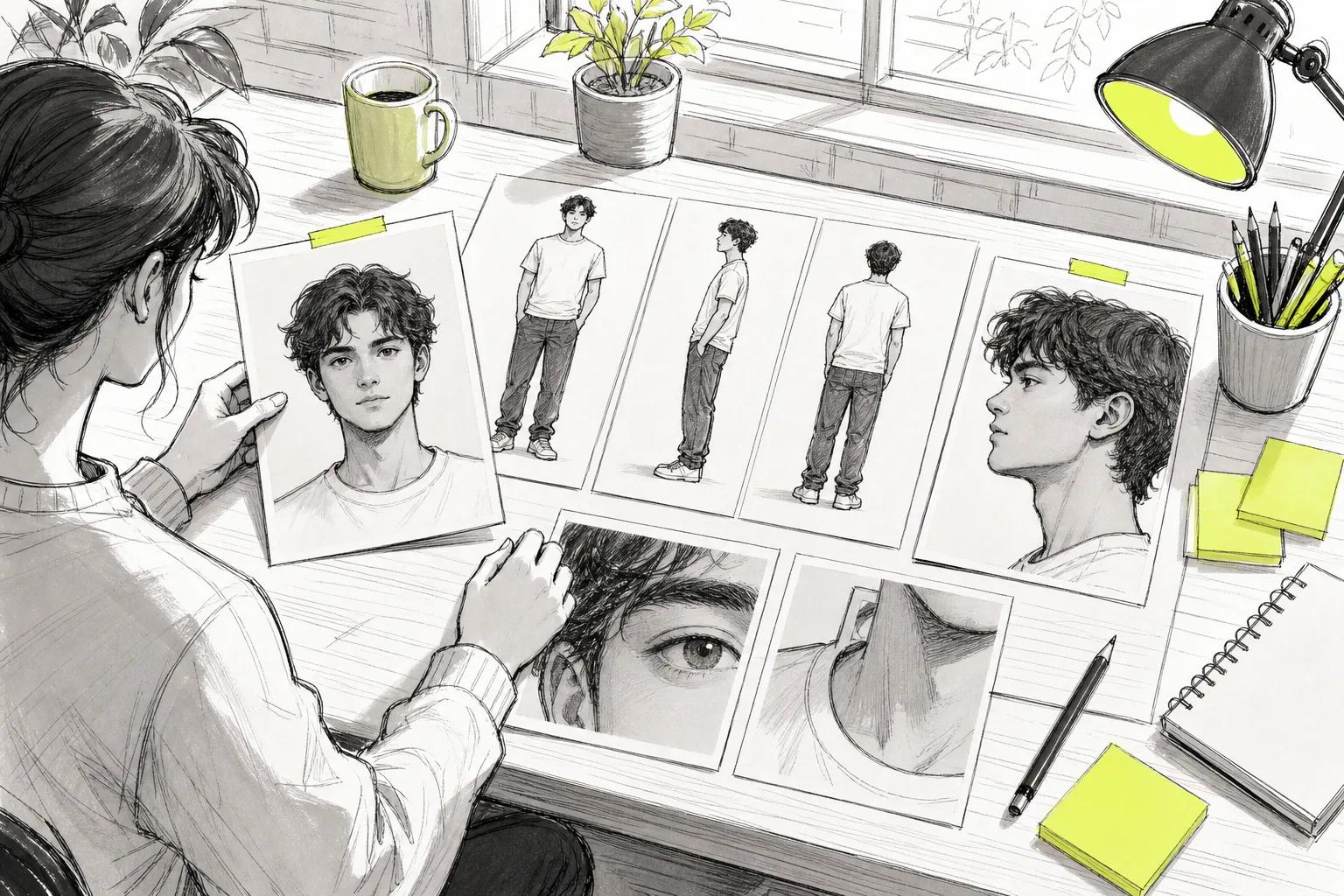
Upload a reference image when a face, product, outfit, or character must look the same. Use a clear file with one main subject. Too many competing references can confuse the model.
Seedance Studio lets you use reference images, clips, and audio with a text prompt. That helps when a single sentence can't describe the exact person, product, or movement you want. You can also generate a still image first, then turn that image into a moving clip.
After the render finishes, watch it twice. The first pass is for motion. Ask whether the subject moves as requested and whether the camera starts in the right place. The second pass is for detail. Check faces, hands, logos, text, edges, and scene continuity.
If the result fails, don't rewrite the whole prompt at once. Regenerate the same prompt first. Some tools produce a better take without any change. If the issue remains, change one detail, such as “static camera” to “slow push-in.” That makes the cause easier to spot.
For a multi-clip story, generate each scene on its own, then combine the clips in an editor when you need several scenes.
Keep two or three good versions of the hook. The opening frame often decides whether someone keeps watching. A small change in the first shot can matter more than a new effect at the end.
Step 4: Add captions, voiceover, music, and TikTok-friendly edits
Editing turns an AI clip into a TikTok video people can follow with the sound off. Start with the spoken words or main message. Then make the visual timing support that message.
Add captions early. Keep each caption short enough to read at a glance. Break long speech into small lines and place the text away from TikTok's buttons. Use strong contrast, but don't let the caption cover the subject's face or the key product detail.
Next, choose your voice. You can record your own voice, upload a voice file, or use text-to-speech when the tool supports it. Read the script out loud before you generate narration. Awkward phrases sound worse when spoken.
Use lip sync only when a person is talking on screen. For a product montage or mood clip, a voiceover over the visuals may feel cleaner. If your generator makes native sound, listen for mismatched words, strange pauses, or effects that compete with the message.
Music should support the pace. Keep it low under speech. If the video depends on a current TikTok sound, add that sound inside TikTok when the post is made, subject to the rights available for your account and use case.
Make the first cut fast. Remove empty pauses before the hook. Add a visual change when the idea changes. A zoom, crop, text shift, or new scene can mark that turn without making the edit noisy.
Keep one main call to action. Ask viewers to save the tip, follow for the next part, or visit one page. Three requests in a 15-second clip will feel like work.
Play the finished edit on your phone. Desktop previews hide small captions and make dark footage look brighter than it feels on a mobile screen.
Step 5: Export, check, and post your AI TikTok video
The last step in making TikTok videos with AI is a final file check. A good generation can still fail if it exports sideways, looks soft, or hides text under the app controls.
Export a vertical 9:16 file. Aim for at least 1080 by 1920 pixels when your tool and plan support it. A horizontal clip can be cropped later, but the crop may remove the subject or key action. It is better to frame the shot vertically before generation.
Before uploading, check the file in this order:
- Open it on your phone and watch the full clip.
- Confirm the first frame makes sense without context.
- Check that captions stay inside the center safe area.
- Listen for clipped speech or music that is too loud.
- Look for odd hands, faces, text, or sudden scene changes.
- Confirm the AI label and disclosure settings required for your post.
Choose a caption that adds context instead of repeating the video word for word. Use a small set of relevant tags. Then write a comment prompt that gives people an easy way to respond, such as asking which option they would try.
Don't wait for a perfect result. Post the cleanest version, watch the early signals, and use what you learn for the next draft. A series of small tests gives you more useful feedback than one overworked clip.
If you plan to make many videos, save the prompt, reference files, caption style, and export settings in one project folder. Consistency makes the next video faster. Seedance Studio is built for this kind of browser workflow, so you can create a free account and test a short clip without a download or waitlist. If you want to compare plan details first, see the Seedance Studio pricing page.
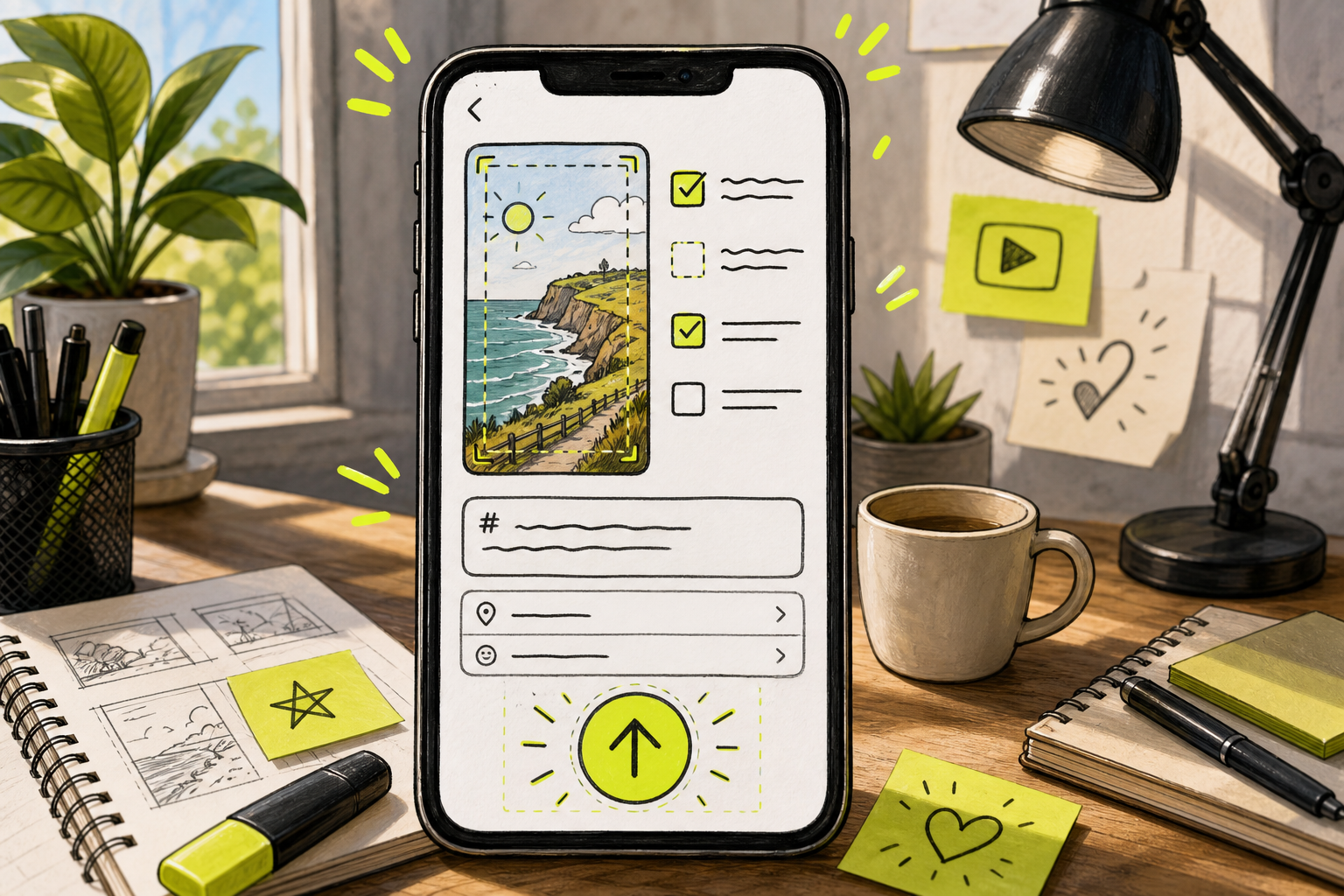
Use this decision rule: if the video is clear, vertical, easy to hear, and honest about its AI use, publish it. You can improve the next version with real viewer feedback.
FAQ: Making TikTok videos with AI
Can I make a TikTok video with AI for free?
Yes, you can make a TikTok video with AI through tools that provide a free tier, but limits may apply. Free access can include credits, watermarks, lower resolution, or restricted exports. Seedance Studio has a free tier, so you can test a prompt and review the workflow before choosing a paid plan.
What size should an AI TikTok video be?
An AI TikTok video should use a 9:16 vertical frame, with 1080 by 1920 pixels as a useful target when available. Generate in that shape from the start. Cropping a horizontal video later can cut off faces, products, or text that sit near the sides.
What should I put in an AI video prompt?
Put the subject, action, setting, camera move, visual style, duration, and 9:16 format in your AI video prompt. Keep the request focused on one scene. For example, describe one person opening a package in a bright room instead of asking for several locations in one generation.
Can AI make TikTok videos with voiceovers and music?
Yes, some AI video tools can add voiceovers, music, sound effects, or native audio. Others make the visuals first and require a separate edit. Listen to the full clip before posting. Check that the voice matches the captions and that your music use fits the rights available for your account.
How do I keep an AI character consistent across TikTok videos?
Use the same clear reference image in each generation and keep the character description stable. Seedance Studio supports reference inputs, which can help preserve a character's look across related clips. Still review each render, since lighting, clothing, hands, and facial details can change between shots.
Conclusion
Start with one short idea, generate a vertical draft, and improve the hook before you worry about extra effects. Seedance Studio is a sensible first test when you want text, references, camera direction, and sound in one browser workflow. Create a free account, write one focused prompt, and post your first clean clip today.