A clip can look sharp in your editor and turn soft after upload. The right short video maker for 4K export helps, but your project settings and playback quality matter too. Here are seven named tools, with the best fit for each kind of short-video workflow.
We analyzed 47 YouTube comments about exporting short ultra high definition videos and found that 45% mentioned export resolution and bitrate choices.
1. Seedance Studio
Seedance Studio is a browser-based AI video and image generator for creators who want a finished short clip from a prompt or reference files. Type a scene idea, or upload images, video clips, or audio. The model plans camera direction and keeps characters consistent between shots. Native sound comes with the finished video.
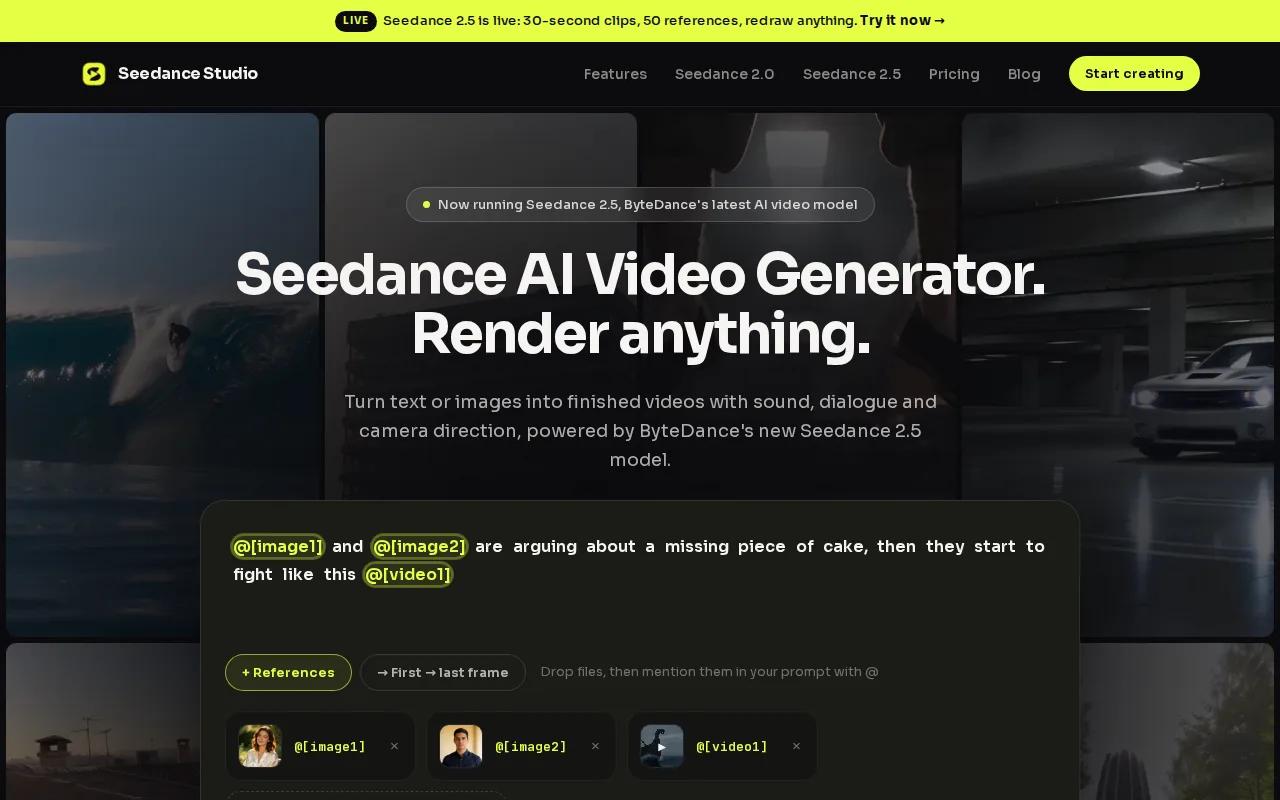
For creators who want 4K output without building a timeline by hand, it’s a direct starting point. Generations go up to 4K, and the Creator plan starts at $14 per month. There’s also a free plan with a couple of videos a month, so you can test an idea before paying. Free-plan videos carry a watermark.
Short-form work benefits when the framing is right before you generate. A vertical clip for TikTok or Reels has different needs from a horizontal YouTube video. Set the intended format early, then write a prompt that names the subject, action, camera move, setting, and style. Plain language works. For a product teaser, you might ask for a close shot of a handmade cup, a slow camera push, and warm window light.
When you’re checking whether a tool suits this job, separate output resolution from clip length. A 4K label tells you the frame size, not whether the tool makes the scene and sound you need. Seedance Studio’s paid plans include higher resolution up to 4K, and the site lists commercial licensing on paid plans. Plan the final shot before you render so you don’t spend time polishing the wrong crop.
Creators comparing broader tools can also look at these AI video generators for 4K output. For a short clip built from a prompt or reference, Seedance Studio keeps generation and the final video in one browser workflow.
2. Pexo: A strong pick for automated 4K video creation
Pexo is an AI short video maker that turns a prompt, script, product URL, or rough note into a finished video. It suits creators who want the tool to plan scenes and assemble a social clip, rather than start with raw generated footage and edit every cut themselves.
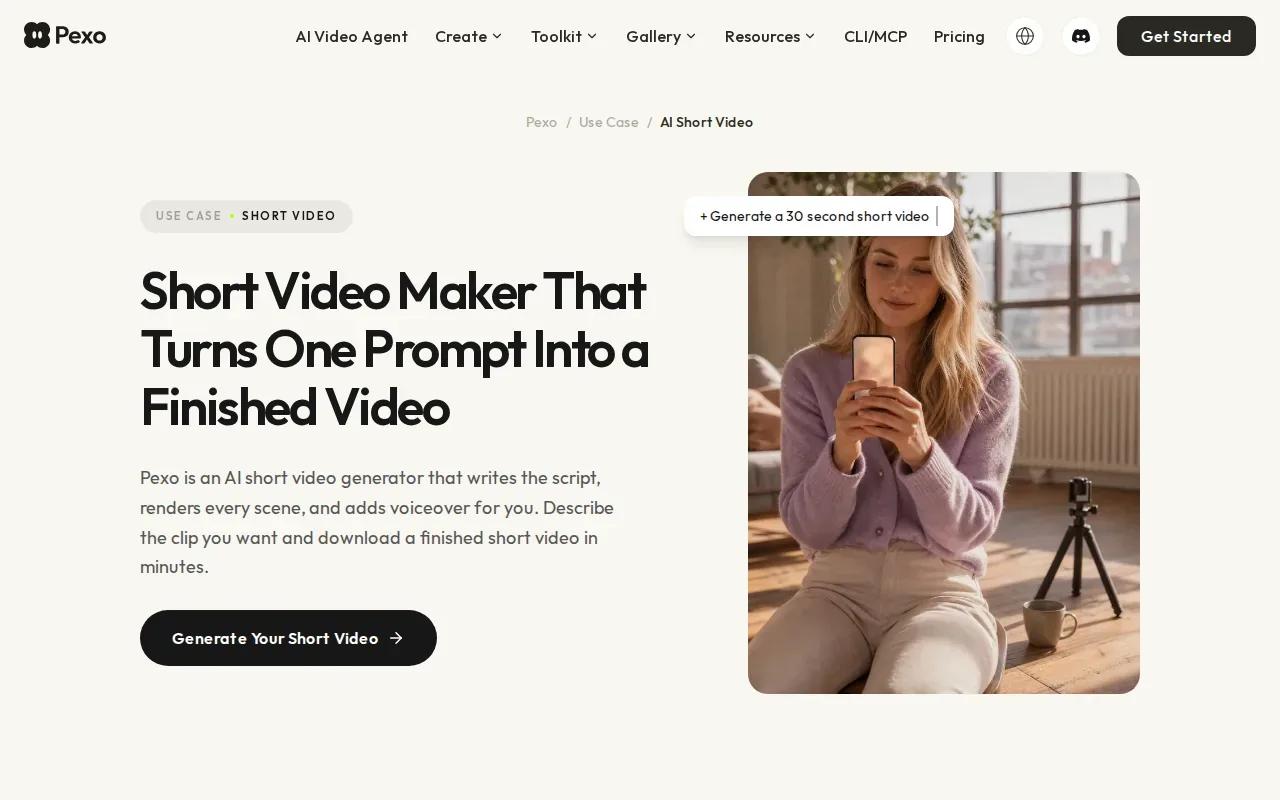
A brief can begin as one line. Pexo expands it into a shot list with scenes, dialogue, and camera direction, then routes each shot to a suited generation engine. It can add voiceover, music, and captions. Its 4K export is listed at 3840 × 2160, and built-in music sync is part of the workflow.
That can help when a small team needs a product teaser or a recurring video series. Write the core idea, review the proposed scenes, and adjust the brief before rendering. You can revise a scene that misses the mark rather than redo the whole short. The result is aimed at people who value a finished file over fine control of every timeline edit.
Think about the prompt as a compact creative brief. Say what the viewer should see, what the camera should do, and where the scene takes place. Add the desired length and aspect ratio to keep the intent clear. If a brand mascot needs to return in later clips, Pexo’s reference feature is described as keeping its face, outfit, and style consistent between frames.
The trade-off is that automated scene planning gives you less of a traditional hands-on editing process.
Use this kind of workflow when you already know the message and want help turning it into a complete short. If your main task is manually cutting existing footage, an editing-first tool may fit better. The shortlist of AI tools for short-form video can help you compare generation with other social workflows.
3. OpenArt: For story-led videos with 4K export
OpenArt is an AI video generator for creators who want a finished story rather than a single isolated shot. It suits a short narrative, a sequence with a clear beginning and end, or a music-led clip where the scenes need to feel connected.
OpenArt supports 4K export and videos up to five minutes long. Built-in music sync is also listed. That maximum length gives you room to shape a longer piece than a very brief feed clip, though a five-minute ceiling does not mean every social video should run that long. For a Short or Reel, keep the story focused on one idea.
Story-led generation still needs a clear brief. Name the subject and the action, then say how the scene should feel. If the clip has several beats, describe their order in plain words. For example, show a quiet street first, then a character stepping into the light, then end on the object you want viewers to remember. That gives the system a narrative path to work from.
Check the final cut at its intended screen size. A scene that reads well in a wide preview can feel crowded in a vertical feed. If the subject sits near the edge, a platform crop can hide it. For that reason, include the target aspect ratio in your planning and inspect the full frame before posting.
OpenArt makes sense when the story itself is the main job and the listed 4K export matters. The longer maximum duration may suit a narrative that needs more time, while a quick hook can be shorter. If you need only a short visual effect, Pika below is a closer match; if you need captions or timing edits, look at an editor-focused option.
4. CapCut: For captions, timing, and social-ready exports
CapCut combines an AI video workflow with editing tools for captions, timing, aspect ratios, and social export. It fits creators who need to shape the final cut, especially when the source is existing footage or a longer video that needs a short version.
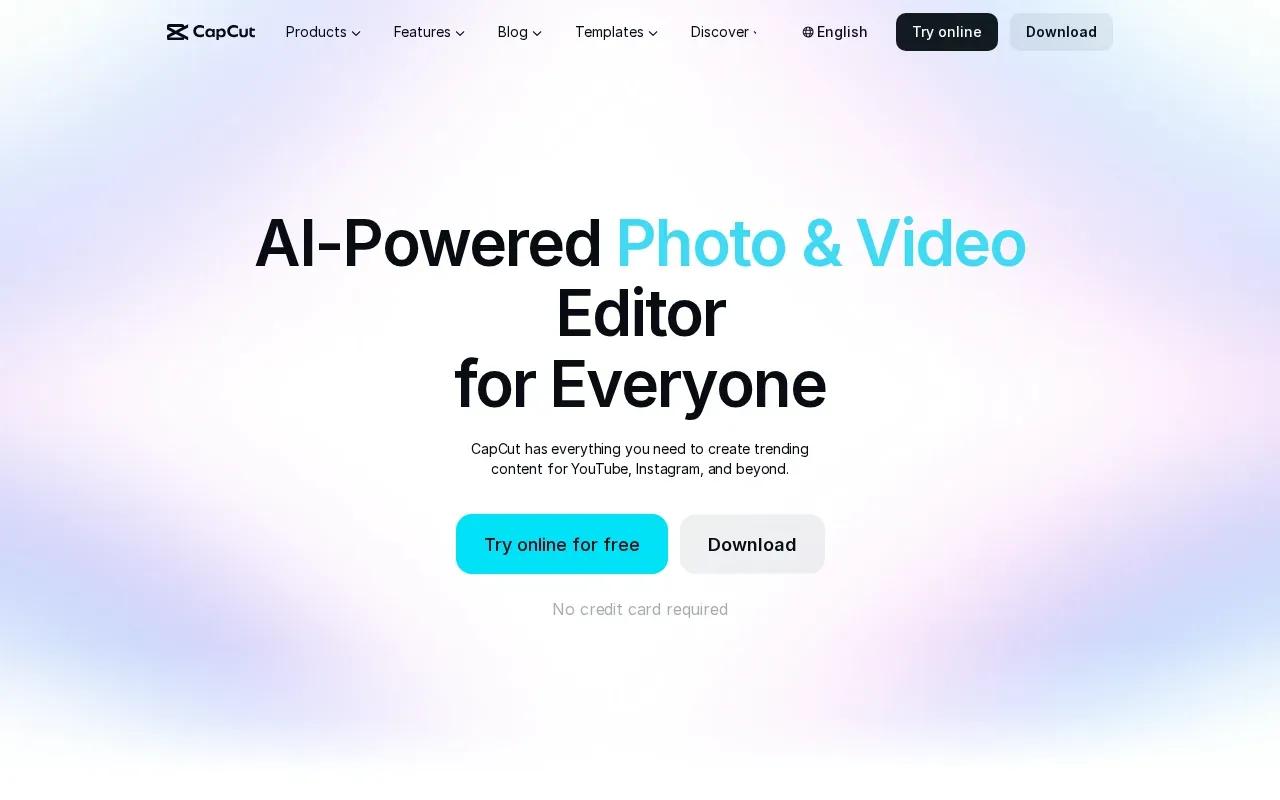
Its documented short-video workflows include script-to-video and long-video-to-shorts. The latter analyzes longer footage to find highlights, then lets you adjust the selected clip, duration, and aspect ratio. You can edit the result before export. That’s useful for a product team turning a recorded demo into a few social clips: pick the strongest moment, tighten the timing, then check that the captions don’t cover the product.
The desktop export controls described by CapCut include resolution up to 4K, frame rate up to 60 fps, codec, format, and bitrate. MP4 and MOV are listed as format choices. For YouTube, a common recommendation is MP4 with H.264 or H.265. H.265 uses more complex compression and can reduce file size, while either codec can work for YouTube. Keep the project frame rate aligned with the footage you recorded.
Aspect ratio deserves a separate check. CapCut uses 9:16 for TikTok, and its auto-reframe tool can resize a generated or edited clip for the intended platform. Don’t assume that a vertical crop will keep every key detail. Preview the first frame and the end card, then make sure text remains easy to read on a phone.
For YouTube, export a local file before uploading rather than relying on a direct platform handoff if you’re trying to control the output file. The YouTube player may start at a lower resolution while it adapts playback. Open the gear menu and check the current quality; on mobile, use the advanced quality choice to select 2160p when it’s available.
Captions are part of the edit, not a last-second decoration. Check names and product terms by hand, then adjust line breaks so each caption is readable at a glance. This guide to automatic captions for short videos is useful when caption timing is the part of your workflow that slows you down.
5. InVideo AI: For turning prompts into social videos
InVideo AI is a video creation suite for making social videos from a prompt. It fits marketers or creators who have a topic and want to turn it into a draft video without starting with a blank timeline.
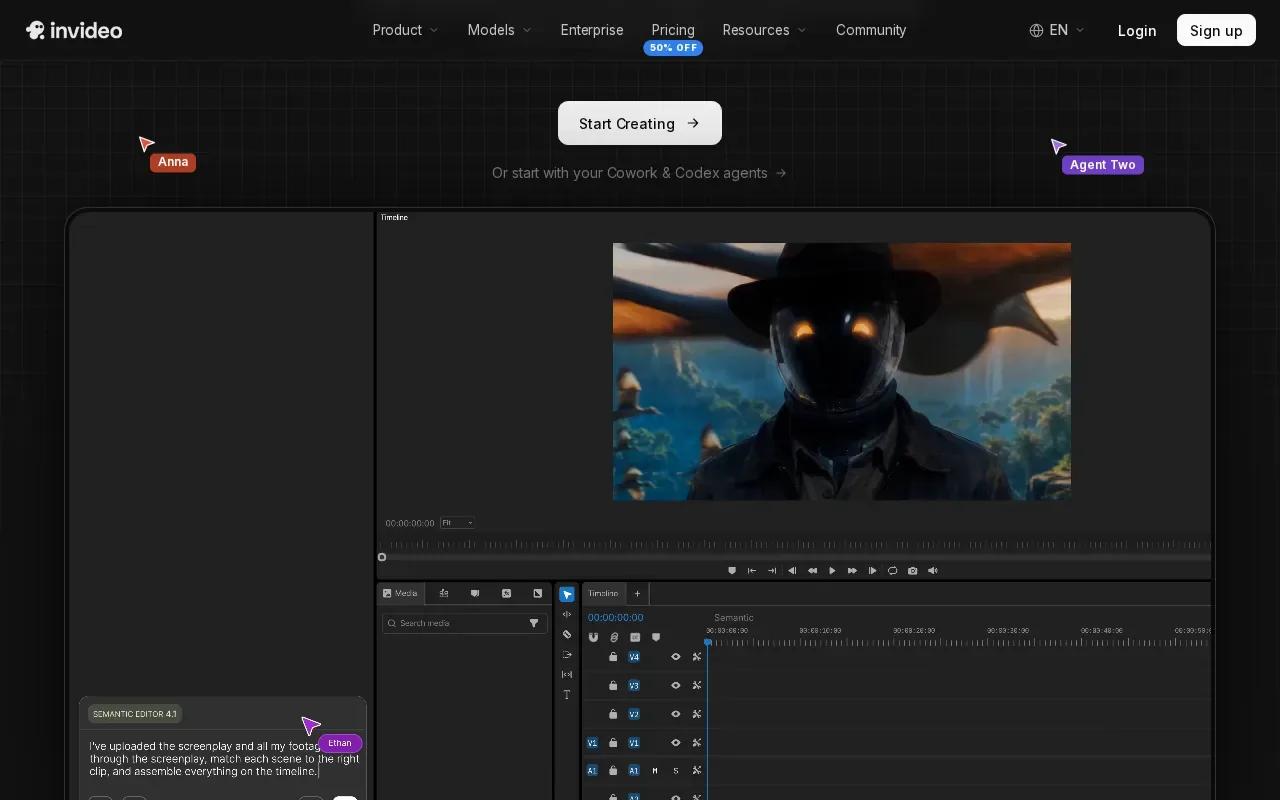
The workflow begins with the idea, not a set of finished clips. A prompt can describe the subject and the message; the tool then helps shape that into a social video. This can be useful when you need to test a few angles for a launch post. Keep the prompt narrow: one audience, one point, one action you want the viewer to take.
InVideo AI is priced per seat, so check its current plans and credits before a team trial. Before committing to a repeat workflow, decide what a workable draft means: the spoken message should be right, the opening should make sense without context, and the selected scenes should support the claim.
A prompt-driven draft still needs a human check. Read any on-screen text closely, listen to the voice track, and make sure the visuals match the script. A clip can be technically ready to export while still showing the wrong product detail or a scene that doesn’t support the point. Check the final crop for the channel where you’ll post it.
For a 4K delivery, confirm that the export setting is available for the plan and workflow you intend to use before production begins. Treat it as a prompt-led creation option first.
If you’re writing the prompt from scratch, keep the script short enough to fit the intended clip. This overview of script-to-video tools can help you think through the handoff from written idea to video. Then review the generated result as an editor would, not just as the person who wrote the prompt.
6. Pika: For short visual effects and social clips
Pika is an AI creative tool built for creators. It’s a fit when the brief centers on a short visual effect or a social clip, rather than a longer, fully planned story or a careful edit of existing footage.
That focused use matters. A visual effect has to read quickly, often in the first moments of a feed clip. Describe the one change or action you want viewers to notice. Keep the rest of the brief simple so the effect stays the point. Then judge the output on a phone-sized preview, where busy detail can become hard to read.
If you plan to use the clip on more than one platform, think about the composition before you render. A central subject is easier to adapt to a tall crop than an important detail tucked near the far left or right. Make a test cut, inspect it in the intended frame, and only then spend time refining the effect.
Pika is the narrower creative pick in this list. Choose it for a brief with one visual moment to sell. If your job needs captions and a polished edit, CapCut is more directly suited to that task; if the aim is a finished video generated from an idea, Seedance Studio or Pexo may be a better starting point.
7. VEED: For fast video editing and repurposing
VEED is an AI video editor for faster content production and repurposing. It suits a team with existing long-form footage that wants to find short clips for TikTok, YouTube Shorts, or Reels without hand-cutting the full recording.
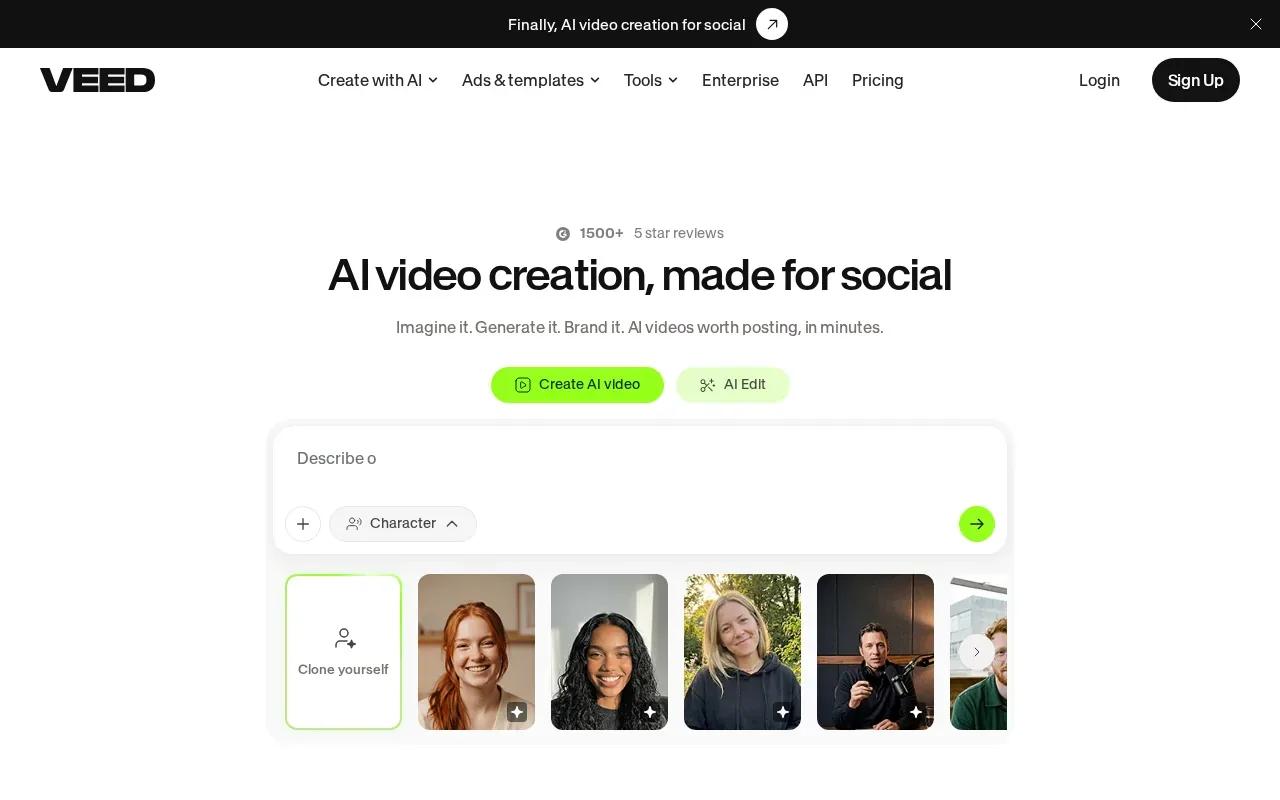
The short-form workflow starts with an uploaded video that has at least one minute of speech. Choose a caption style and clip length, then set the goal, such as highlights or insights. VEED’s AI identifies moments and makes short clips. You can download them or open the editor to revise subtitles and add custom assets.
That makes VEED a practical fit for a webinar or interview library. The editor can help find candidate moments, but a person should still check the clip’s context. A line taken out of a longer answer can sound like a different claim. Review the few seconds before and after the chosen moment, then keep the cut that makes sense on its own.
VEED includes auto subtitles, noise cleanup, branding, and team collaboration, with a free tier and paid plans. Confirm the export resolution available on your plan before choosing VEED for a required 4K deliverable.
| Use case | Why VEED may fit | What to check before posting |
|---|---|---|
| Clip a talk or interview | AI can identify short moments in footage with speech. | Check context around each selected line. |
| Make clips easier to watch on mute | Auto subtitles are part of its editing tools. | Correct names and review caption timing. |
| Keep a team’s look consistent | A brand kit can store logos, fonts, and colors. | Check the crop and text placement in the target format. |
For a regular stream of social clips, repurposing can save time at the first-cut stage. It doesn’t remove the need to make an editorial choice. Keep the strongest clip, give it a clear opening, and ensure the ending doesn’t cut off a key point. These short video makers for social Reels are another useful reference if you’re weighing repurposing against making a new clip.
FAQ
How do I export a short video in 4K?
Choose 3840 × 2160 in the export settings if your editor and plan support it. Match the timeline frame rate to your source footage, then export a local file so you can check it before upload. A 4K setting can’t add detail that wasn’t in the source, so inspect the finished clip at full size and confirm playback quality on the platform.
Should I use H.264 or H.265 for a 4K short?
Either H.264 or H.265 can work for YouTube, as long as your editor and upload workflow handle it. H.265 uses more complex compression and can make the file smaller. Choose a format your editor and upload workflow support, then view the rendered file before posting to check for visible quality loss.
What aspect ratio should I use for TikTok, Reels, and Shorts?
Use a vertical 9:16 frame for TikTok, Reels, and Shorts when the clip is designed for a full-screen feed. Check that the subject and any text stay clear inside the vertical crop. For a horizontal YouTube video, use a wide frame instead. Set the ratio before editing or generation when possible.
Why does my 4K YouTube video look blurry?
Your video may be playing at a lower quality setting, even if the uploaded file is 4K. Open YouTube’s player settings and check the current resolution. On mobile, open the advanced quality options and select 2160p if it’s available. Also review your local export, since an incorrect timeline setting or crop can affect the result before upload.
Conclusion
If you want a prompt-led short with 4K output, start with Seedance Studio and test your idea before choosing a paid plan. For footage editing or repurposing, compare CapCut and VEED against your workflow. Before posting, play the exported file locally, upload it, then check YouTube’s playback quality. Create a free account to try Seedance Studio.