A vertical video maker for mobile apps should fit the way you work: generate a clip from an idea, edit footage on your phone, or do both. Seedance Studio opens this shortlist for prompt-led creation, followed by five tools built for different editing needs.
1. Seedance Studio
Seedance Studio is a browser-based AI video and image generator for creators who want to turn a prompt or reference material into a finished clip. You can use it on a phone or computer without downloading an app, and the free plan gives you a couple of videos each month with no card required.
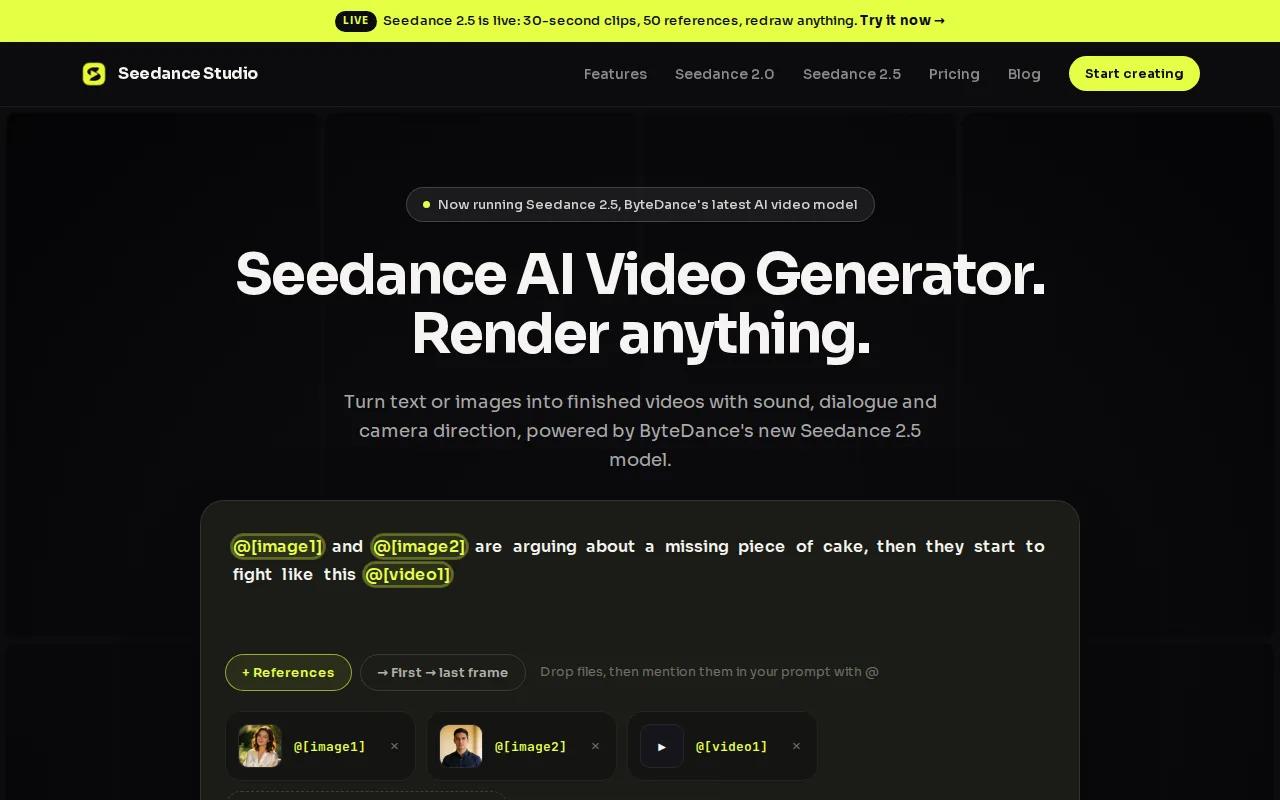
Type what you want to see, or upload reference images, video clips, or audio. Seedance Studio uses the Seedance 2.5 model by default on every plan. The result can include planned camera moves, characters that stay consistent across shots, and native sound. That makes it a fit when you need a new visual rather than a polished edit of footage you already shot.
For example, a social media team could draft a vertical product scene from a written idea, then review the generated clip before posting. Prompt wording can stay plain. Describe the subject and action, then add a camera direction if the framing matters. Our overview of AI video apps can help you match that workflow to your project.
Seedance Studio plans include AI video and image generation, a commercial licence, and a media gallery. The free plan includes a watermark. Paid plans start at $14 per month, while one-time credit packs are also available. Check the Seedance Studio site for the current plan details before you build a regular publishing workflow.
One useful distinction: this is a generation-first tool, not a phone timeline editor. If your job is to cut existing takes frame by frame, a mobile editor below may suit you better. Seedance Studio is a browser-based option for starting from an idea and generating a new clip without installing software.
2. VEED: browser-based drafts with AI presenters
VEED turns written prompts into editable video drafts inside a browser-based editor. It suits teams making presenter-led clips, localized versions, or short social videos who want to keep editing in a browser.
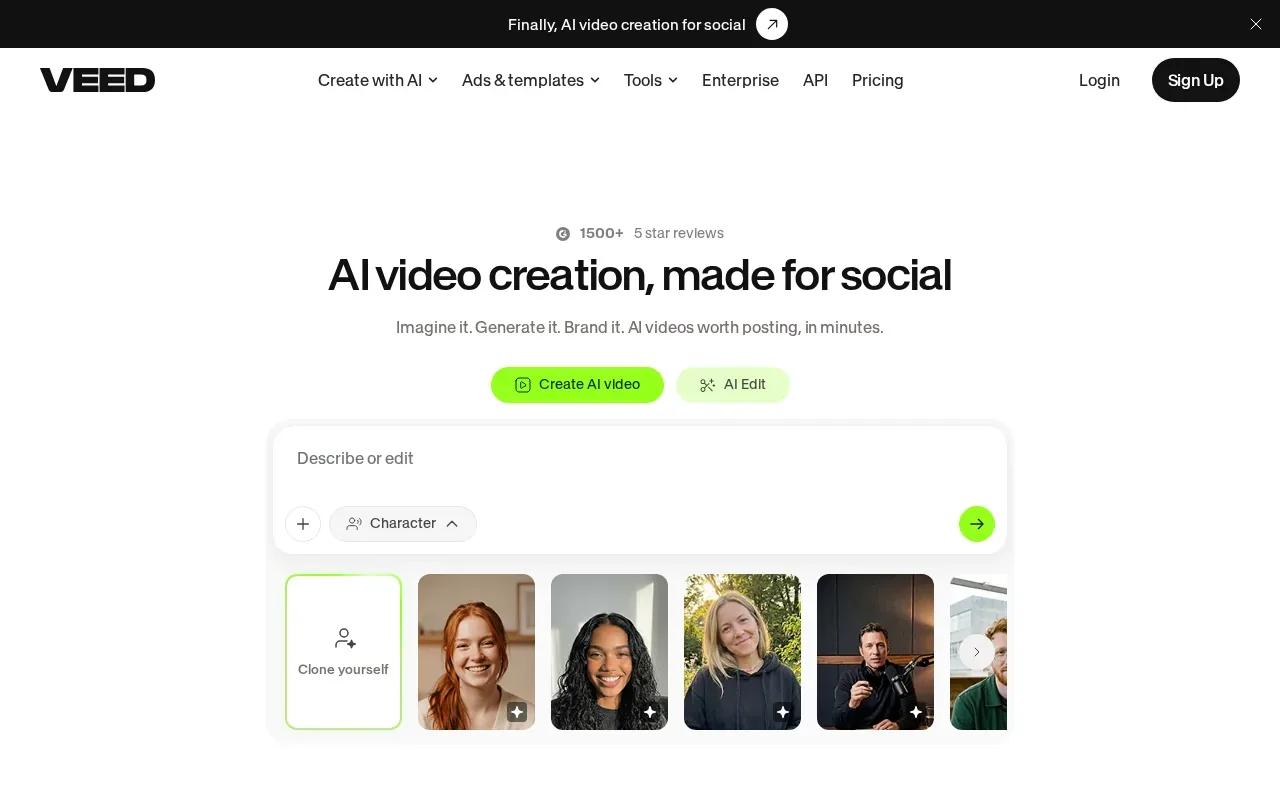
For presenter footage, VEED’s eye-contact correction adjusts a speaker’s gaze without a reshoot. That can help when a person looks at notes beside the camera. You can also work with AI presenters and voiceovers, then add auto-generated subtitles or make translated and dubbed versions for other audiences.
Its Magic Cut can remove pauses from a clip. That’s useful when a team records a longer take, then needs a tighter social edit without trimming every silence by hand. VEED also has a browser workflow for creating a vertical video from uploaded footage or a template. You can rotate footage that wasn’t shot upright, then add text, images, music, and captions.
A small product team could use VEED to prepare one spokesperson clip and adapt it for audiences who speak different languages. For a talking-head post, gaze correction may help the final clip feel more direct. For a video that needs its visuals generated from scratch, compare that editing workflow with a prompt-led generator instead.
Browser editing is the main draw here. If your files and review process already live on a computer, you can make edits without moving the work to a phone. VEED also has a mobile-browser editing option, so you can work without installing a native app. Its free editor adds a watermark; removing it requires a premium subscription.
If captions and translation are central to your weekly work, VEED is worth considering. If the main task is tight manual control over several stacked tracks, look at the mobile-first editors later in this list.
3. InVideo AI: prompt-led video creation with Magic Box edits
InVideo AI starts with a prompt and assembles a vertical video with scenes, voiceover, and captions. It’s a strong fit for social teams that produce recurring channel content and want to revise a first draft with text commands.
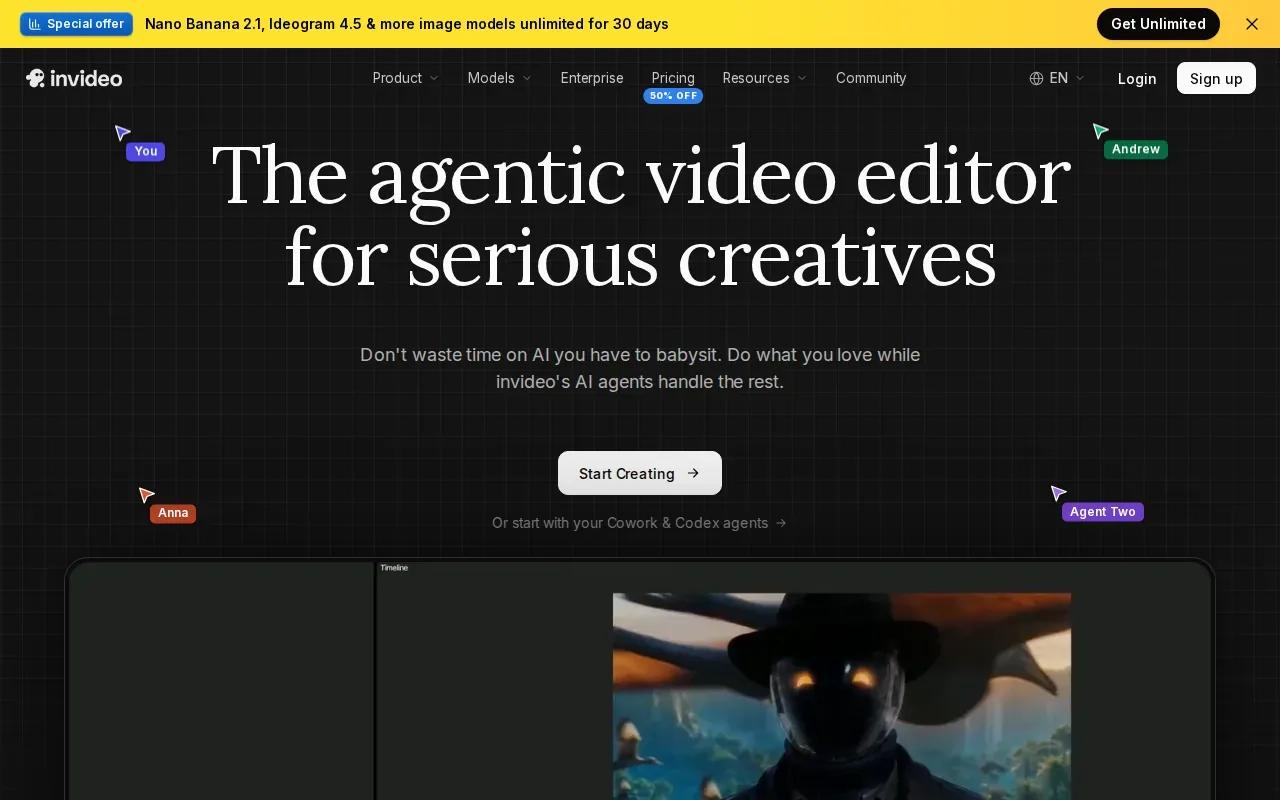
The Magic Box is its clearest difference from a standard timeline editor. Give it a natural-language command to change scenes, adjust pacing, or revise narration. That can be faster than opening each scene and making every change by hand, especially when a draft needs a new hook or a shorter voiceover.
InVideo AI can assemble a script from a prompt, select stock clips, add an AI voiceover, and generate captions. It also supports 9:16 export, the tall frame used for vertical posts. A small social team could start with a prompt for a recurring weekly update, review the selected scenes, then ask Magic Box to change the narration or cut a section that runs long.
Think of the prompt as a starting brief, not a final script. Check that the selected clips match the message. Read the captions for names and key terms. Listen to the voiceover before publishing, since an automatic draft still needs a human review.
InVideo AI fits best when the idea is clear and you want the system to assemble a first version. If you already have footage and prefer to shape every cut yourself, a timeline editor may give you more direct control. If your process starts with audio, audio-to-video AI workflows are another useful angle to consider.
For repeat content, the ability to revise with plain-language commands can save time during draft changes. Use it when you want a prompt-led workflow, then check the finished export on a phone before it goes live.
4. InShot: mobile editing with AI captions and background removal
InShot is a phone-based video editor for creators who want to cut and finish footage on a mobile device. Its tools include AI auto-captions, background removal, chroma key, keyframes, and multi-layer editing.
For a simple vertical clip, you can trim and split the footage, set the canvas to 9:16, then add text or subtitles. Keyframes let you animate text, stickers, or picture-in-picture layers over time. Chroma key removes a selected color, which is handy for footage shot against a green screen.
Background removal gives you another way to change what appears behind a person or object. Auto-captions can speed up the first subtitle pass, though it’s still smart to check names and technical terms before sharing. InShot also lists exports up to 4K at 60 frames per second, so the app can handle more than a quick trim.
Picture the workflow after a product demo: cut out a pause, add a caption, place a close-up over the main shot, and export a vertical version from the phone. That’s a good match for a creator who films and edits on the same device. The app supports other aspect ratios too, including square and widescreen. An aspect ratio describes the relationship between a video’s width and height; choose the frame that fits the destination before you finish editing.
InShot makes sense when you want a capable editor in your pocket and like direct touch controls. For a complex edit, plan to check the full timeline closely on the small screen. If you want frame-by-frame control with multiple layers as the core of your workflow, KineMaster is another mobile option to weigh.
5. KineMaster: layered mobile editing with frame-accurate control
KineMaster is a mobile editor for creators who want hands-on control over a layered timeline. It’s a fit for Android or iOS users who want to place video and audio layers with precision.
The key tools include multiple video and audio layers, keyframe animation, and chroma key. A keyframe marks a point in time where an element changes, such as text moving across the screen. With several keyframes, you can control how that movement unfolds through a shot.
That level of control helps when a short clip needs careful timing. You might line a caption up with a spoken phrase, place a second shot over the main footage, then add a music layer underneath. KineMaster’s full-screen timeline is built for complex projects with multiple layers, rather than only quick trims and preset effects.
KineMaster also has templates for social platforms. Starting with a template can help when you need a familiar structure, while the timeline lets you adjust the details. Its free tier includes a watermark, so check that against your publishing needs before using it for client work.
KineMaster’s advantage is editing control on a phone. The trade-off is that more control means more choices to manage during an edit. If you mainly want to generate a clip from a prompt, choose a generation-first option; if you want to make precise changes to footage you already have, KineMaster is better aligned.
Creators comparing the broader AI tools for short-form video should separate generation from editing. KineMaster focuses on editing, while prompt-led systems can supply a draft that may then need a separate hands-on finishing pass.
6. PowerDirector by CyberLink: near-desktop tools on mobile
PowerDirector by CyberLink brings multi-layer editing and AI tools to a mobile editor. It suits creators who want timeline control plus options to generate or adjust video with AI.
Its editing tools include keyframing, a multi-layer timeline, chroma key, masks, and blend modes. Those tools let you build an edit with separate layers, then adjust how an element moves or blends into the frame. PowerDirector also lists mobile AI features for text-to-video, image-to-video, and automatic edits.
That mix can help when a project has two distinct needs. You might start with a prompt or a still image to make a clip, then use the timeline to refine the placement of captions or other layers. For footage you already shot, trimming and cropping are part of the standard edit controls. The app also supports exports up to 4K.
PowerDirector by CyberLink has a free tier with a watermark. It’s a point to factor in if your team needs clean exports for a public post. Its range of tools may suit a creator who wants AI options and editing controls together, while someone who only needs a quick captioned clip may not need that much depth.
Use this option when you want to do more of the work on your phone without giving up a layered timeline. As with any mobile edit, review the export on the device where people will watch it. Captions that look fine on a large screen can feel cramped in a narrow vertical frame.
Compare the vertical video makers at a glance
The right vertical video maker depends on where your work begins. A prompt-led generator helps when you need new visuals. A mobile editor is better when you have footage and want control over the cut; the same distinction matters when comparing short video makers for social reels.
| Tool | Best fit | How you work | Useful detail to weigh |
|---|---|---|---|
| Seedance Studio | Prompt-led video generation | Browser; type a prompt or add references | Free plan includes a couple of watermarked videos monthly |
| VEED | Presenter clips and localized versions | Browser-based editor with AI tools | Watermark removal requires a premium subscription |
| InVideo AI | Recurring social drafts | Prompt-led creation with Magic Box revisions | Review selected scenes and narration before publishing |
| InShot | Touch-first mobile editing | Edit footage and layers on a phone | Lists exports up to 4K at 60 frames per second |
| KineMaster | Precise layered mobile edits | Build and adjust a multi-layer timeline | Free exports have a watermark |
| PowerDirector by CyberLink | Mobile editing with AI features | Combine a timeline with AI tools | Free tier includes a watermark |
If you’re choosing for a small team, test the work you actually need to publish. Start with a prompt if you need a new scene. Start with your camera-roll footage if the task is editing. Then check the export on a phone, including caption placement and any watermark.
Also check how your workflow handles review. A generated draft needs a look at the scene and sound. A manually edited clip needs a look at timing and text. Don’t assume that a tall frame alone makes the final video ready for every social feed.
For creators who want to avoid a software install, Seedance Studio gives you a browser-based start. For footage-first work, InShot, KineMaster, or PowerDirector by CyberLink keep editing controls on mobile. VEED and InVideo AI sit between those choices with browser tools for presenter or prompt-led workflows.
FAQ
What is the best vertical video maker for mobile apps?
The best fit depends on whether you need to generate a video or edit footage you already have. Seedance Studio is a strong starting point for prompt-led clips in a browser. InShot, KineMaster, and PowerDirector by CyberLink focus on mobile editing, while VEED and InVideo AI support browser-based creation and edits.
Can I make vertical videos in a browser without installing an app?
Yes. Seedance Studio, VEED, and InVideo AI have browser-based workflows. Seedance Studio generates videos from prompts or reference material, while VEED supports browser editing and InVideo AI builds prompt-led drafts. A browser tool can be a good fit when you don’t want to install software on your phone.
Which app is best for editing video on a phone?
InShot is a good choice for touch-first editing with captions, keyframes, background removal, and multiple layers. KineMaster and PowerDirector by CyberLink suit projects that need more timeline control. Try the same short clip in the app you’re considering, then check how comfortable the timeline feels on your device.
Can AI make a vertical video from a prompt?
Yes. Seedance Studio and InVideo AI both support prompt-led video creation. Seedance Studio can generate a video from a written prompt or reference files. InVideo AI assembles a draft and lets you revise scenes, pacing, or narration with Magic Box commands. Review the output before publishing.
Do free video editors add a watermark?
Some do. The free plans for Seedance Studio, KineMaster, and PowerDirector by CyberLink include a watermark, and VEED requires a premium subscription to remove its watermark. Check the current terms before planning a client or brand workflow, since free-plan details can affect what you can publish.
Conclusion
If you want a new vertical clip from an idea, start with Seedance Studio’s free plan and test a prompt in your browser. If you already have footage, pick the mobile editor whose timeline feels right on your phone. Create a free account and see whether the first draft fits your workflow.