Most AI Reel tools promise a finished post, then hand you raw clips or a video with a watermark. Seedance Studio is the strongest starting point because it combines text-to-video, image-to-video, camera direction, character consistency, and native sound in one browser app. Here are six named options, with the right fit for each kind of Reel workflow.
1. Seedance Studio (Our Top Pick)
Seedance Studio is our top pick for creators who want a full Reel from a prompt, image, clip, or audio reference. We built it for short-form teams that need polished output without a download, waitlist, or separate editing app.
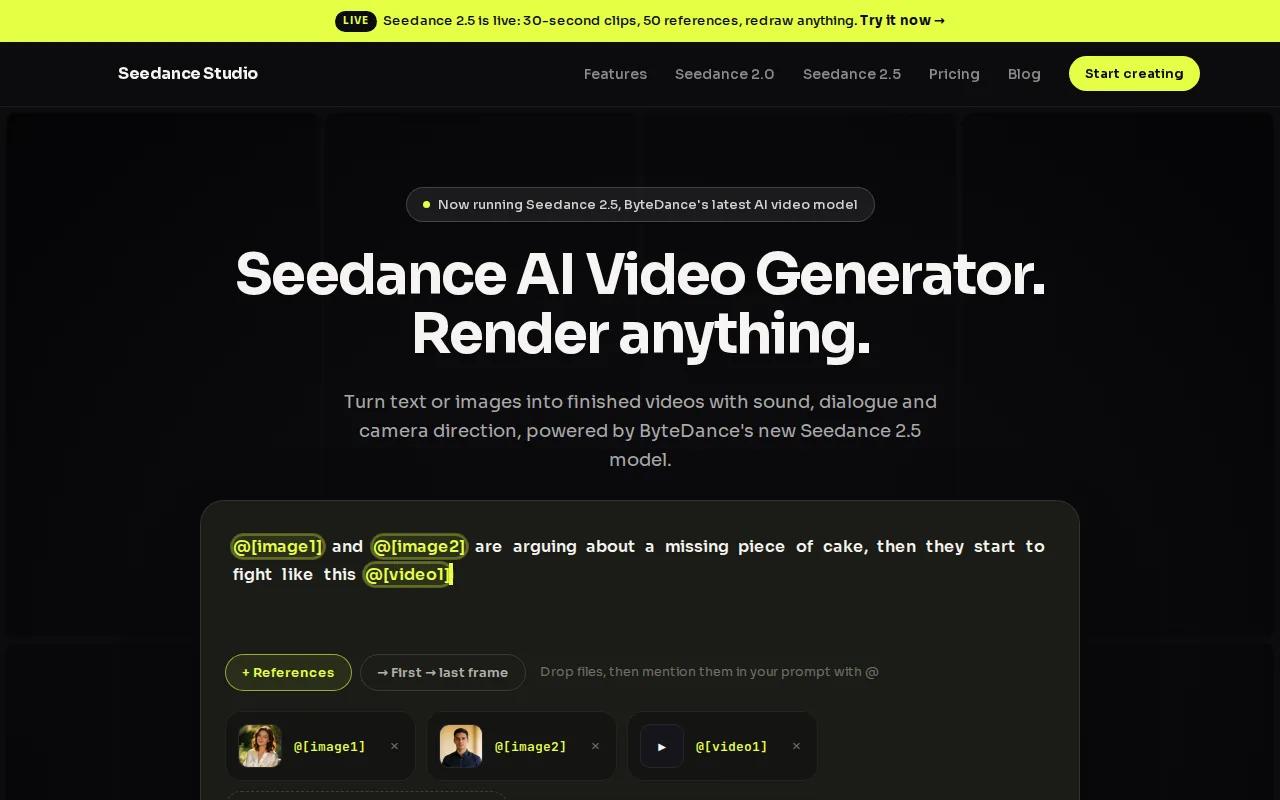
Type a plain-language idea. Add reference files when the subject needs to stay consistent. Seedance Studio uses Seedance 2.0 to plan shots, direct the camera, keep characters stable, and mix native sound into the result. That matters when a Reel has several cuts and the same person, product, or setting must carry through each one.
The model supports text-to-video and image-to-video workflows. You can describe a camera push, a product reveal, or a character walking through a scene. The result is closer to a finished short video than a folder of disconnected experiments.
Seedance Studio has a free tier. Paid plans start at $14 per month. That price sits near the middle of the market, while the workflow goes further than most limited free plans.
For a tighter production plan, use this workflow for making Instagram Reels to set the format, hook, prompt, and export before you generate.
The tradeoff is simple: Seedance Studio runs in the browser rather than as a desktop app. If you want a large timeline with manual edits, you may still need an editor after export. For most prompt-led Reels, though, the browser workflow keeps the handoff short.
Try one short concept first. A product reveal, a before-and-after scene, or a character-led mini story will show you how well the model handles your content before you build a full series. Create a free Seedance Studio account and test the first cut without a card.
2. Pexo, Fast, Ready-to-Post Reels from Plain Language
Pexo is an AI Reel maker for creators who want to describe an idea and receive a vertical post with the main production work already done.
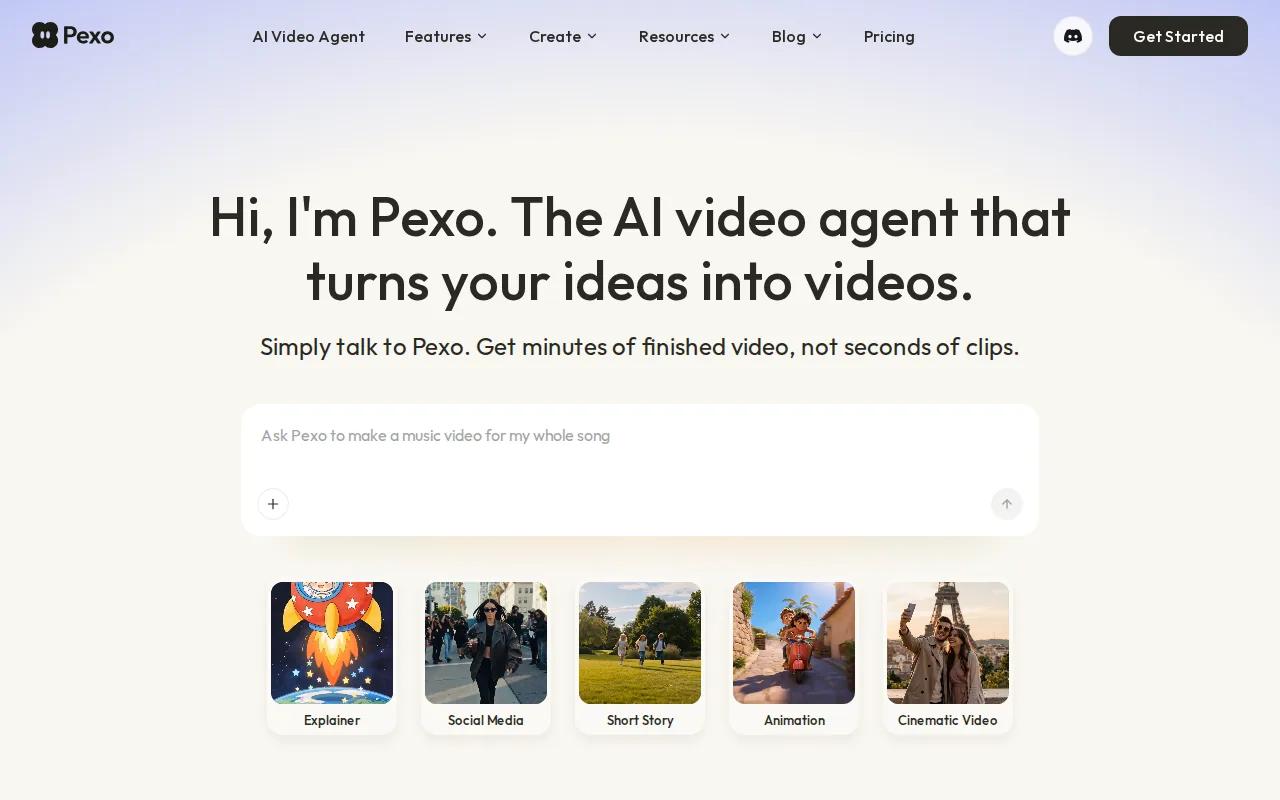
Write one line about the topic. Pexo builds a hook-first script, matches lines to scenes, records the voiceover, and burns in captions. It can route scenes through Sora 2, Kling, or Veo, then return a 9:16 Reel that is ready for review.
That makes Pexo a strong fit for faceless content. You don't need to record yourself, find a separate voice tool, or sync each line by hand. The service can also use a product page, blog post, or listing link as the starting point, which helps social managers turn existing copy into short video ideas.
Its plain-language approach is useful when you know the topic but don't want to write prompt syntax. Say what is on screen, what happens, and what mood you want. For better control, add the camera move and setting too. A prompt such as “a barista pulls an espresso shot while the camera moves in slowly” gives the system more to work with than “make a coffee Reel.” For more ideas, explore these best AI video prompts for Reels and other short-form videos.
Pexo also keeps character details, wardrobe, lighting, and setting steady across cuts. That is handy for mini-series content, where a face or visual style needs to carry from one episode to the next.
The caveat is control. A fully automated first cut saves time, but you may want to revise the hook, caption breaks, or scene order before posting. Pexo is best when speed matters more than frame-by-frame editing.
Use Pexo when your bottleneck is getting from a blank page to a voiced, captioned Reel. It is especially useful for solo creators with no recording setup.
3. InVideo AI, Best for Scripted Voiceover Reels
InVideo AI fits marketers who begin with a script or campaign brief. Its main strength is turning that written plan into a video with voiceover, visuals, captions, and edits.
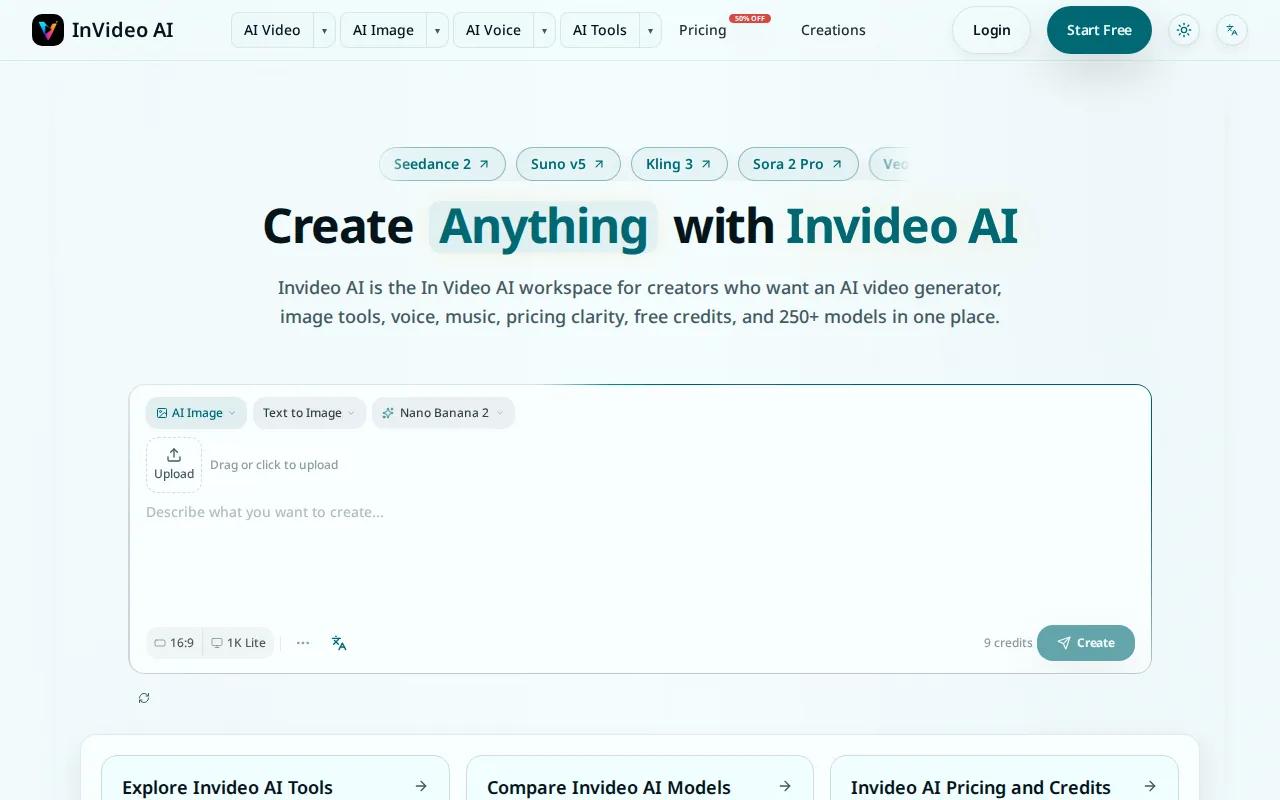
Give it a campaign idea and the system can draft a script, build a storyboard, source visuals, and assemble the cut. Model and agent pricing can change, so check the current plan before you set a production budget.
InVideo AI is a good match for a brand that needs several variations of one message. You might start with a product benefit, then ask for a shorter hook or a different voiceover tone. That gives a campaign team more room to test ideas without starting every Reel from a blank timeline.
The tool also supports stock footage workflows. That can help when an AI-generated shot is the wrong fit for a real product, location, or event. You can mix generated clips with stock material, then use captions to keep the message clear when people watch without sound.
InVideo AI has a free plan, but the free output is watermarked. That makes it useful for testing the flow, not always for a final client post. If your team needs clean exports at a steady pace, compare the credit rules and model costs before you move a whole content calendar into it.
Choose InVideo AI when the spoken script is the center of the Reel. Choose Seedance Studio when the visual direction and character continuity matter more.
4. Runway, Best for Cinematic Original B-Roll
Runway is a strong option for cinematic b-roll and directed shots. It lets you start with text, an image, or existing video, then generate and edit within the same workspace.
Describe the scene, action, setting, and mood to make a clip from scratch. You can also upload a reference image or video when the shot needs a clear visual anchor. Runway recommends a model for the input, then gives you tools to extend footage, upscale it, or make targeted changes.
The editing layer is the key difference. You can ask to remove an object, change the backdrop, relight a scene, or alter the time of day while keeping other parts of the footage in place. For a Reel, that means you can fix a distracting element without throwing away the whole shot.
Runway also supports character references. Add an image of a character and use it across several poses or scenes. That helps when you want original b-roll for a short story, fashion concept, travel mood piece, or product mood board.
Some supported models can generate dialogue and music during creation. You can also add voiceover or music afterward. Runway is therefore more flexible than a tool that only returns one silent clip, though its broader feature set may take more time to learn.
Runway is free to start with one-time trial credits. The main limitation is that high-control generation can use credits quickly. Test a short shot before planning a whole sequence, especially if every scene needs several revisions.
Pick Runway when the Reel depends on camera craft and visual polish. For fast, ready-to-post social content, another tool may get you to export sooner.
5. Kling AI, Best for Lifelike Photo-to-Video Motion
Kling AI is a good choice when you have a still image and want to give it natural movement. Its photo-to-video workflow can turn a person, object, or scene into a short motion clip for a Reel.
Upload the image, then describe the movement. You might ask a subject to turn toward the camera, let fabric move in the wind, or make a product rotate slowly. The better the source image, the more useful the result will be. Blurry faces, cluttered backgrounds, and tiny details can become more obvious once motion starts.
The tool has daily free credits, so it is easy to test several motion ideas without paying first. Use those credits to compare a slow camera move with a more active action. One may preserve the subject better than the other.
Kling AI is less suited to a complete, captioned Reel that begins with a written brief. You may still need to handle the script, subtitles, music, and final cut elsewhere. Think of it as a strong motion engine inside a wider workflow.
Use Kling when the source image already carries the creative idea. If you need a full sequence with sound and camera direction, Seedance Studio gives you more of that work in one pass.
6. Veed.io, Best for Customizable Auto-Subtitles
Veed.io is a useful pick when captions are the main reason you're making a Reel. Its strength is auto-subtitling with more control over the look and placement of the text.
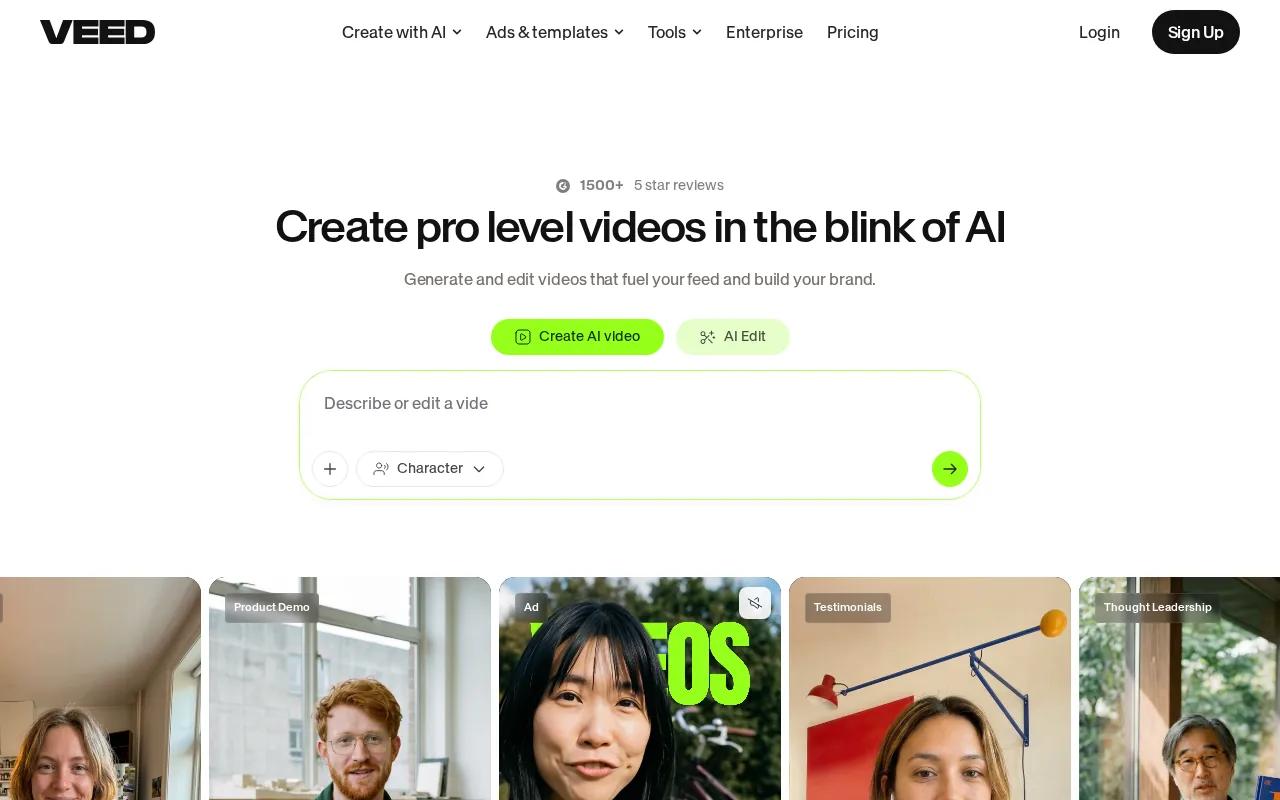
Start with a clip, then use auto-captioning to turn speech into on-screen text. You can adjust the caption style and use vertical video templates to keep the frame ready for social feeds. That helps when you already have footage but need a faster way to make it readable on a phone.
Veed.io works well for talking-head videos, interviews, lessons, and short customer explanations. Captions can break a long spoken idea into smaller pieces, which makes the first few seconds easier to follow when audio is off.
The free plan is watermarked. That is fine for a test export or an internal review, but it can be a problem for a final branded post. Check the export rules before you build a repeat workflow around the free tier.
Veed.io also focuses more on the edit than on deep scene generation. If you need original cinematic footage, image-to-video motion, or a multi-scene character story, look at the tools above first. If you already have the footage and want captions that you can shape, Veed.io is the more focused choice.
For a team that records content every week, Veed.io can reduce the slowest part of the edit. For a team starting from text, Seedance Studio or InVideo AI may remove more work.
Quick Comparison of AI Video Generators for Instagram Reels
The best AI video generator for Instagram Reels depends on where your work starts. Use this view to match the tool to the job, rather than picking only by model name.
| Tool | Best starting point | Strongest fit | Main limitation |
|---|---|---|---|
| Seedance Studio | Text, images, clips, or audio | Full short-video generation with sound | Browser-based workflow |
| Pexo | One-line idea or link | Fast voiced and captioned Reels | Less manual control |
| InVideo AI | Script or campaign brief | Voiceover-led content | Free exports are watermarked |
| Runway | Prompt, image, or video | Cinematic b-roll and edits | Credits can go fast during revisions |
| Kling AI | Still image | Lifelike photo motion | More post-edit work may be needed |
| Veed.io | Existing video | Customizable captions | Free exports are watermarked |
Before you judge output quality, check the workflow. A tool that saves you three handoffs may beat a slightly stronger single clip.
FAQ: AI Video Generators for Instagram Reels
What is the best AI video generator for Instagram Reels?
Seedance Studio is the best overall starting point for most Reel creators because it combines text-to-video, image-to-video, camera direction, consistent characters, and native sound. It has a free tier and paid plans start at $14 per month. Choose another option when your main need is captions, scripted voiceover, or photo-only motion.
Can I make Instagram Reels with AI for free?
Yes, you can make Reels with free AI video tools, but free plans often add watermarks or limit credits. Seedance Studio has a free tier, while Pexo and Kling AI also provide ways to test their workflows. Review the export terms before using a free plan for a client or paid campaign.
What format should an AI Reel use?
An AI Reel should use a vertical 9:16 format so it fills the phone screen. Set the ratio before generation when the tool supports it. Starting in the right format protects faces, products, and captions from the crop that often happens when a wide clip is forced into a vertical frame.
Which tool is best for faceless Instagram Reels?
Pexo is a strong fit for faceless Instagram Reels because it can turn a plain-language idea into scenes with voiceover and captions. InVideo AI also suits scripted faceless content. Seedance Studio works well when you want more control over the visual story, reference images, camera move, or native sound.
Do AI-generated Instagram Reels need captions?
Captions are a smart choice for most AI-generated Reels because many people watch short videos with sound off. Veed.io focuses on customizable auto-subtitles, while Pexo and InVideo AI can include captions in their automated workflows. Keep each caption short and place it where Instagram controls won't cover it.
Conclusion
Start with Seedance Studio if you want one tool for prompt-led visuals, reference consistency, camera direction, and sound. For practical guidance on combining music, voice-overs, and effects, see this AI video generator with sound guide. Create a free account, set the output to 9:16, and test one short Reel before you plan a full content series. If your main need is captions or scripted voiceover, use the shortlist to pick a narrower tool.