Good AI video software can turn one clear idea into a post-ready clip. The hard part is finding a tool that keeps costs low without cutting out sound, quality, or the right social format.
Start with Seedance Studio, then use the steps below to plan your budget, write better prompts, and reuse each clip across TikTok, Reels, and YouTube Shorts.
Step 1: Choose Seedance Studio for Your First Video
Seedance Studio is a browser-based choice for affordable AI video creation software. You can type a prompt or upload a reference image, clip, or audio file without downloading an app.
We built Seedance Studio for short-form work. You can ask for text-to-video output, image-to-video motion, camera direction, consistent characters, or native sound in one workflow.
That matters when you need to make several versions of one idea. Say you sell a new desk lamp. You can generate a close-up product shot, then make a second version with a slow camera move and a third with a creator-style voiceover. The same core idea stays intact while the opening changes.
Seedance Studio has a free tier, so you can test the output before paying. Paid plans start at $14 per month. The paid options add higher-quality exports, including native 4K, plus watermark-free downloads and a commercial license.
You can also review the free plan before you start. The free plan includes 480p output with a watermark and does not ask for a card.
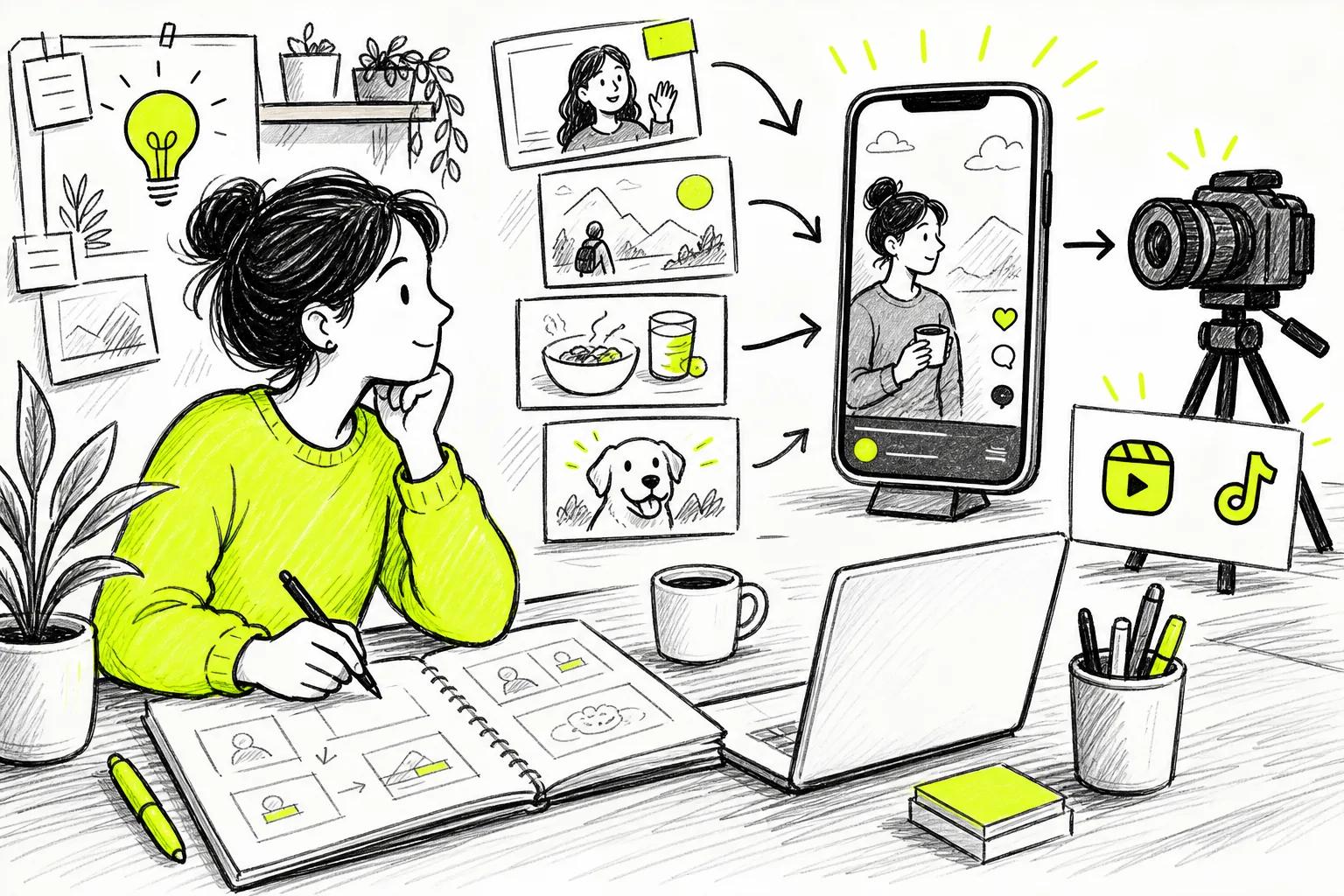
Check the export before you judge a tool. A polished landscape clip still needs extra work if your main channel is vertical. Seedance Studio supports 9:16 for short-form feeds, plus 16:9 and 1:1 formats for other placements.
Step 2: Match Your Budget to the Features You Need
Affordable AI video creation software is only cheap when it fits your actual workflow. A low monthly fee can cost more if every clip needs heavy repair or a separate sound tool.
Write down three limits before you pick a plan: how many clips you need, where you will post them, and what quality the final file needs. A creator making two test clips has a different budget than a small team producing daily ad variations.
Seedance Studio's free plan is a useful test route. The Creator plan starts at $14 per month and includes monthly credits.
For a larger content queue, the Studio plan is $49 per month. The Agency plan is $99 per month. Pick those higher tiers only when your team has a steady need for more credits and shared production work.
Use this decision table before you subscribe:
| Your need | Plan or approach | What to check first | Common trade-off |
|---|---|---|---|
| Testing prompts | Free tier | Resolution and watermark | Lower output quality |
| Regular social posts | Creator plan | Monthly credit use | Credits may run out during heavy testing |
| Several active campaigns | Studio plan | Team volume and export needs | Higher monthly spend |
| Client or agency work | Agency plan | Commercial license and usage | Best value only with steady demand |
Other tools may fit a narrower job. Sora 2 starts at $20 per month and is noted for complex motion, lighting continuity, and scenes with several characters. Veo 3 starts at $19.99 per month and generates synced dialogue, ambient sound, and sound effects in the same pass. Those strengths may matter more than a low price for a specialist project.
For current plan limits, use the Seedance Studio pricing page while you plan your monthly volume. Prices and credit rules can change, so don't rely on an old comparison chart.
Choose the smallest plan that covers your next batch. You can move up after you know how many attempts each usable clip takes.
Step 3: Write a Prompt and Generate a Short Video
A good prompt gives affordable AI video creation software enough detail to make a usable first draft. It doesn't need fancy words. It needs a clear subject, action, setting, camera move, light, and format.
Use this order:
- State the subject and action.
- Set the location and time of day.
- Describe the camera movement.
- Add the mood, light, and sound.
- Set the aspect ratio and clip length.
Try a prompt such as: “A ceramic coffee cup sits beside a rainy window. Steam rises as a hand places a spoon beside it. Slow close-up camera push. Soft morning light. Gentle rain and room tone. Vertical 9:16 video for a short social post.”
Plain language works. Avoid packing five unrelated shots into one prompt. AI video models often lose track of the subject when the scene changes too fast.
Make the first clip short. Short output gives you a faster way to spot problems with hands, faces, text, or object shape. If the main action works, build a second shot instead of forcing one generation to tell the whole story.
Watch the full clip once before you edit it. Look for a face that changes, a product that bends, or motion that feels too fast. Write down one fix at a time, then regenerate with that fix.
For example, replace “a person walks through a shop” with “a woman in a blue raincoat walks slowly past warm wooden shelves.” Add “keep the same coat and face throughout the shot” when character continuity matters.
Seedance Studio can add native sound during generation. Still, listen with headphones before you post. A sound effect that feels subtle on a laptop may feel harsh on a phone.
Most first drafts need at least one change. Treat the first result as a sketch, not a failure.
Step 4: Add Reference Images, Clips, and Audio
Reference inputs help affordable AI video creation software keep the same look across a series. Upload a useful image when the exact face, product shape, outfit, or location needs to stay stable.
Start with one strong reference. Use a clear image with the subject in good light. Remove busy backgrounds when the subject's outline matters. A blurry source image gives the model less to work with.
In Seedance Studio, you can upload reference images, video clips, and audio. Use an image for character or product identity. Use a clip when you want to guide movement. Add audio when the rhythm or spoken line needs to shape the shot.
Keep your reference set small at first. Too many inputs can pull the result in different directions. If you upload [Image1], describe what must remain fixed, such as “keep the red backpack and round glasses.” Then describe what may change, such as the location or camera angle.
Audio needs the same care. Use a clean voice recording when you need lip-synced dialogue. State who speaks and when. If the scene has background music, keep the request separate from the spoken line so the words remain clear.
Before you upload anything, check that you have permission to use it. This includes photos of people, brand assets, music, and clips made by another creator. A cheap generation is not worth a rights dispute later.
Reference consistency matters most when you make a sequence. Generate the first shot, save the key prompt details, then reuse them in the next prompt. Change one visual variable at a time.
If your project starts with a still image, the free image-to-video workflow can help you plan the upload and motion prompt before you spend credits.
Keep a small prompt sheet for each campaign. Record the character description, color notes, camera style, and sound direction. That simple handoff can save hours when another person needs to make the next version.
Step 5: Refine, Export, and Reuse Your Video for Social Media
The last step turns an AI draft into a social asset. Affordable AI video creation software saves time here only when you review the file like a viewer on a phone.
First, watch the clip with sound off. Can you understand the action from the image alone? Add captions when the spoken message carries the point. Keep key text away from the top and bottom edges, where app controls may cover it.
Then watch with sound on. Check for clipped words, strange pauses, or music that masks speech. Native sound is useful, but you still need a human check before publishing.
Export the right ratio for each channel:
- Use 9:16 for TikTok, Instagram Reels, and YouTube Shorts.
- Use 16:9 for standard YouTube or a web video player.
- Use 1:1 for square placements when the feed calls for it.
Generate at the highest setting your plan supports. Seedance Studio paid plans support output up to native 4K, while the free tier is intended for lower-resolution testing with a watermark.
Don't post the same file everywhere without checking the crop. A detail near the edge may look fine in one feed and vanish in another. Keep a clean master file, then make a copy for each ratio.
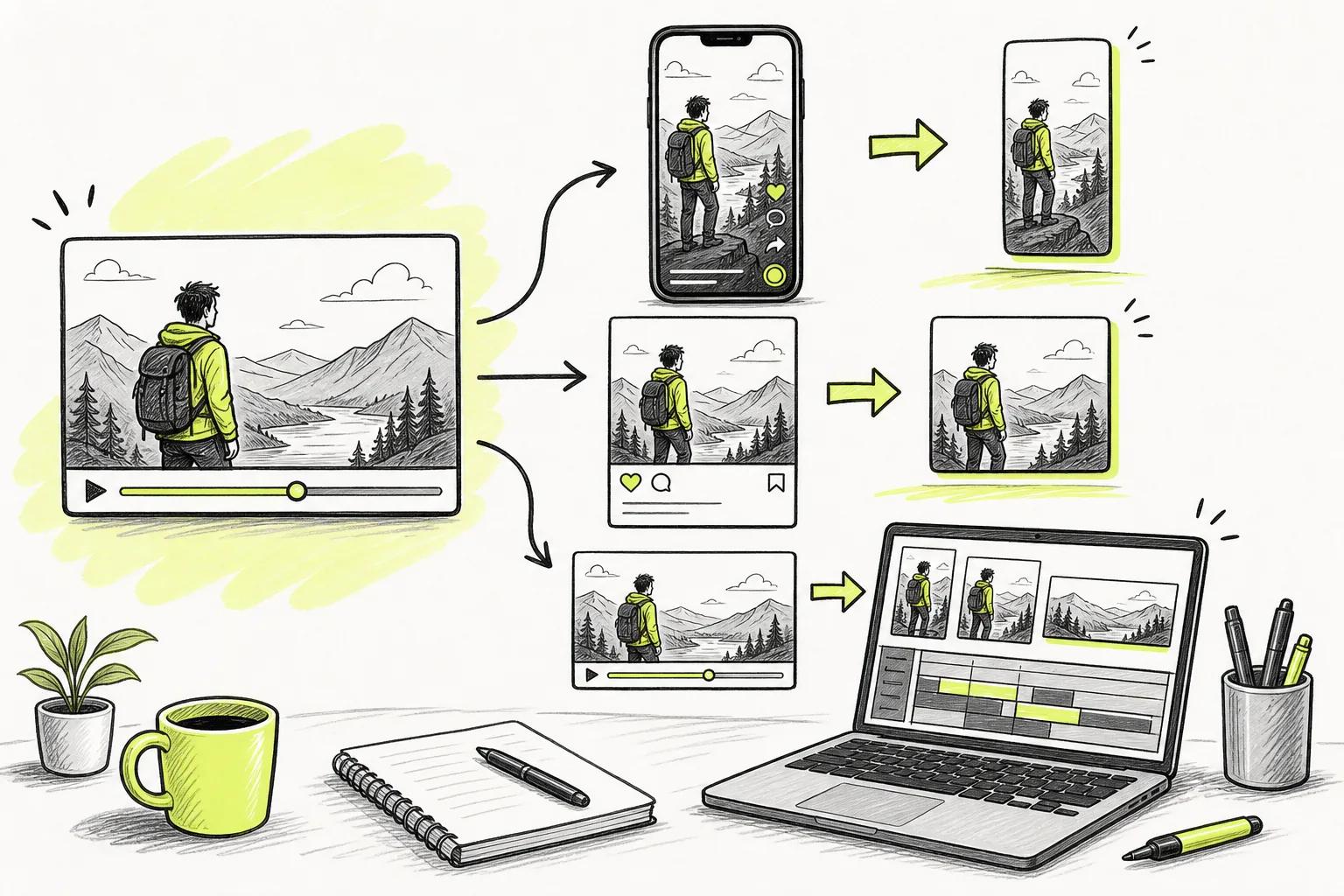
Reuse the idea, not the exact post. Make a new opening for each platform. Change the first two seconds, then keep the strongest middle shot if it still fits.
Build a small test batch. Make three hooks for one topic. Post them at separate times, then compare watch time, saves, and comments inside each platform's own dashboard. Don't decide that a tool failed after one weak clip.
You can use the Seedance Studio video workflow when you want a repeatable path from prompt to export. The goal is a simple loop: make one version, review it on a phone, fix one issue, then publish.
Save the prompt beside the exported file. That makes a winning concept easy to revisit before a trend fades.
Frequently Asked Questions
What is the most affordable AI video creation software?
Seedance Studio is one of the lowest-cost choices in this comparison, with a free tier and paid plans starting at $14 per month. The free plan lets you test text-to-video and image-to-video output at 480p with a watermark. Paid plans add higher export quality, including 4K, plus a commercial license.
Can I make TikTok videos with AI for free?
Yes, you can make TikTok test videos with a free AI video tool, but free plans often limit credits, quality, or watermarks. Seedance Studio's free tier needs no card and supports short video tests. Use 9:16 before you generate, since a vertical source usually looks better than a cropped landscape clip.
Is AI video creation software worth paying for?
AI video creation software is worth paying for when it cuts enough production time to cover its monthly cost. Compare the number of finished clips you need with the number of attempts each clip takes. A paid Seedance Studio plan can make sense when you need higher resolution, commercial use, or watermark-free exports.
What should I look for in affordable AI video software?
Look for a free test tier, clear credit rules, the right aspect ratios, and output quality that matches your channel. Native audio can remove a separate production step. Reference images also help when a character or product must stay consistent across several clips.
Can AI-generated videos be used for business?
Yes, AI-generated videos can support business content when your plan grants the needed commercial rights. Check the tool's terms before using outside images, voices, music, or people. Seedance Studio includes a commercial license on its paid plans, while the free tier is better suited to testing ideas.
Conclusion
Start with Seedance Studio's free tier and make three short tests in the format you plan to post. If the output fits your workflow, the $14 Creator plan gives you a low-cost path to higher-quality, watermark-free production. Compare affordable AI video options, then create a free account and test your first prompt today.