A square video from one still image sounds simple. Yet explicit 1:1 support is still rare among AI video tools. Seedance Studio leads this shortlist because it supports square output, has a free tier, and can produce clips up to 30 seconds. Here are the five strongest options and the job each one fits best.
1. Seedance Studio
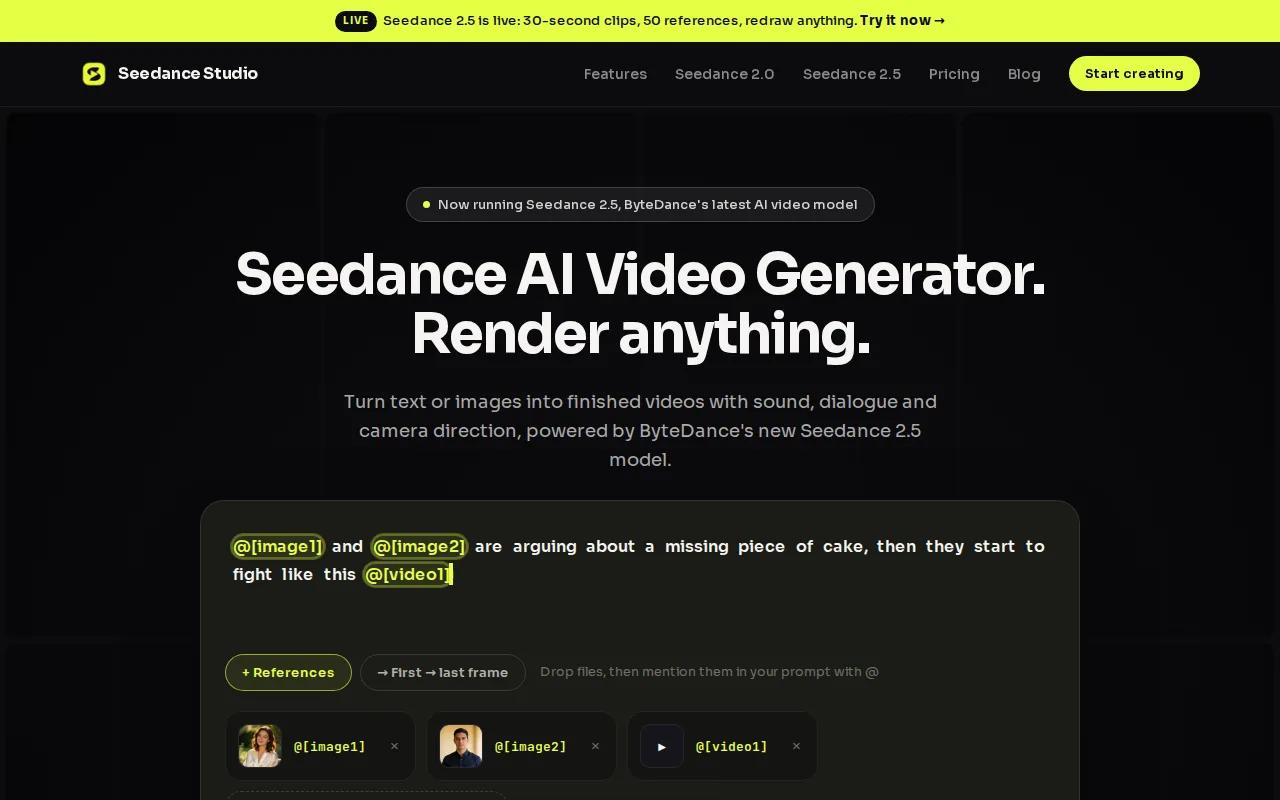
Seedance Studio is our recommendation for anyone who needs a 1 by 1 square video maker from an image. It runs in your browser, so you can upload a photo, describe the motion, choose a square frame, and generate without a download or waitlist.
It fits creators and social teams that need more room to test ideas. A product photo can become a slow camera push. A portrait can gain a head turn or a small change in light. A travel image can become a moving scene with natural camera direction.
Seedance Studio runs on Seedance 2.0 and supports reference images, video clips, and audio. That gives you more control when one image is not enough to define the subject. You can guide the camera, keep a character more consistent, and add native sound in the same workflow.
The biggest edge is clip length. Most square-capable tools in the comparison data stop at 5 or 10 seconds. Seedance Studio can produce up to 30 seconds through its current model access. That gives you enough space for a short product story instead of one looping motion.
We also like the low-friction start. The free tier lets you test the format before you pay. Paid plans start at $14 per month, which makes it easier to try several prompts before handing a final cut to a client or content lead. You can find the browser workspace at Seedance Studio's official video generator.
For a clean first test, use one clear image and a motion-only prompt. The free image-to-video workflow explains why “slow push in toward the product” usually works better than repeating every detail already visible in the photo.
The caveat is simple: longer output does not fix a weak source image. Use a sharp photo with the main subject near the center. Check the square crop before you generate.
2. Runway Gen-4.5, A strong pick for cinematic image animation
Runway Gen-4.5 is a strong 1:1 image-to-video choice when the shot needs a film-like camera move. It suits art directors, campaign teams, and creators who care more about visual tone than long runtime.
The tool supports square video output, with a maximum length of 10 seconds. It also offers 4K output, camera control, and a free tier. Pricing starts at $15 per month.
That 10-second limit is enough for a feed ad with one clear beat. Imagine a still image of a watch on a dark table. A prompt such as “slow dolly toward the watch while a narrow beam of light moves across the face” gives the model one subject and one camera action.
Runway works well when you want to test several visual directions from one image. Keep each prompt focused. Ask for one main action, then adjust the pace or camera direction in the next version.
Runway is less suited to a creator who needs a 30-second square clip in one render. You may need to join several short shots in an editor. That is fine for a campaign with planned cuts, but it adds work when the brief is one continuous scene.
Pick it when visual direction matters most and a short cinematic beat is enough.
3. Kling AI 3.0, Flexible motion for social content
Kling AI 3.0 is a flexible option for a square video made from a still image. It fits social teams that want to turn a single image into a short clip for a square feed post.
Kling supports square video and offers a free tier. Its maximum clip length is 10 seconds, which works well for short social posts and quick creative tests. Check the live settings before planning a campaign, since available options can change.
That format helps when the image contains a person, product, or other subject that should remain easy to recognize. Upload a clear image, then describe a small action such as a turn toward the camera. Keep the main subject centered so it has room within the square frame.
Kling can also fit simple social concepts built around one strong visual moment. Use a direct prompt that explains the movement, setting, and desired pacing. For a square feed post, keep important details well inside the center area. Captions and platform controls can cover the lower edge.
A 10-second limit is useful for testing several short variations instead of planning one long sequence. Review the result for unwanted movement, framing changes, and details that become less clear as the clip plays. Then adjust the prompt or starting image and try again.
The free tier makes Kling useful for early prompt tests. Before using an output in a client handoff, check the current export settings and access terms. Paid access may make more sense once the motion and framing are right.
Choose Kling when a clear subject and a short square motion clip carry the idea.
4. Dream Machine, Simple short clips from still images
Dream Machine is a simple choice for short square clips from still images. It suits a solo creator who wants to test motion quickly without planning a long scene.
Dream Machine supports 1:1 video, up to 1080p, and clips up to five seconds. Pricing starts at $9.99 per month. That makes it one of the lower-cost entries, but the short runtime shapes what you can make.
Five seconds works for a product reveal, a gentle zoom, or a looping visual. Start with a clear frame and give the model one movement. “The camera moves slowly toward the flower as the petals shift in the breeze” is a better brief than a paragraph packed with effects.
Dream Machine makes sense when you need a visual insert rather than a full social story. You can place the generated shot between text cards or other clips in an editor. It also works for testing whether a still image has enough detail to animate well.
The limit becomes clear when the image needs a setup, action, and finish. A five-second render may cut off the result or leave too little time for a clean opening. You can join several clips, but continuity takes more review.
Confirm the current square export settings before you build a paid campaign around it.
Pick Dream Machine for quick motion tests and short visual loops. Look elsewhere when the story needs space.
5. Google Veo 3.1, High-quality visuals for polished campaigns
Google Veo 3.1 belongs on this list for teams that want polished AI visuals from still images. It is a better fit for a planned campaign than for someone who needs the fastest free square draft.
It does not provide a full square-specific feature sheet, price, or runtime for this article. That matters. A tool can make strong video and still require a separate crop or edit for a 1:1 post.
Use Veo when the image is part of a wider creative brief. For example, a campaign team may first test a product mood, then adapt the winning shot into square, vertical, and wide versions. Keep the subject away from the outer edges so the crop has room to work.
Quality also depends on the source. A small image with blurred text will not become a clean product label after animation. Remove important text from the source frame or add it later in an editor. That keeps the generated image from inventing letters.
Veo may suit a team with a larger production workflow, but check its free tier, square export, and exact price in the live product before choosing it for a deliverable.
The decision rule is clear: choose Veo for visual polish when your team can confirm the output format and plan limits first. If you need a known 1:1 workflow today, Seedance Studio is the safer starting point.
Square image-to-video tool comparison
The table below focuses on the decisions that affect a square social workflow. Where a detail is not available, it is marked as not listed.
| Tool | Square support | Maximum length | Maximum resolution | Best fit | Main trade-off |
|---|---|---|---|---|---|
| Seedance Studio | Yes | Up to 30 seconds | Not listed consistently across current model access | Longer square social clips | Review plan limits before final export |
| Runway Gen-4.5 | Yes | 10 seconds | 4K | Cinematic short shots | Short runtime |
| Kling AI 3.0 | Yes | 10 seconds | Not listed | People, motion, and speech | Free output has a watermark |
| Dream Machine | Yes | 5 seconds | 1080p | Fast motion tests | Very short clips |
| Google Veo 3.1 | Not confirmed in supplied data | Not listed | Not listed | Polished campaign work | Verify square export first |
Several platforms list explicit 1:1 support, so format checks should happen before you spend time refining a prompt.
What to look for in a 1:1 image-to-video maker
A good 1 by 1 square video maker from an image should pass more than one test. Start with native square output. Cropping a finished vertical clip can cut off a face, product, or caption. For more options, compare the best AI video generators from images before choosing a tool.
Next, check the maximum length. A five-second tool may be enough for a loop, while a 30-second tool gives you room for a hook and a result. Then check the free tier, watermark rules, resolution, camera control, and audio.
A 1:1 frame has equal width and height. See the definition of image aspect ratio for related background. In practice, keep the main subject near the center and leave safe space around it.
Before you choose, generate one test with the exact image type you plan to publish. A portrait, product photo, and landscape scene can behave very differently. If you are starting with an AI-made image, the guide to turning an AI photo into a video can help you plan the upload and export steps.
FAQ
What is the best 1 by 1 square video maker from image?
Seedance Studio is the best starting choice for most users because it supports square output, has a free tier, and can make clips up to 30 seconds. It also gives you camera direction and native sound options. Runway is better for short cinematic shots, while Kling fits character motion and speech.
Can I turn one photo into a square video for social media?
Yes, you can turn one photo into a square video with an image-to-video tool that supports 1:1 output. Upload a clear image, describe one action, then set the frame before generating. Keep the subject inside the center area. This helps protect faces and products from bad crops.
Which square image-to-video tool has the longest clips?
Seedance Studio has the longest listed output in this shortlist, with clips up to 30 seconds through its current model access. Runway and Kling are listed at 10 seconds in the comparison data. Dream Machine is listed at five seconds, so it fits short loops better than full mini-stories.
Is there a free square video maker from an image?
Yes, several tools have free tiers, but their limits differ. Seedance Studio lets you test square image-to-video generation for free. Kling's free output includes a watermark. Other tools may limit length, resolution, or export access, so check the result before you plan a client post.
What should I write in an image-to-video prompt?
Write the subject, action, and camera move in plain words. For example, “the red mug turns slowly while the camera pushes in.” Avoid describing every object already visible. Add a mood or sound note only when it changes the shot. One clear motion request is easier to review than five competing effects.
Conclusion
Start with Seedance Studio if you need a reliable square image-to-video test with room to grow past a five-second loop. Upload one sharp image, choose 1:1, write one motion prompt, and generate a draft today. If the result works, refine that same shot before you spend money on a larger campaign.