Getting a character to look the same from one AI‑generated clip to the next feels impossible for many creators. The truth is you can lock the look with a few disciplined steps and the right tool. Below is a step‑by‑step guide that shows exactly how to keep character appearance across shots.
Step 1: Create a Detailed Character Reference
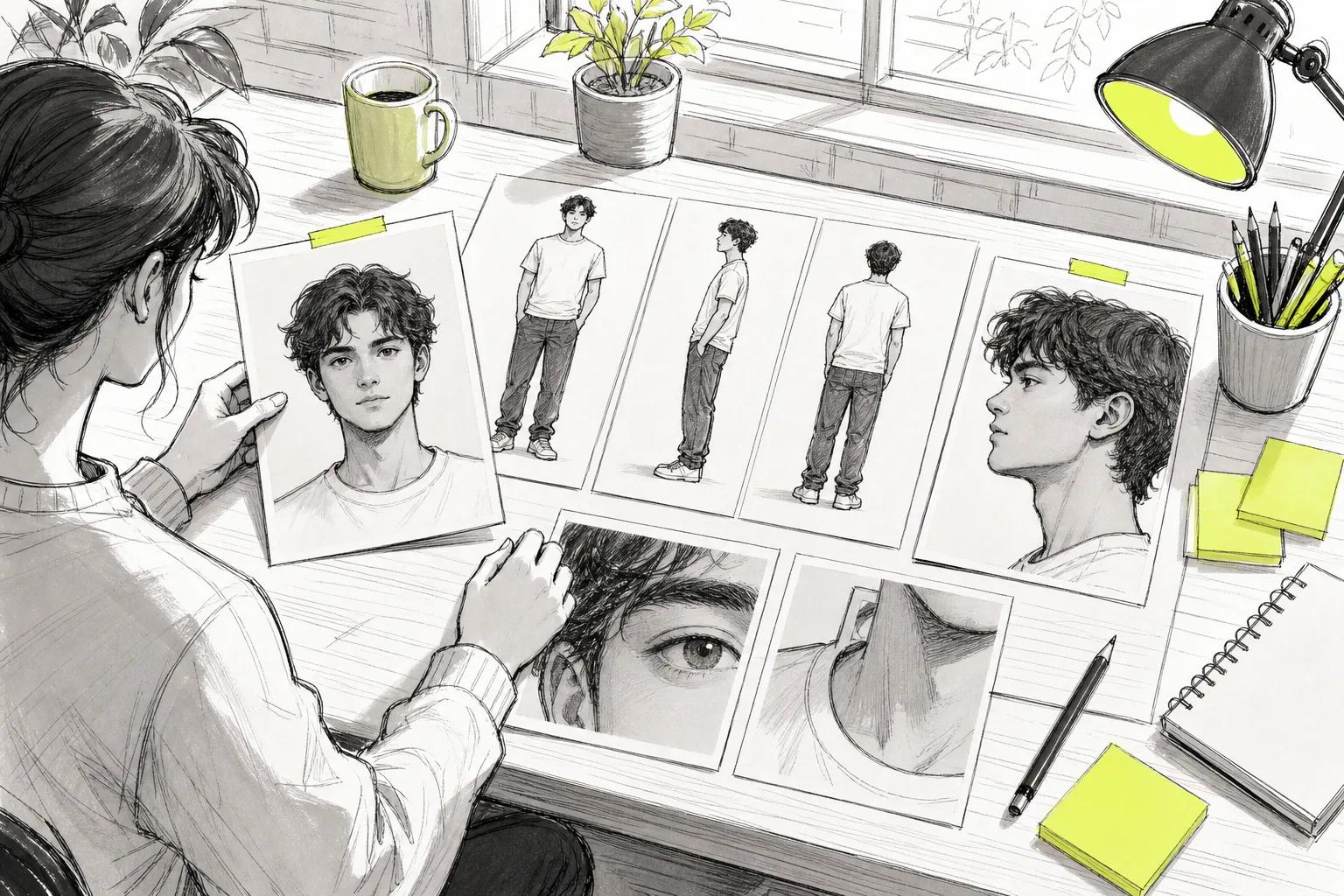
Start by gathering high‑quality images that capture every angle you plan to use. A front view, three‑quarter view, profile, and any close‑ups of key features (eyes, hair, accessories) give the model a full picture to work from. Save these files in a folder named after the character so you can pull them quickly.
When you upload the references, label each one with a short tag like "[CharA‑Front]" or "[CharA‑Side]". The tags become part of the prompt later, letting the AI match the right reference to the right shot. A prompt guide can help with naming conventions.
Why this matters: research shows only 58 % of AI video generators even mention a consistency method, and many of those rely on reference images. By giving the model a clear visual library you stay in the 58 % that actually succeeds.
Step 2: Lock the Details That Must Not Change
Identify the traits that define your character, hair color, scar, tattoo, clothing style. Write them down in a short “lock list” that you will paste into every prompt.
In Seedance Studio you can use thekeepflag to tell the model not to alter those traits. For example, use the flag to keep key traits unchanged across cuts.
Models generally respond better when you give them explicit constraints.
Once you have the lock list, add it to a hidden part of the prompt that the model reads but does not display. This way you keep the creative flow while the AI respects the core look.
Step 3: Write Prompts That Preserve Identity and Camera Continuity
Now blend the reference tags and lock list into a single prompt. Start with the action, then add the character tag, then the lock list.
Notice how the prompt tells the model three things: what happens, which reference to use, and what must stay the same. This pattern works across all shots, so you only swap the action and camera direction while the character stays anchored.
Seedance Studio lets you save prompt templates. Save the above format as "Identity‑First" and reuse it for every scene.
When you need a new camera angle, just change the last clause. The rest of the prompt stays identical, so the AI never drifts.
Step 4: Generate, Compare, and Fix Each Shot
Run each prompt through Seedance Studio one at a time. The platform returns a short clip (usually 6‑8 seconds) that you can preview instantly.
Compare the output to your reference images. Look for three things: facial shape, hair tone, and any locked accessories. If a shot deviates, use the “regenerate” button.
Below is a quick checklist you can copy into a spreadsheet to keep track of fixes.
| Shot | Check | Issue | Action |
|---|---|---|---|
| 1 – Front Walk | Face shape matches reference | — | None |
| 2 – Side Turn | Hat stays red | Hat faded | Add "keep hat bright" |
| 3 – Close‑up | Scar visible | Scar missing | Re‑add the detail |
When you finish the checklist, you’ll have a set of clips that all share the same look. For editing, see the Seedance 2.0 page.
Because you locked details early, the number of re‑generations drops dramatically. This workflow can shorten iteration time.
Step 5: Build the Final Sequence in Seedance Studio
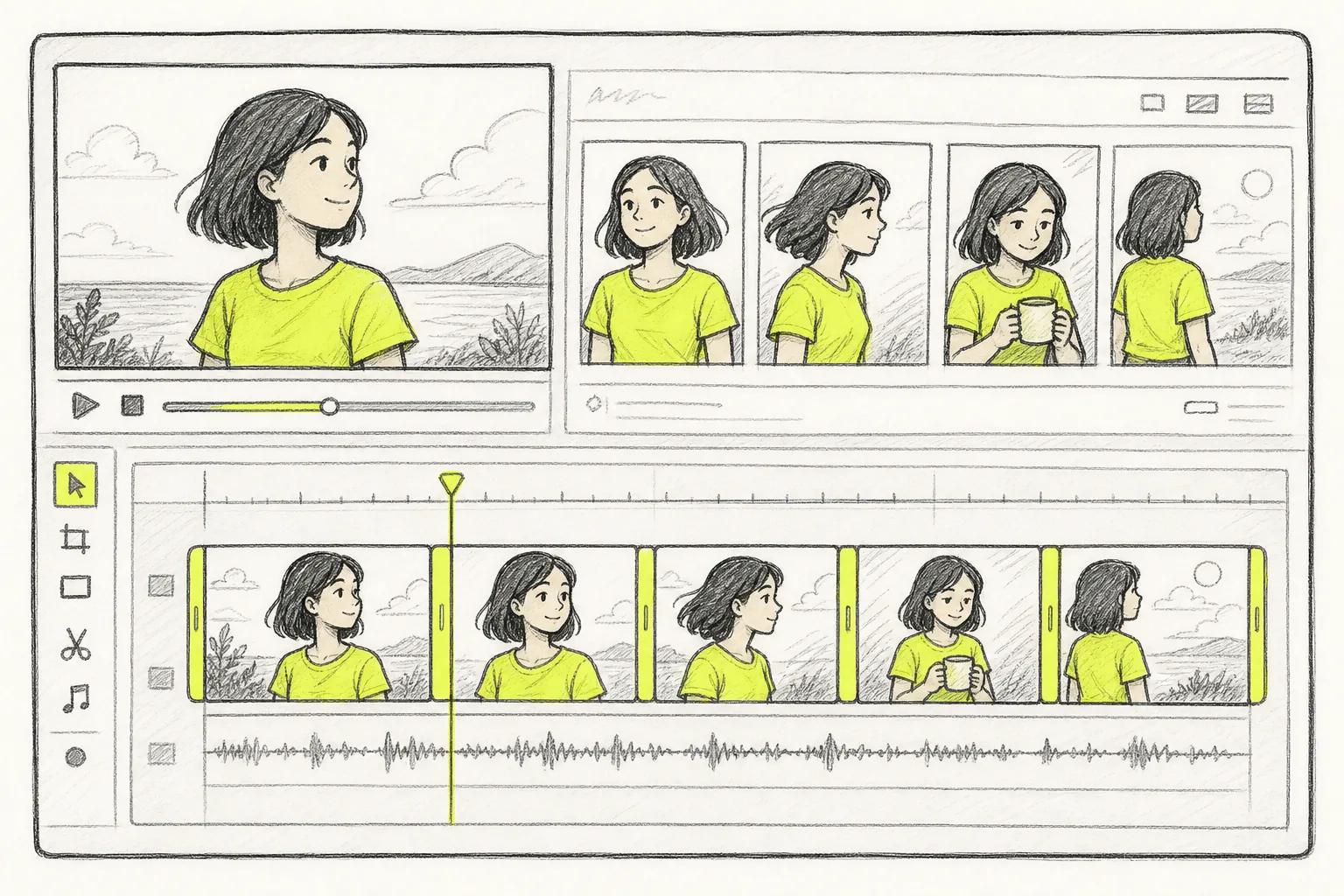
Import the verified clips into Seedance Studio’s timeline. Drag them into the order you wrote in the script. The platform automatically adds smooth cuts and can sync a music track to the beat. For a longer project, follow this guide to making an AI movie with consistent characters.
Use the built‑in “camera director” to fine‑tune pan and zoom between shots. Because each clip already shares the same character, the transitions feel natural rather than jarring.
When you’re happy, hit “Export”. Choose the 1080p option if you’re on a paid plan; the free tier caps at 720p but still delivers a clean video. Export settings can help prepare the video for TikTok and Reels.
Now you have a short video where the hero looks identical from the opening frame to the final cut. You can post it, share it, or stitch it into a longer story without worrying about visual mismatches.
FAQ
How can I be sure the AI won’t change a character’s hair color?
The AI respects any explicit "keep" command in the prompt. By adding "keep hair blonde" to every prompt you lock that trait, and you can verify by previewing each clip.
Do I need a paid plan to keep consistency?
A free plan works for testing, but the free tier adds a watermark and limits resolution to 720p. Paid plans remove the watermark and let you export at 1080p, which looks sharper on social platforms.
Can I use multiple characters in the same video?
Yes. Create a separate reference set and lock list for each character, then tag each prompt with the appropriate reference tag, like "[CharB‑Front]".
What if a generated shot still looks off despite the lock list?
Add a clarifying phrase to the prompt. Regenerating with that extra detail can help fix the issue.
Is Seedance Studio the only tool that offers this level of control?
Tools differ in the controls and workflow they provide. Other tools may offer similar features, but they often require manual scripting or lack a unified interface.
Pick Seedance Studio, follow the five steps, and you’ll keep character appearance across shots without endless trial‑and‑error. Create a free account today and start building consistent AI videos in minutes.