Got a short script and need a snappy dialogue scene for TikTok or a training video? You can go from raw lines to a polished AI‑generated clip in minutes. Follow these five steps and you’ll have a ready‑to‑post video without a video editor.
Step 1: Break the Script Into a Clear Dialogue Scene
The first job is to pull the lines you actually want to show. A typical script may have stage directions, scene headers, and extra chatter. Strip everything down to who says what, and keep each line on its own line. That makes it easy for the AI to map each speaker to a visual cue.
When you list the lines, add a simple label likeCharacter A:orCharacter B:. Those tags let the model keep the right face on the right voice. Most tools expect this format to avoid stitching separate clips together.
Here’s a quick example:
Character A: Hey, did you see the new feature?
Character B: Yeah, it blew my mind!
That tiny block is all the model needs to understand the exchange.
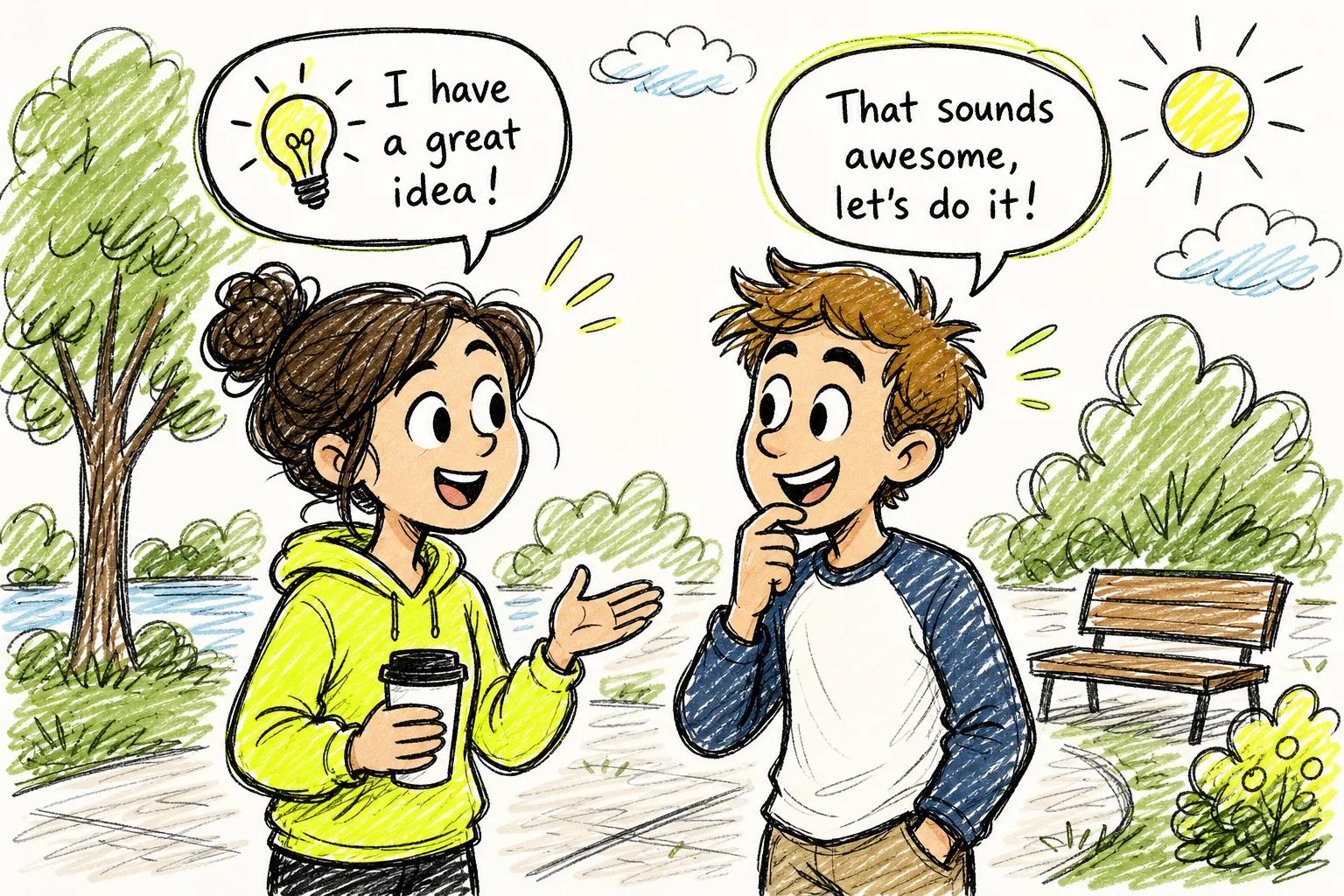
When you start cleaning up a script, use a clear line-by-line format for a smooth AI run. If you want to compare ways to turn a finished script into a video, review these tools for generating video from a script before choosing your workflow.
Step 2: Define Characters, Setting, Tone, and Camera Direction
Now decide who is in the scene and where they are. Pick a clear visual style, cartoon, realistic, or stylized, and stick with it for all lines. Consistency prevents the AI from swapping faces mid‑conversation.
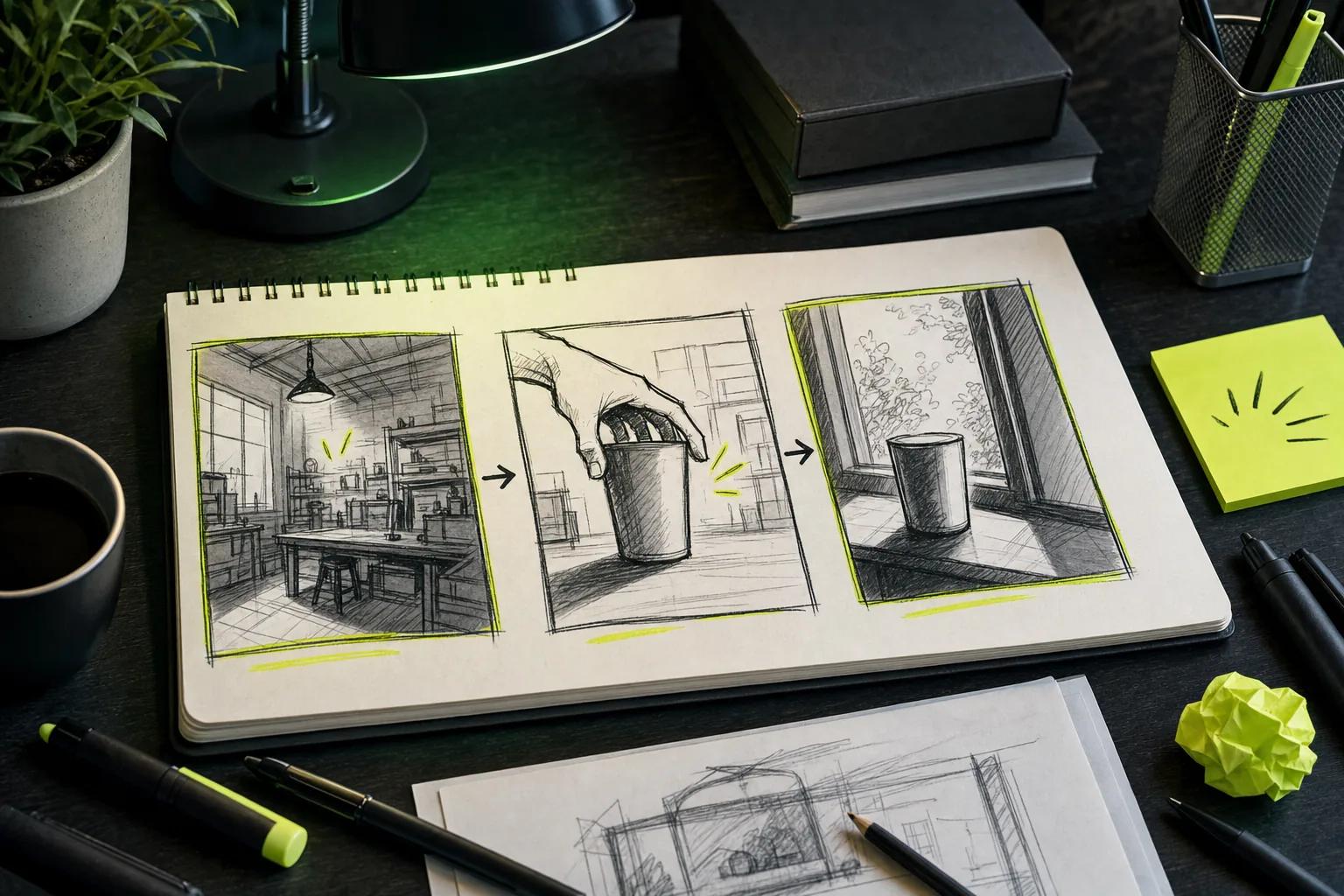
Next, write a short setting note. Something like"A bright office with a window view, two colleagues at a desk"tells the model where to place the characters and what props to show.
Camera moves matter too. If you want a close‑up on the speaker, add"camera pans to Character A"before their line. Seedance Studio reads those directions and adds smooth virtual camera motion without extra editing.
Standard formatting helps organize the dialogue we’re simplifying here. See this overview for more context.
Need help drafting realistic back‑and‑forth? A dialogue-writing assistant can suggest natural‑sounding replies based on your topic. Use it before you feed the final lines into Seedance.
Step 3: Turn Each Line Into Natural Spoken Dialogue
With the script stripped and the scene sketched, it’s time to give the AI the actual spoken words. Most AI video generators expect the dialogue inside quotation marks. Write each line exactly as you want it heard, including any pauses or emphasis.
For example:"Hey, did you see the new feature?"will be spoken with a natural rise at the end. If you need a beat, add"..."to create a short pause.
Seedance Studio automatically syncs the spoken words with lip movement, so you don’t need a separate TTS step.
When you’re ready, paste the quoted lines into the prompt field and hit generate. The model will output a short clip where each character’s mouth matches the text.
For a quick walkthrough of the whole prompt workflow, check out this prompt workflow guide. It covers voice, avatar, and timing in a single guide.
Step 4: Write a Prompt That Controls Action, Audio, and Scene Continuity
The prompt is the bridge between your cleaned script and the AI engine. Start with a short description of the shot, then list each character’s line with their label, and finally add any camera moves.
Here’s a template you can copy:
"A bright office with a window view. Camera starts wide, then pans to Character A.
Character A: \"Hey, did you see the new feature?\"
Camera zooms to Character B.
Character B: \"Yeah, it blew my mind!\"
Add upbeat background music and natural ambient office noise."
That single block tells the model what to show, who to speak, and what sound to play.
Seedance Studio lets you attach reference images or short audio clips to the same prompt. Upload a reference photo of your office layout, and the AI will keep the background consistent across all cuts.
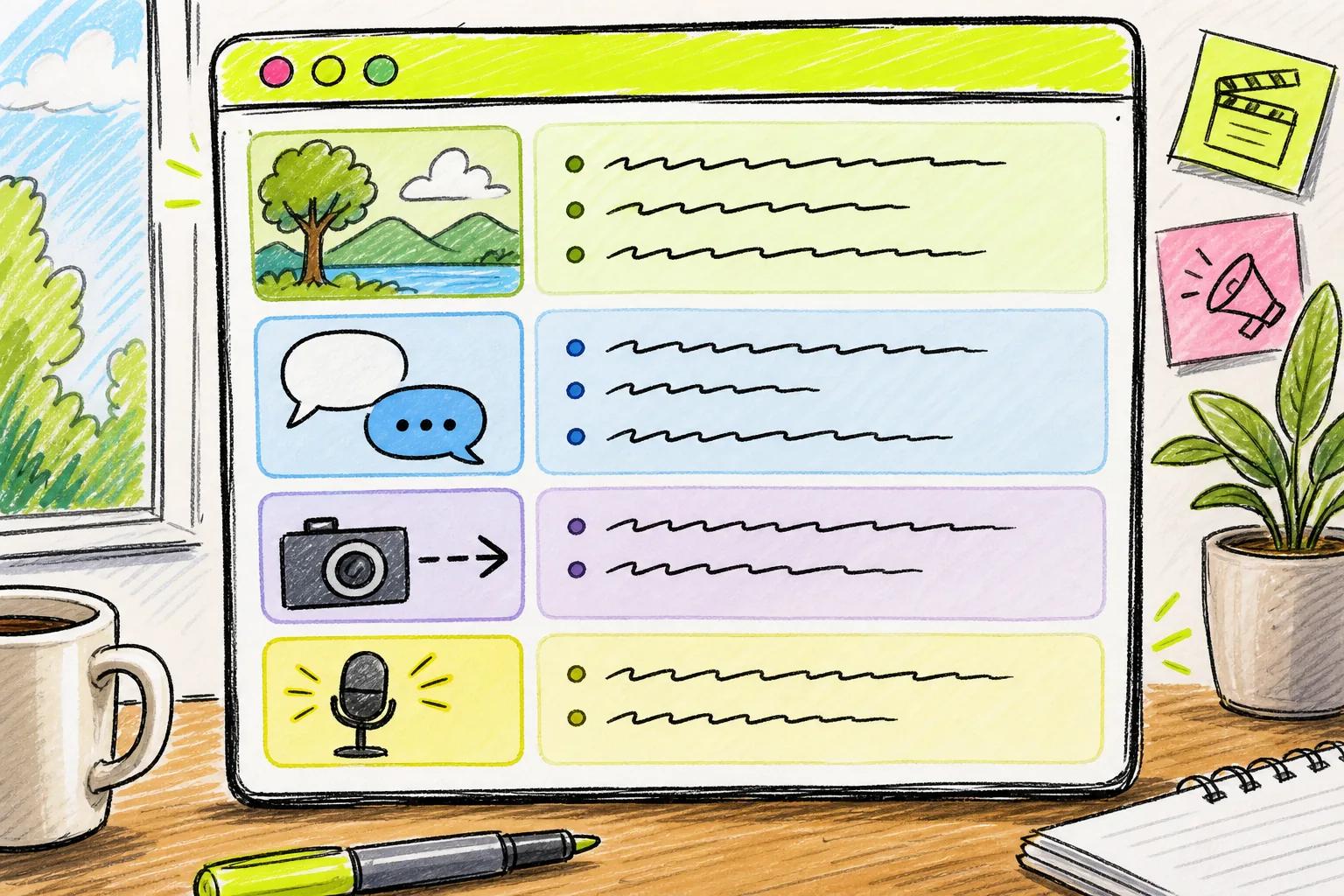
Step 5: Generate and Refine the Scene in Seedance Studio
Hit the generate button and watch the model build your clip. In most cases the first pass looks ready to go. If a line sounds flat, edit the quoted text and re‑run, the AI respects the exact wording you give it. For the complete setup and export process, follow this guide on using Seedance to make AI videos.
After the clip renders, use Seedance’s built‑in timeline to trim extra frames or adjust the music level. The editor also lets you add subtitles with a single click, which helps the video rank better on short‑form platforms.
When you’re satisfied, export the video directly to MP4 or share it to TikTok, Instagram Reels, or YouTube Shorts from the dashboard.
Need a place to host longer versions of your dialogue scenes? Consider a streaming service for content beyond the short‑form ecosystem.
FAQ
Can I use multiple characters in one Seedance Studio scene?
Yes. Seedance supports up to 12 reference faces per clip, so you can script a full conversation without stitching separate videos.
Do I need a separate voice‑over tool?
No. Seedance includes built‑in text‑to‑speech and lip‑sync, so the dialogue you type appears with matching mouth movement automatically.
How long can a dialogue scene be?
Each generated clip can be up to 30 seconds long on the free tier; paid plans extend the limit to 60 seconds, which covers most short‑form formats.
Is there a free plan?
Seedance Studio offers a true free tier, making it the only platform in the dataset with a free option.
What file formats does Seedance export?
Export options include MP4 for social platforms and MOV for higher‑quality editing workflows. You can also download the raw audio track if you need to replace the music later.
Ready to turn your script into a lively dialogue scene? Start a free account at Seedance Studio, follow the five steps above, and you’ll have a share‑ready video in under ten minutes.